


Spreadsheet
SpreadsheetView opens, renders and edits .xlsx workbooks. Both hosts drive the same controller and
paint with the same SkiaSharp routine, so MAUI and Blazor are not two implementations kept in step by
hand — they are literally the same renderer.


The design in one paragraph
Section titled “The design in one paragraph”The package is split so that almost none of it is host-specific. Shiny.Controls.Office.Shared owns
the OOXML package, the sheet model, a transactional undo stack, the grid layout maths, the interaction
logic and the formula engine — with no UI dependency at all, which is why it is covered by several
hundred unit tests that never open a window. Shiny.Controls.Office.Skia turns that state into pixels.
The two host packages contribute only a Skia surface, raw input forwarding, and a real text box for
in-cell editing so the platform’s own keyboard and IME do the typing.
The rule that protects your documents
Section titled “The rule that protects your documents”Edits are applied surgically to the open package. The workbook is opened once and held; changes go into the live XML DOM. Nothing is ever reconstructed from a parsed model, so parts the editor does not understand — macros, tracked changes, custom XML, pivot caches, conditional formatting, charts, embedded objects — survive because they are never read in the first place.
Two consequences worth relying on:
- Opening a workbook and saving it without an edit produces a byte-identical file.
- Editing one cell rewrites only the sheet, shared strings, workbook and styles parts. Everything else comes back byte-for-byte.
MAUI needs the Skia surface registered, or the canvas never renders:
builder .UseMauiApp<App>() .UseShinyControls() .UseShinyOffice();UseShinyOffice() calls UseSkiaSharp() for you and, on the macOS AppKit head (net10.0-macos), adds
the Skia canvas SkiaSharp itself does not ship — it has no -macos target, so that head otherwise falls
back to a handler whose CreatePlatformView() throws and every Office control renders blank. Elsewhere
the two calls are equivalent, so call this one instead of UseSkiaSharp().
Opening a workbook
Section titled “Opening a workbook”using var workbook = await Workbook.OpenAsync("/path/to/book.xlsx");using var workbook = await Workbook.OpenAsync(stream);using var workbook = Workbook.Create("Sheet1"); // start emptyWorkbook is IDisposable and holds the package open — dispose it with the page.
<office:SpreadsheetView x:Name="Sheet" Workbook="{Binding Workbook}" SheetName="Budget" CellChanged="OnCellChanged" />Blazor
Section titled “Blazor”<div style="height:420px"> <SpreadsheetView Workbook="workbook" Theme="SpreadsheetTheme.Dark" CellChanged="OnCellChanged" /></div>The Excel window
Section titled “The Excel window”The control is Excel’s whole window, not a grid with a toolbar. It wraps itself in the Office shell dressed as Excel, and that is on by default:
| Part | What it does |
|---|---|
| Title bar | Excel green. AutoSave, Save / Undo / Redo, the workbook name (click to rename), the save status (“Unsaved changes” → “Saving…” → “Saved” / “Saved locally”), and the command search |
| Command search | Every ribbon command with its shortcut, plus Save, New Workbook, Export to PDF / CSV, Print, Comments and the three views. A query that matches no command is searched for across every visible sheet |
| Ribbon | File opens the backstage. Comments, the Editing / Reviewing / Viewing menu (Viewing makes the workbook read-only) and Share sit at the right end of the tab strip |
| Comments pane | Every note in the workbook — Sheet!Cell, author, text — and a click selects the cell, switching sheets |
| Status bar | Ready / Enter / Edit (typing over a cell is Enter, F2 is Edit), “Average: 8 Count: 3 Sum: 24” when the selection holds at least two values (hidden otherwise, as in Excel), Normal / Page Layout / Page Break Preview, and a zoom slider bound to Zoom |
| Backstage | New (blank workbook plus Monthly budget, Invoice and Weekly schedule, built in code by SpreadsheetTemplates), Open, Info (sheets, cells with data, formulas, notes), Save, Save As, Print, Export |
Page views. Page Layout dashes the edges of the printed pages over the grid; Page Break Preview
draws them solid blue, greys out everything off the pages and writes “Page n” on each. Pages are US
Letter with Excel’s Normal margins, cut at whole columns and rows from A1 to the end of the used range
(SheetPagination); nothing in the workbook changes. They are views of the grid, not a page-by-page
layout with headers and footers.
Files. The shell reads and writes nothing itself. Save (title bar, backstage, Ctrl+S),
Save As, Export and Print each raise FileRequested with a SpreadsheetFileRequest — the format, a
file name (“Budget.csv”), the action, and WriteToAsync(stream) / ToBytesAsync().
| Format | What is written |
|---|---|
| xlsx | The whole workbook |
| CSV | The active sheet’s formatted values, UTF-8 with a BOM, as Excel writes it |
The active sheet’s used range painted by the grid’s own SpreadsheetPainter onto Letter pages through SkiaSharp’s SKDocument, without headings, gridlines or the selection |
On Blazor an unhandled request downloads the file (Print opens the PDF in a new tab for the browser to print). On MAUI, handle it:
sheet.FileRequested += async (_, request) =>{ var path = Path.Combine(FileSystem.AppDataDirectory, request.FileName); await using var file = File.Create(path); await request.WriteToAsync(file);};<SpreadsheetView @bind-Workbook="workbook" @bind-Zoom="zoom" DocumentName="Budget" UserName="Allan Ritchie" RecentFiles="recent" FileRequested="SaveAsync" />Picking a template builds the workbook, shows it and reports it (WorkbookChanged on Blazor — use
@bind-Workbook — and WorkbookReplaced on MAUI); handle TemplateSelected to do it yourself.
OpenRequested, RecentFileSelected and ShareRequested are the host’s. UserName is also the author
written into new notes. Commands is the OfficeCommandIndex behind the search, for the app’s own
entries.
Turning parts off. ShowShell="false" drops the shell and gives the ribbon + formula bar + grid +
tabs layout of before. Short of that: ShowTitleBar, ShowStatusBar, ShowBackstage (File then only
raises FileMenuRequested), ShowCommentsPane and, on Blazor, ShowRibbonActions. MAUI builds every
part in the constructor and only toggles IsVisible, so the AppKit head renders it; the comments list is
rebuilt when notes change and may not repaint on AppKit until a resize.
The ribbon
Section titled “The ribbon”Laid out the way Excel’s is. Every button is one undoable command through the same
SpreadsheetController a keyboard shortcut would reach, so a ribbon action and a typed edit share one
undo stack.
| Tab | Groups | Details |
|---|---|---|
| File | Opens the built-in backstage and raises FileMenuRequested |
|
| Home | Clipboard · Font (with the Borders dropdown — edges, line style, line colour) · Alignment (with Merge & Center) · Number (with More Number Formats…) · Styles (Conditional Formatting, Format as Table, Cell Styles) · Cells (Insert, Delete, Format — row height, column width, hide/unhide, Format Cells…) · Editing (AutoSum, Fill, Clear, Sort & Filter, Go To) · Find | Formatting |
| Insert | Table · Charts (column, bar, line, pie, area) · Link · Note · Watermark | Charts, Data |
| Formulas | Function Library (Insert Function, AutoSum, one menu per category) · Defined Names (Name Manager, Define Name, Use in Formula) · Calculation (Calculate Now, Show Formulas) | Formulas |
| Data | Sort & Filter (A→Z, Z→A, Sort…, Filter, Clear, Reapply) · Data Tools (Data Validation) | Data |
| Review | Notes (New/Edit, Delete, Previous, Next, Show All Notes) | Data |
| View | Show (Gridlines, Headings, Formula Bar, Show Formulas) · Zoom (Zoom…, 100%, Zoom to Selection) · Window (Freeze Panes) | Formatting |
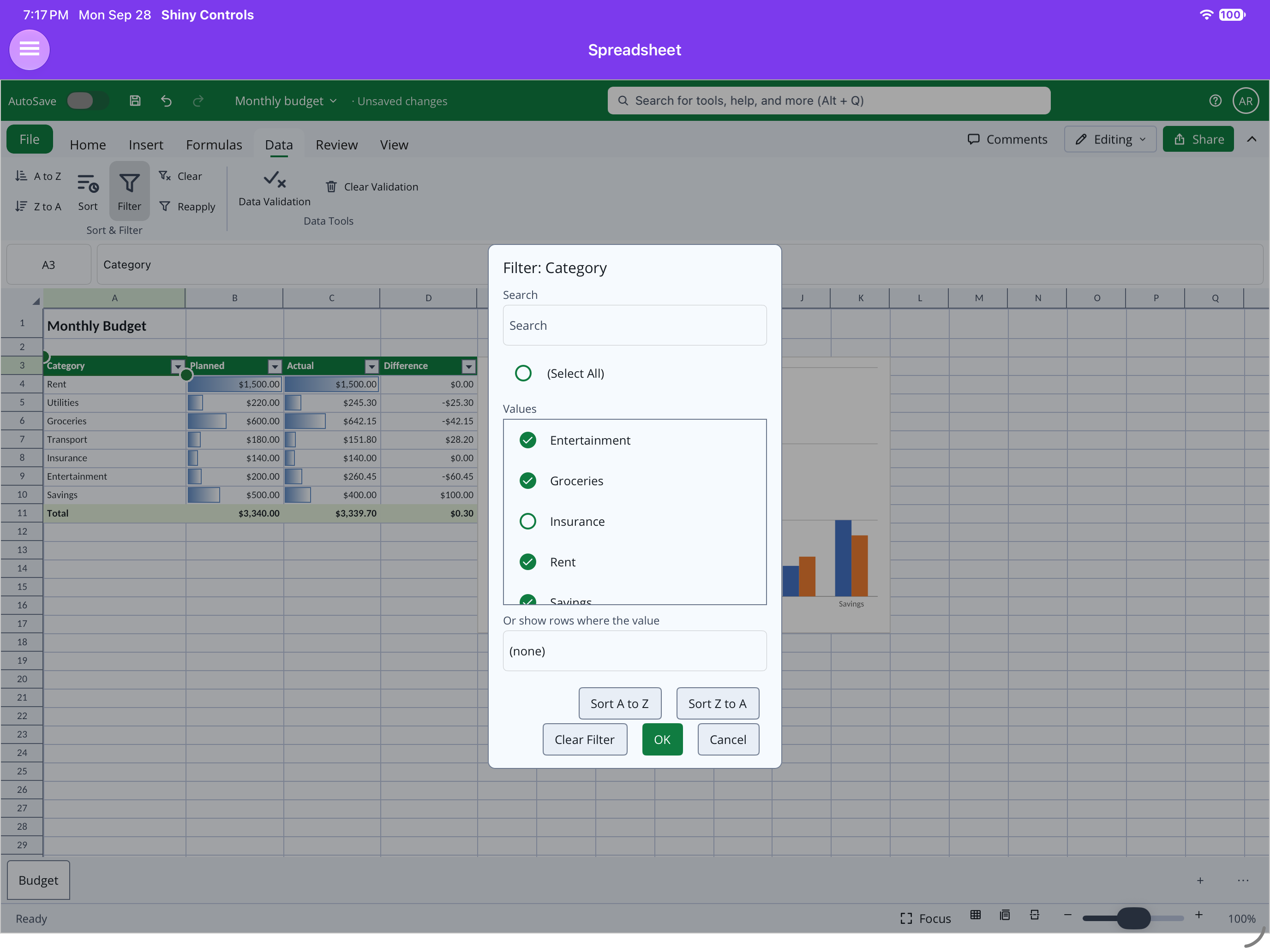
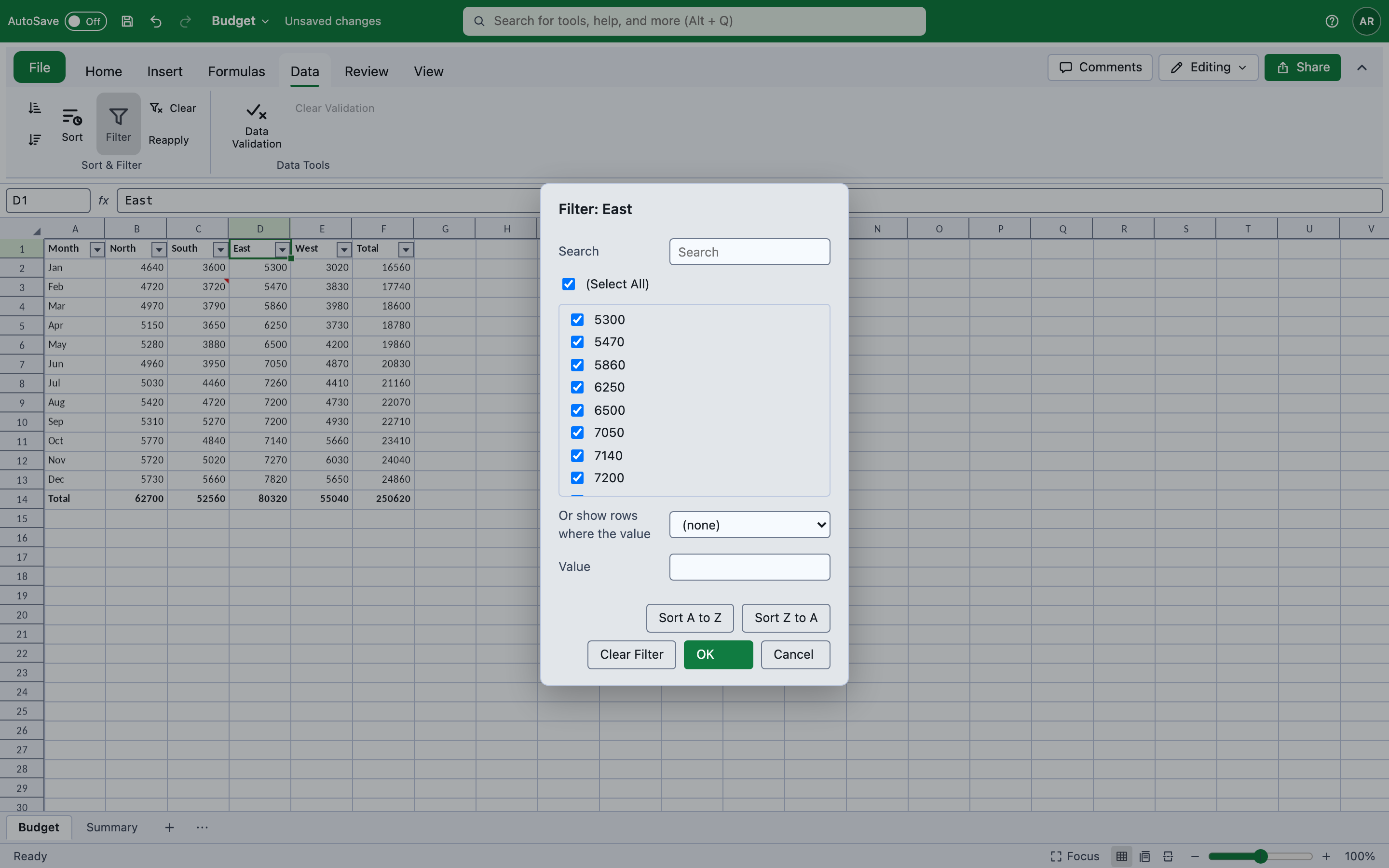
Dialogs are data. Format Cells (Ctrl+1), Data Validation, the Highlight Cells
prompts, Insert Function, Name Manager, Hyperlink, Note, Sort, Filter, Create Table, Go To, Zoom, Row
Height and Column Width are each a SheetDialog built once in the kernel (SpreadsheetDialogs), with
its validation and the command it runs. Each host has one generic renderer, so the two cannot disagree
about what a field means. The right-click context menu and a validated cell’s dropdown work the same
way (SheetMenuRequest).
Every command is also a controller method, one undo step each, written into the file where Excel expects
it — worksheet children are inserted in CT_Worksheet schema order (SheetXml), since a mergeCells
after conditionalFormatting saves fine and then opens in Excel as a repair.
Editing
Section titled “Editing”Every edit goes through the undo stack; never mutate cells directly.
workbook.Execute(new SetCellValueCommand("Budget", CellRef.Parse("B2"), CellValue.FromNumber(42)));workbook.Execute(new SetCellFormulaCommand("Budget", CellRef.Parse("D2"), "B2*C2"));workbook.Execute(new ClearRangeCommand("Budget", CellRange.Parse("A1:C3")));
workbook.Undo.Undo();workbook.Undo.Redo();
A range clear is one undo step, not one per cell, and undoing over a cell that held a formula restores the formula — not the value it happened to be showing.
Formulas
Section titled “Formulas”The engine indexes formulas lazily on the first edit or the first read of a calculated value, then recalculates incrementally in dependency order.
workbook.GetEffectiveValue("Budget", CellRef.Parse("D5")); // computed resultworkbook.Evaluate("SUM(A1:A9)", "Budget", CellRef.Parse("Z1")); // ad-hoc, not storedworkbook.Calc.CircularCells; // non-empty on a circular referenceAround 140 functions ship across math, statistics, logic, text, lookup, date, information and
financial categories — XLOOKUP, XMATCH, SUBTOTAL and AGGREGATE included — with formula autocomplete,
Insert Function and defined names; see Formulas. An unknown function evaluates to #NAME? rather than throwing, and a circular reference
is reported and left at zero rather than recursing until the stack dies.
Formatting
Section titled “Formatting”| MAUI | Blazor |
|---|---|
 |
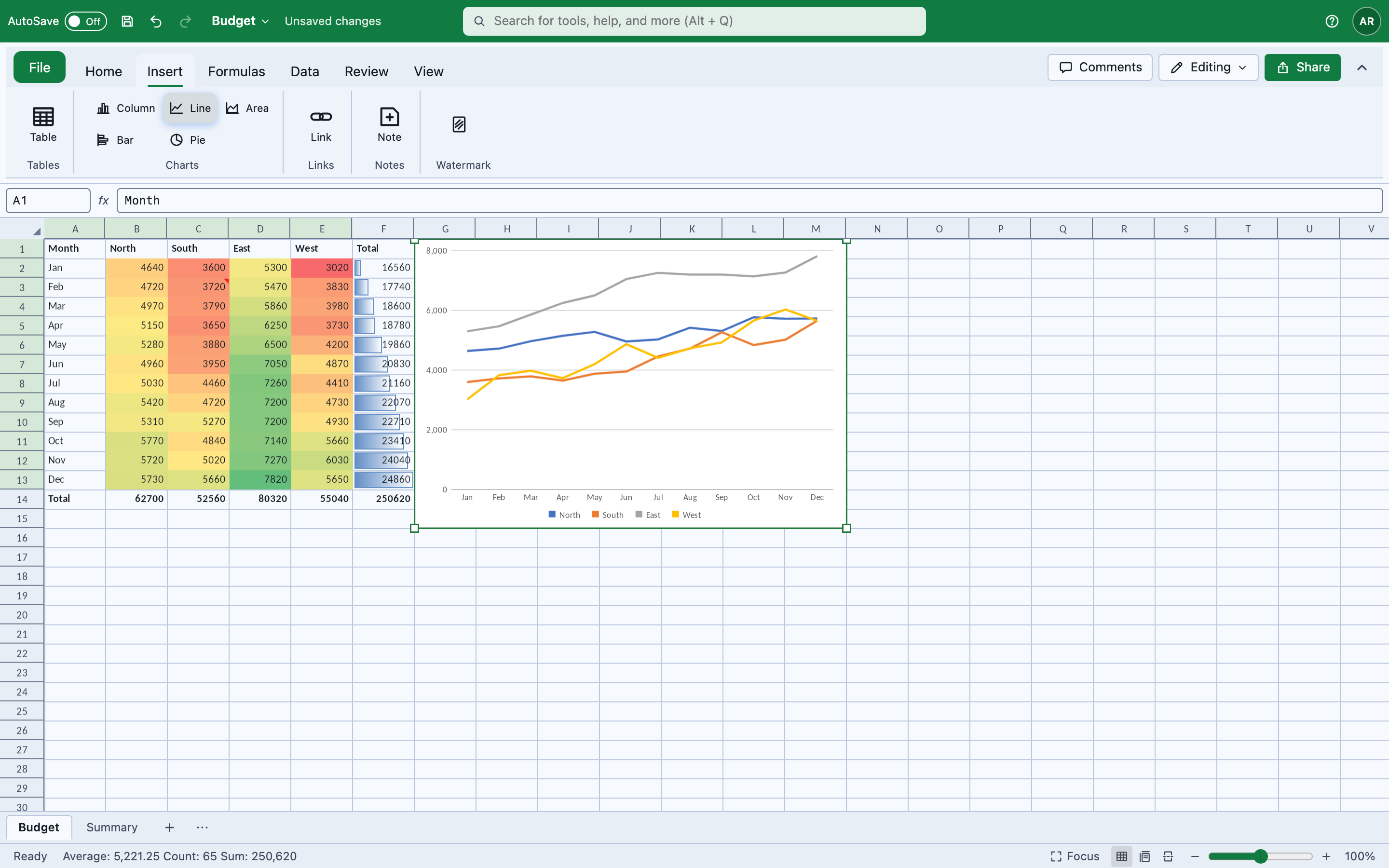 |
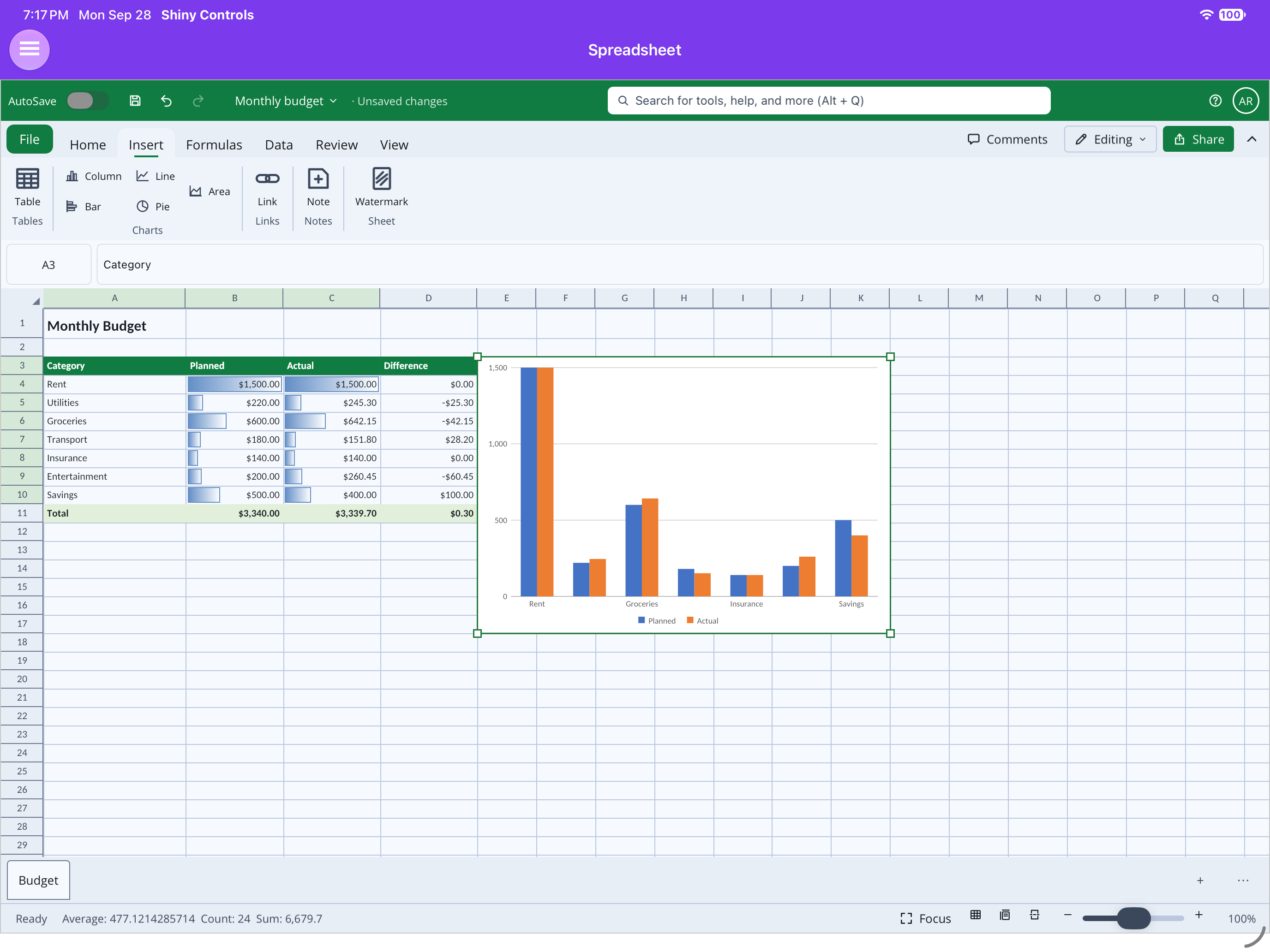
The ribbon sits above the formula bar and is on by default (ShowToolbar). Font,
fill, alignment and number formats are on Home; borders, merge, conditional formatting, cell styles
and tables have a page of their own — Formatting.
On Blazor ShowTabs="false" does not hide the other tabs’ commands — it folds those groups onto a
single tab, where the ribbon’s own collapsing deals with the width. MAUI shows the strip either way;
Ribbon.ShowTabStrip is the equivalent switch there.
var controller = view.Controller;
controller.ToggleBold();                                          // Italic, Underline, Strikethrough, WrapTextcontroller.SetFontFamily("Cambria");controller.SetFontSize(14);controller.SetTextColor(new ArgbColor(255, 0xC0, 0x00, 0x00));controller.SetFillColor(new ArgbColor(255, 0xFF, 0xEB, 0x3B));    // null removes the fillcontroller.SetAlignment(CellHorizontalAlignment.Center);          // the same value again returns to Generalcontroller.ClearFormatting();                                     // formatting only; the contents stay
controller.ActiveFormat;                                          // what a toolbar shows the state of
Formatting is applied as a delta, not as a format assigned wholesale. CellFormatChange names only
what changes, so bolding a range that mixes a red heading with black body text leaves both colours
where they are:
workbook.Execute(new FormatRangeCommand("Budget", CellRange.Parse("A1:D1"), new CellFormatChange{ Bold = true, Background = new ArgbColor(255, 0xFF, 0xEB, 0x3B)}));Number formats
Section titled “Number formats”controller.SetNumberFormat(NumberFormatPreset.Currency); // culture-aware symbol and placementcontroller.SetNumberFormatCode("#,##0.00;[Red](#,##0.00)");controller.AdjustDecimals(+1); // General becomes 0.0Presets are General, Number, Currency, Percent, Scientific, ShortDate, Time and Text.
The toolbar’s dropdown shows each one applied to a real number rather than naming it, formatted through
the same resolver the grid paints with.
Auto formulas
Section titled “Auto formulas”controller.ApplyAutoFunction(AutoFunction.Sum); // Average, Count, Min, MaxWhere the total goes and what it covers follows Excel, and that is the whole of the feature — the formula itself is one string:
| Selection | Result |
|---|---|
| One cell selected | the run of numbers immediately above it, or failing that the run to its left, with the result in that cell. |
| A single row or column | just past the end of it — or into its last cell when that cell is empty, which is what selecting the numbers and the blank below them means. |
| A block | one total per column, in the row underneath. |
A cell that already holds SUM, AVERAGE, COUNT, MIN or MAX ends the run, so a second total
under an existing one does not silently count everything twice.
Formatting whole columns
Section titled “Formatting whole columns”Select a column from its header and the format is written as a column style — one attribute on one
<col> element, exactly as Excel does it — rather than as a million cell styles:
controller.Selection.SelectColumn(2);controller.SetNumberFormat(NumberFormatPreset.Currency); // C1:C1048576, empty rows includedThat is what makes a column formatted as currency still show currency for a value typed into it tomorrow. Row-header selections behave the same way. A cell’s own style still wins over its row’s, which wins over its column’s, and clearing one cell’s formatting does not let the column’s creep back.
Column widths and row heights are recorded in the file now, so a column dragged wider by its header edge — or fitted from the toolbar — survives a save and reopen.
controller.SetColumnWidth(180); // pixels, for the selected columnscontroller.AutoFitColumns();controller.SetColumnsHidden(true);Home ▸ Find carries a box, a 3/12 readout and a pair of arrows. What is searched is the cell text
as the formula bar shows it — the formula when there is one, otherwise the literal — on the active
sheet, matching Excel’s own defaults; Find.SearchAllSheets widens it to the whole workbook. See
Find in Office Documents.
Keyboard, zoom and the status bar
Section titled “Keyboard, zoom and the status bar”controller.HandleKey(key, modifiers) is Excel’s shortcut table for both hosts — Ctrl+arrow
to the region edge, Ctrl+Shift+arrow to extend, Ctrl/Shift+Space,
Ctrl+A, F2, Ctrl+; and Ctrl+Shift+:,
Alt+=, Ctrl+1, Ctrl+B/I/U,
Ctrl+D/R, Ctrl+K, Ctrl+` and the
rest. Blazor wires it, and in the shell Ctrl/Cmd+S saves and
Ctrl/Cmd+P prints. On MAUI call SpreadsheetView.HandleKey from a
platform key hook: MAUI has no portable key-down event and the Office package ships no physical-key hook,
so without one a MAUI host gets no shortcuts.
Zoom (0.1–4) scales everything, headings included — Ctrl+wheel on Blazor, pinch on MAUI.
SelectionStatistics is what Excel’s status bar shows — Average, Count, Numerical Count, Min, Max, Sum —
computed over the visible cells of the selection, so a filtered column sums what is on screen. The
built-in status bar already shows it and drives Zoom; these members are for a host that turned the
shell off and draws its own:
// MAUI: Zoom is a two-way bindable property; the rest are eventsview.Zoom = 1.5;view.ZoomChanged += (_, zoom) => { };view.SelectionStatisticsChanged += (_, _) => status.Text = $"Sum: {view.SelectionStatistics.Sum}";view.FileMenuRequested += (_, _) => ShowBackstage();<SpreadsheetView Workbook="workbook" @bind-Zoom="zoom" SelectionStatisticsChanged="stats => this.stats = stats" FileMenuRequested="ShowBackstage" />A host passes pointer positions in its own units; the controller divides by the zoom. Position an
overlay on a cell with controller.EditorBounds / controller.ToScreen(...), which are already zoomed.
Saving
Section titled “Saving”await workbook.SaveAsync(); // over the path it was opened fromawait workbook.SaveAsAsync("/new/path.xlsx");await workbook.SaveToAsync(stream);var bytes = workbook.ToArray();Saving writes atomically — to a sibling temporary file, then a move — so an interrupted save never
leaves a half-written document. It also refreshes the cached result of every formula (readers other
than Excel show that cached value, so leaving it stale means the file displays wrong numbers) and sets
fullCalcOnLoad so Excel re-verifies on open.
Finding out what a document contains
Section titled “Finding out what a document contains”var collector = new UnsupportedFeatureCollector();using var workbook = await Workbook.OpenAsync(path, collector);
foreach (var feature in collector.Features) Console.WriteLine($"{feature.Part}: {feature.Feature} ({feature.Severity})");Severities are NotRendered (preserved, not shown), NotEditable (preserved, shown, but edits nearby
may not behave) and Lossy (cannot be preserved). Nothing currently reports Lossy, and a document
that would should not be saved over its original without asking.
Driving the grid yourself
Section titled “Driving the grid yourself”Both hosts expose the same controller, so a toolbar or formula bar drives identical state:
var controller = view.Controller;controller.Selection.Active; // CellRefcontroller.ActiveCellText; // what a formula bar should showcontroller.BeginEdit();controller.Move(MoveDirection.Down, extend: false, toEdge: true); // Ctrl+Downcontroller.ClearSelection();controller.Undo();controller.ActiveFormat; // the active cell's formatting - see Formatting aboveNot implemented
Section titled “Not implemented”- Dynamic arrays. UNIQUE, SORT, FILTER and spilled ranges need a grid that holds values it was not asked to store; the engine computes one value per formula cell.
- Pivot tables — preserved untouched, not drawn or edited.
- Charts from Excel files render with default styling; only type, series and title are read.
- Cell Styles are applied as direct formatting, so a cell looks right in Excel but does not remember it was “Good”; the 60 built-in table styles are derived from their family and accent rather than read.
- Page views are views of the grid — there is no page-by-page layout with headers and footers.
- Chart, dialog and macro sheets are preserved on save but have no tab.
- Physical-key shortcuts on MAUI need a host key hook — see Keyboard.
Screenshots
Section titled “Screenshots”| .NET MAUI (iPad) | Blazor WebAssembly |
|---|---|
 |
 |
|
|
 |
 |