
Skip to content
Introducing AI Conversations: Natural Language Interaction for Your Apps! Learn More

Toolbar & TabBar (Blazor Only)

Two screen-docked navigation chromes for Blazor. ShinyToolbar docks to the top or bottom of its scroll container as an action bar (icons with links/actions, a title, and custom content slots). ShinyTabBar is a mobile-style tab bar pinned to the bottom of the viewport with a selected state, optional filled active icons, and badges. Both support a frosted-glass toggle backed by CSS backdrop-filter.

The top toolbar uses position: sticky, so it reserves its own height — content never starts underneath it — yet page content scrolls under it as you scroll, producing the classic translucent-header effect. The tab bar uses position: fixed, so it stays pinned regardless of scroll.

  • NuGet downloads for Shiny.Blazor.Controls
Frameworks
Blazor
@using Shiny.Blazor.Controls

No service registration is required — both are plain Razor components.

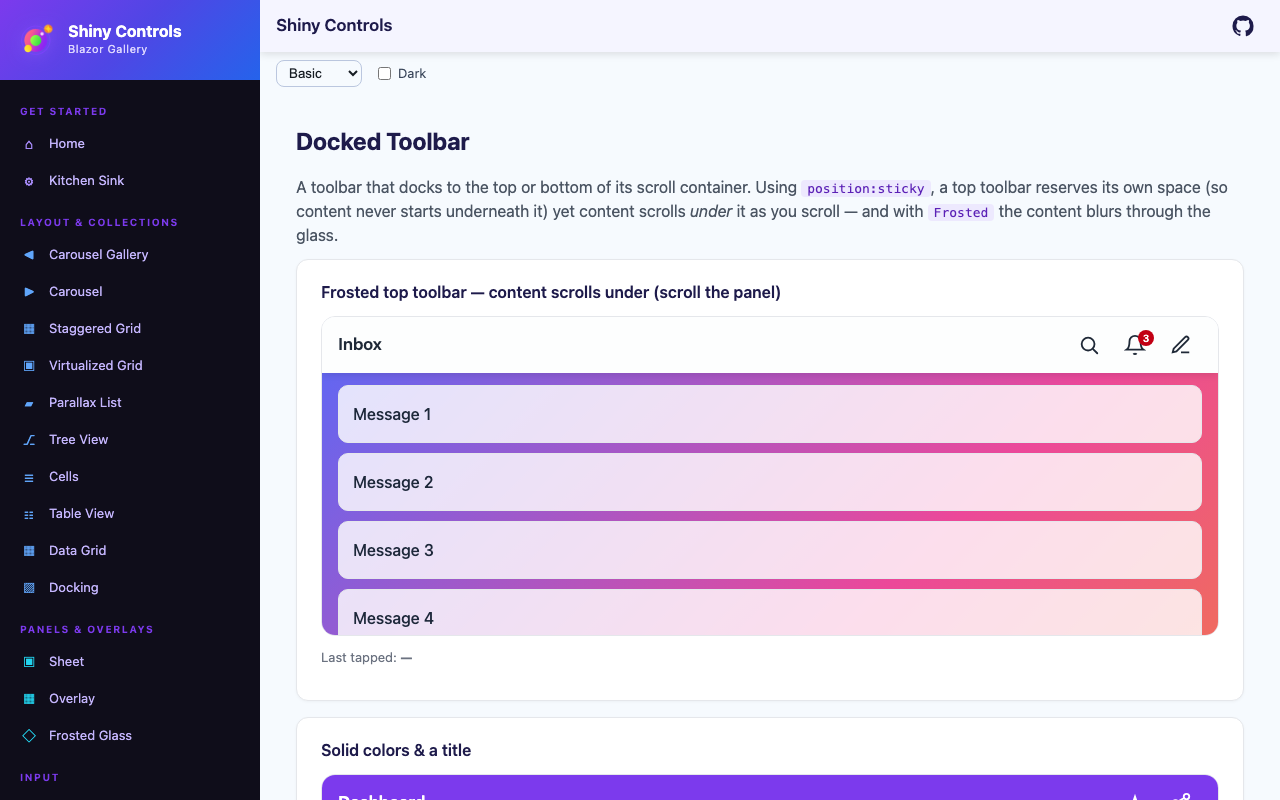
Frosted top toolbar — content scrolls under

Section titled “Frosted top toolbar — content scrolls under”

position: sticky reserves the bar’s height (content starts below it) and content slides under it as you scroll. With Frosted, the content blurs through the glass.

<div style="height: 320px; overflow-y: auto;">
<ShinyToolbar Dock="ToolbarDock.Top"
Frosted="true"
Title="Inbox"
Items="@items"
ItemClicked="OnItemClicked" />
<!-- tall scrollable content slides under the frosted header -->
@for (var i = 1; i <= 30; i++)
{
<p>Message @i</p>
}
</div>
@code {
List<ToolbarItem> items = new()
{
new() { Icon = "<svg viewBox='0 0 24 24'>…search…</svg>", Text = "Search" },
new() { Icon = "<svg viewBox='0 0 24 24'>…bell…</svg>", Text = "Alerts", Badge = "3" },
new() { Icon = "/icons/compose.png", Text = "Compose", Href = "/compose" }
};
void OnItemClicked(ToolbarItem item) { /* … */ }
}
<ShinyToolbar Dock="ToolbarDock.Top"
BackgroundColor="#7C3AED"
TextColor="#FFFFFF"
Title="Dashboard"
Items="@items" />

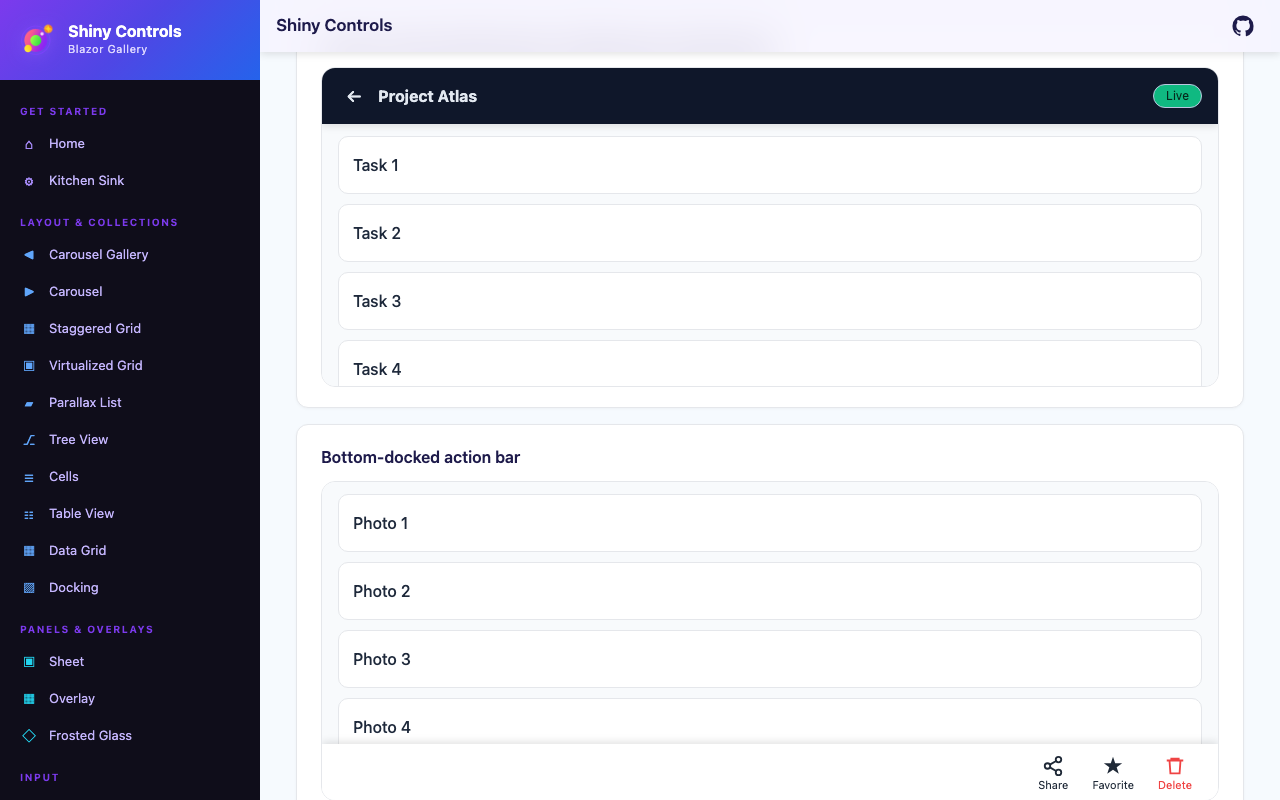
Use StartContent, ChildContent (center), and EndContent for fully custom layouts instead of Title + Items.

<ShinyToolbar Dock="ToolbarDock.Top" BackgroundColor="#0F172A" TextColor="#E2E8F0">
<StartContent>
<button @onclick="GoBack">&#x2190;</button>
<strong>Project Atlas</strong>
</StartContent>
<EndContent>
<Pill Text="Live" PillColor="#10B981" />
</EndContent>
</ShinyToolbar>
<ShinyToolbar Dock="ToolbarDock.Bottom"
ShowItemLabels="true"
Items="@actions"
ItemClicked="OnItemClicked" />
PropertyTypeDefaultDescription
DockToolbarDockTopDocks to the Top or Bottom edge
Stickybooltrueposition:sticky (content scrolls under); set false for a normal in-flow bar
Titlestring?nullConvenience leading title text (used when StartContent is not set)
ItemsList<ToolbarItem>?nullTrailing action/link items (used when EndContent is not set)
StartContentRenderFragment?nullCustom leading content
ChildContentRenderFragment?nullCustom center content
EndContentRenderFragment?nullCustom trailing content
BackgroundColorstring#FFFFFFSolid fill (ignored when Frosted)
TextColorstring#1F2937Foreground color
Heightdouble56Bar height (min-height) in pixels
IconSizedouble22Item icon size in pixels
ShowItemLabelsboolfalseShow each item’s Text beneath its icon
FrostedboolfalseFrosted glass via backdrop-filter
BlurRadiusdouble20Blur amount in pixels when Frosted
TintColorstringrgba(255,255,255,0.7)Translucent fill when Frosted
HasShadowbooltrueEdge shadow (direction follows Dock)
BorderColorstring?nullHairline color on the docked edge
BorderThicknessdouble0Hairline thickness in pixels
SafeAreabooltrueAdds env(safe-area-inset-*) padding on the docked edge
ZIndexint100Stacking order
CssClassstring?nullExtra root CSS class
Stylestring?nullExtra inline style appended to the root

Events: ItemClicked — fires the ToolbarItem that was tapped.

PropertyTypeDefaultDescription
Iconstring?nullInline SVG/HTML, a glyph/emoji, or an image URL
Textstring?nullLabel (shown when ShowItemLabels is true)
Hrefstring?nullWhen set, the item renders as a link to this URL
Targetstring?nullAnchor target (e.g. _blank); only used with Href
Badgestring?nullBadge text shown on the item (e.g. a count)
IconColorstring?nullOverrides the toolbar foreground for this item
IsDisabledboolfalseDims the item and blocks clicks
Tagobject?nullArbitrary payload returned via ItemClicked

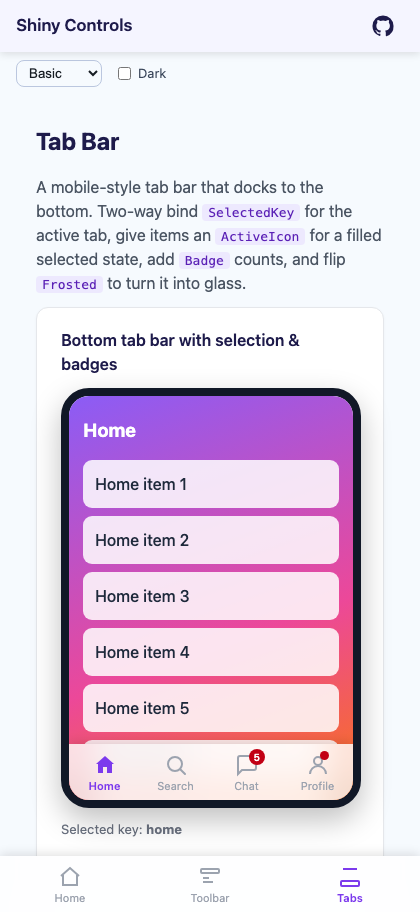
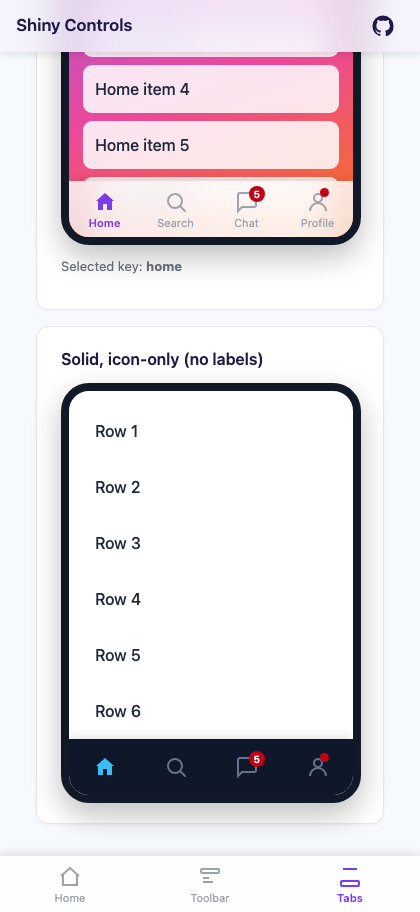
Two-way bind SelectedKey for the active tab. Give an item an ActiveIcon for a filled selected state, and a Badge (use "" for a plain dot).

<ShinyTabBar Items="@tabs"
@bind-SelectedKey="selected"
ActiveColor="#7C3AED"
Frosted="true" />
@code {
string? selected = "home";
List<TabBarItem> tabs = new()
{
new() { Key = "home", Label = "Home", Icon = HomeOutline, ActiveIcon = HomeFilled },
new() { Key = "search", Label = "Search", Icon = SearchIcon },
new() { Key = "chat", Label = "Chat", Icon = ChatIcon, Badge = "5" },
new() { Key = "profile", Label = "Profile", Icon = ProfileIcon, Href = "/profile" }
};
}
<ShinyTabBar Items="@tabs"
@bind-SelectedKey="selected"
ShowLabels="false"
BackgroundColor="#0F172A"
ActiveColor="#38BDF8"
InactiveColor="#64748B" />
PropertyTypeDefaultDescription
ItemsList<TabBarItem>?nullThe tabs
SelectedKeystring?nullTwo-way bindable active tab Key (pair with SelectedKeyChanged)
SelectedKeyChangedEventCallback<string?>Fires when the selected tab changes
DockToolbarDockBottomDocks to the Bottom (default) or Top edge
Fixedbooltrueposition:fixed (always pinned); set false to use sticky inside a container
BackgroundColorstring#FFFFFFSolid fill (ignored when Frosted)
ActiveColorstring#2196F3Selected tab color
InactiveColorstring#9CA3AFUnselected tab color
ShowLabelsbooltrueShow each tab’s Label beneath its icon
Heightdouble56Bar height (min-height) in pixels
IconSizedouble24Tab icon size in pixels
FrostedboolfalseFrosted glass via backdrop-filter
BlurRadiusdouble20Blur amount in pixels when Frosted
TintColorstringrgba(255,255,255,0.7)Translucent fill when Frosted
HasShadowbooltrueEdge shadow (direction follows Dock)
BorderColorstring?nullHairline color on the docked edge
BorderThicknessdouble0Hairline thickness in pixels
SafeAreabooltrueAdds env(safe-area-inset-bottom) padding (home-indicator clearance)
ZIndexint100Stacking order
CssClassstring?nullExtra root CSS class
Stylestring?nullExtra inline style appended to the root

Events: SelectedKeyChanged (two-way bind via @bind-SelectedKey), ItemClicked — fires the tapped TabBarItem.

PropertyTypeDefaultDescription
Keystring?nullStable identifier used for selection
Iconstring?nullInline SVG/HTML, a glyph/emoji, or an image URL (shown when inactive)
ActiveIconstring?nullOptional filled variant shown when the tab is selected
Labelstring?nullLabel beneath the icon (hidden when ShowLabels is false)
Hrefstring?nullWhen set, selecting the tab also navigates here
Badgestring?nullBadge text; an empty string "" renders a dot
IsDisabledboolfalseDims the tab and blocks selection
Tagobject?nullArbitrary payload returned via ItemClicked

position: sticky sticks relative to the nearest scroll container, and any ancestor with overflow: hidden silently breaks it — use overflow: clip if you must clip an axis.

For app-wide chrome, place ShinyToolbar as the first element of your page/layout scroll area and drop ShinyTabBar anywhere (it’s Fixed). A common responsive pattern is a sidebar on desktop that gives way to a bottom ShinyTabBar on narrow viewports:

<main class="content">
<ShinyToolbar Dock="ToolbarDock.Top" Frosted="true" Title="My App" />
<div class="content-inner">
@Body
</div>
<ShinyTabBar CssClass="mobile-tabbar" Items="@tabs" SelectedKey="@CurrentKey" />
</main>
/* hidden on desktop; shown on narrow screens (::deep reaches the child component root) */
.content ::deep .mobile-tabbar { display: none; }
@media (max-width: 820px) {
.sidebar { display: none; }
.content ::deep .mobile-tabbar { display: block; }
.content-inner { padding-bottom: calc(56px + env(safe-area-inset-bottom) + 16px); }
}
claude plugin marketplace add shinyorg/skills
claude plugin install controls@shiny
copilot plugin marketplace add https://github.com/shinyorg/skills
copilot plugin install controls@shiny
View controls Plugin