


Dialogs
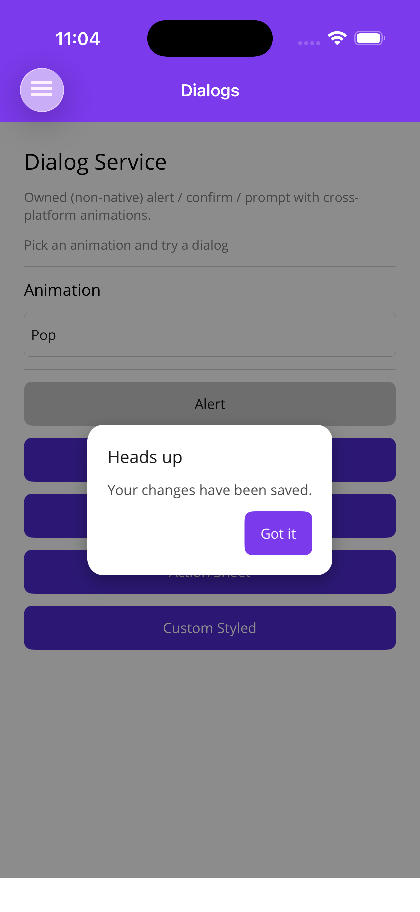
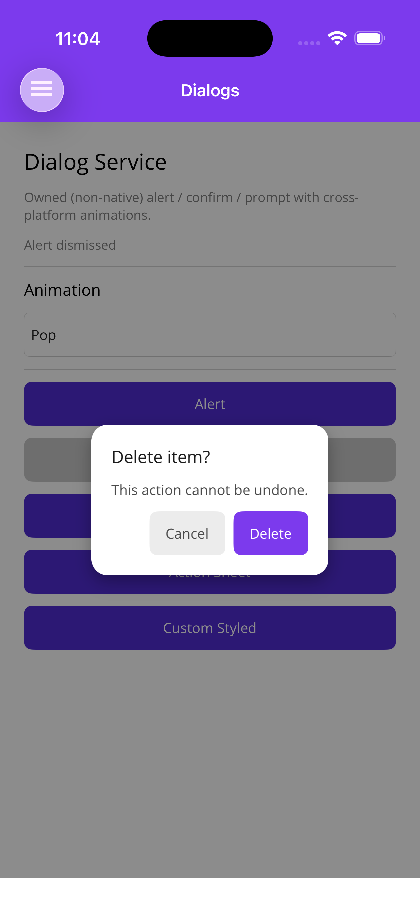
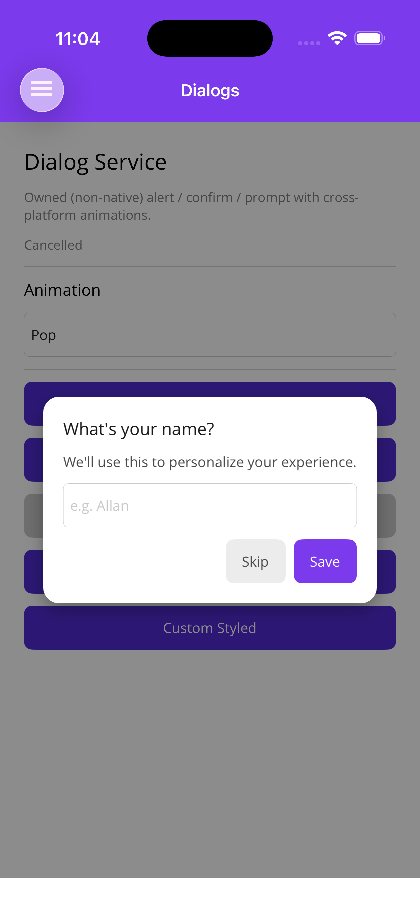
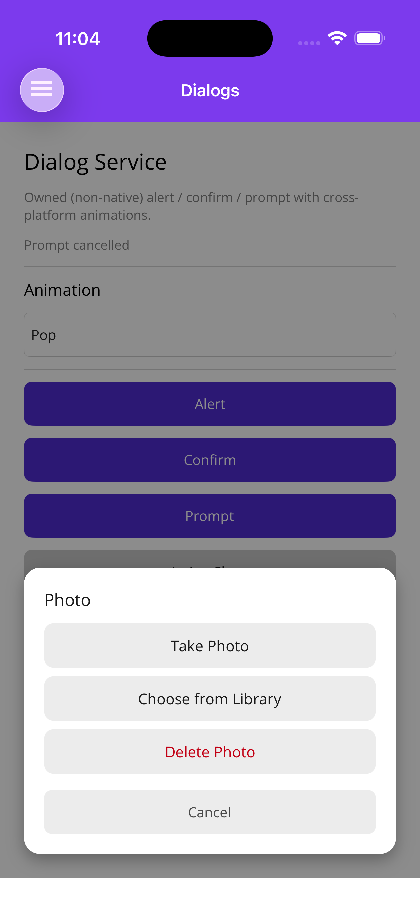
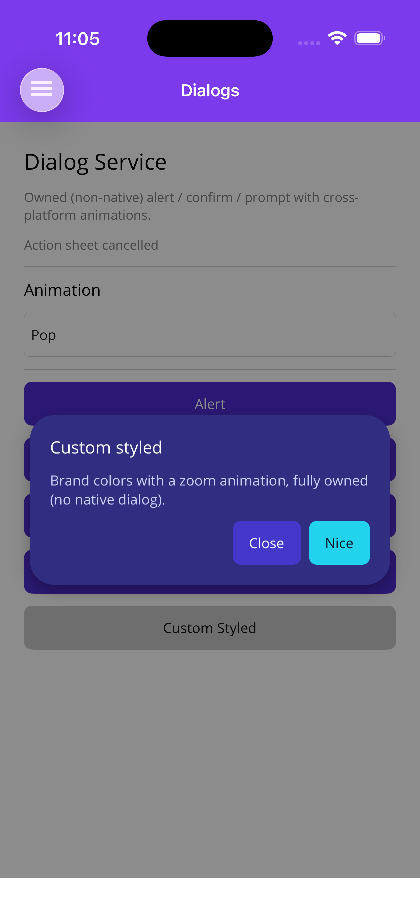
Dialogs is a service-first dialog system that emulates the classic alert, confirm, and prompt primitives. The dialog is always rendered by the library — the native platform alert/prompt is never used — so it looks identical across platforms and supports custom entry/exit animations and full template overrides. Inject IDialogService, await a result, and you’re done.


MAUI
 |
 |
 |
 |
 |
Blazor
| Alert | Confirm | Prompt | Action sheet | Custom styling |
|---|---|---|---|---|
 |
 |
 |
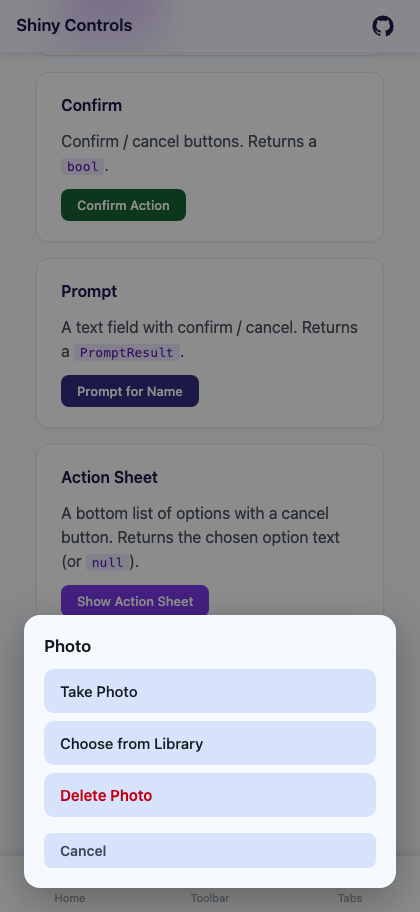 |
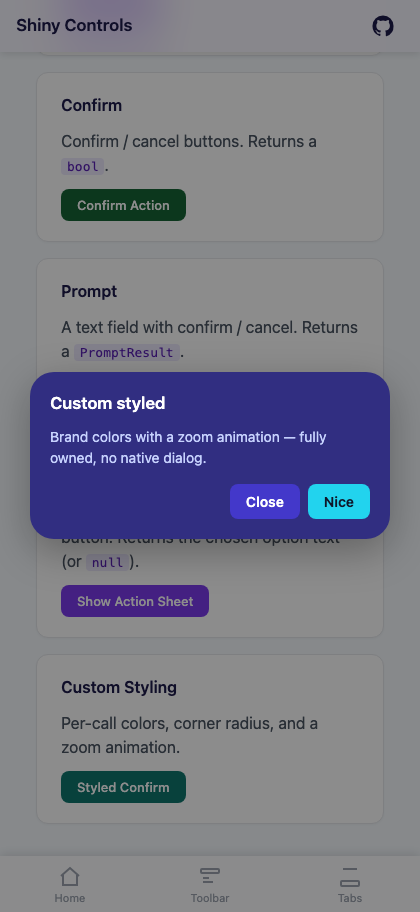 |
Features
Section titled “Features”| Feature | Description |
|---|---|
| Code-invoked | inject IDialogService and await Dialogs.Alert(...), no per-call markup |
| Four primitives | Alert (acknowledge), Confirm (yes/no → bool), Prompt (text input → PromptResult), ActionSheet (pick from a list → the chosen option) |
| Owned & animated | fade, slide (top/bottom/left/right), zoom, and pop animations; never the native dialog |
| Modal & queued | awaiting several calls in a row shows them one at a time |
| Customizable | per-call styling, global defaults, or a full template override |
| Themed | surface, text, outline, and primary colors follow the theme tokens for automatic light/dark |
Registered automatically by UseShinyControls(). The overlay auto-attaches to the current page — no XAML or OverlayHost required.
builder.UseMauiApp<App>().UseShinyControls();Blazor
Section titled “Blazor”builder.Services.AddShinyDialogs();Or
builder.Services.AddShinyControls()— one call registers this alongside every other service-backed control. Both areTryAdd, so calling either or both is safe.
<!-- MainLayout.razor (once) --><DialogHost />The surface is identical on both hosts. On MAUI inject IDialogService into a ViewModel or service; on Blazor use @inject IDialogService Dialogs.
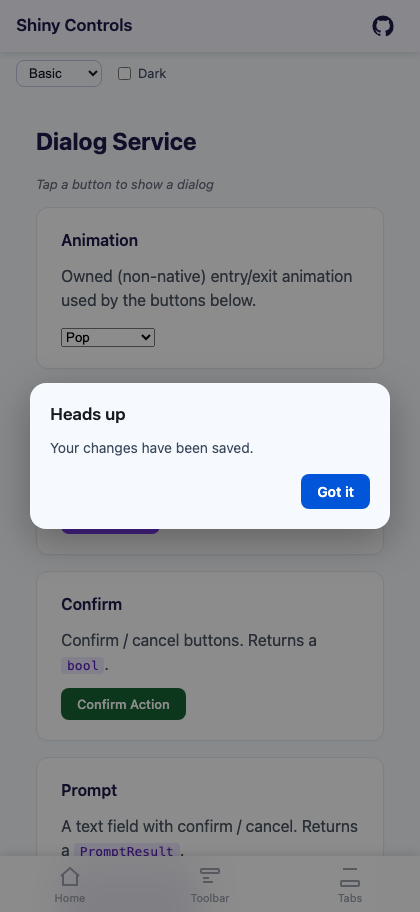
public class MyViewModel(IDialogService dialogs){    // Alert — single button, awaits dismissal    async Task SaveDone()        => await dialogs.Alert("Heads up", "Your changes have been saved.", "Got it");
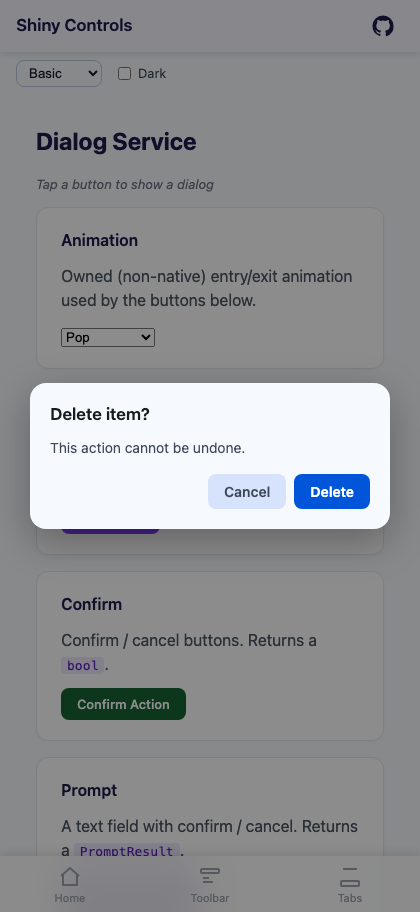
    // Confirm — returns bool    async Task Delete()    {        var ok = await dialogs.Confirm("Delete item?", "This cannot be undone.", okText: "Delete", cancelText: "Cancel");        if (ok)            await DeleteItemAsync();    }
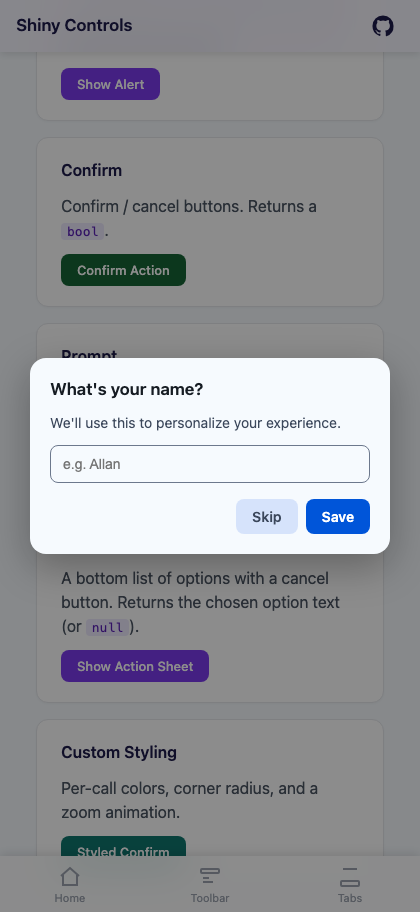
    // Prompt — returns PromptResult    async Task Rename()    {        var result = await dialogs.Prompt("Rename file", "Enter a new name.", placeholder: "report.pdf", okText: "Rename");        if (result.Ok)            await RenameAsync(result.Value);    }
    // ActionSheet — returns the chosen option's text (null if cancelled)    async Task PhotoOptions()    {        var choice = await dialogs.ActionSheet(            "Photo",            ["Take Photo", "Choose from Library", "Delete Photo"],            cancelText: "Cancel",            destructive: "Delete Photo");   // rendered in red
if (choice == "Delete Photo") await DeletePhotoAsync(); }}| Method | Returns | Description |
|---|---|---|
Alert(title, message, okText = "OK", configure?) |
Task |
Single dismiss button. |
Confirm(title, message, okText = "Yes", cancelText = "No", configure?) |
Task<bool> |
true on confirm, false on cancel. |
Prompt(title, message, placeholder = null, okText = "OK", cancelText = "Cancel", initialValue = null, maxLength = null, keyboard/inputType = null, configure?) |
Task<PromptResult> |
Text field plus confirm/cancel buttons. initialValue pre-fills the field, maxLength caps the length (null = no limit), and the keyboard arg sets the input mode — MAUI takes a Keyboard (Keyboard.Email, Keyboard.Numeric, …); Blazor takes an HTML inputType string ("email", "number", "password", …). |
ActionSheet(title, options, cancelText = "Cancel", destructive = null, configure?) |
Task<string?> |
A button per option (an iOS-style sheet) plus cancel. Returns the chosen option’s text, or null if cancelled. destructive (must match one of options) renders that option in red. Defaults to a bottom slide-up anchored to the bottom of the screen. |
configure is an optional Action<DialogConfig> for per-call animation and styling. options is an IReadOnlyList<string>.
cancelText is nullable on both Prompt and ActionSheet — pass cancelText: null to hide the cancel button entirely (the owned ActionSheet otherwise always renders one).
ActionSheet
Section titled “ActionSheet”var choice = await dialogs.ActionSheet( "Choose an option", ["Edit", "Duplicate", "Delete"], cancelText: "Cancel", destructive: "Delete");
// choice is the option text, or null when cancelledPromptResult
Section titled “PromptResult”| Member | Type | Description |
|---|---|---|
Ok |
bool |
True when the user confirmed. |
Cancelled |
bool |
Convenience inverse of Ok. |
Value |
string? |
The entered text. null when cancelled. |
Animations
Section titled “Animations”Every dialog animates in and out with an owned, cross-platform animation. Set per-call via configure, or set the app-wide default.
DialogAnimation: None, Fade, SlideTop, SlideBottom, SlideLeft, SlideRight, Zoom, Pop (default).
await dialogs.Confirm("Delete?", "This cannot be undone.", configure: c =>{ c.Animation = DialogAnimation.SlideBottom;});Customization
Section titled “Customization”Per-call styling
Section titled “Per-call styling”The configure delegate exposes DialogConfig — Animation, BackgroundColor, TitleColor, MessageColor, OkButtonColor, OkButtonTextColor, CancelButtonColor, CancelButtonTextColor, ActionSheetButtonColor, ActionSheetButtonTextColor, DestructiveButtonTextColor (ActionSheet options), CornerRadius, BackdropOpacity, DismissOnBackdrop, and more. Colors are MAUI Color on MAUI and CSS strings on Blazor.
await dialogs.Confirm("Custom", "Brand colors + zoom.", configure: c =>{ c.Animation = DialogAnimation.Zoom; c.BackgroundColor = Color.FromArgb("#312E81"); // Blazor: "#312E81" c.OkButtonColor = Color.FromArgb("#22D3EE"); c.CornerRadius = 24;});Global defaults
Section titled “Global defaults”// MAUIbuilder.UseMauiApp<App>().UseShinyControls(c => c.ConfigureDialogs(o =>{ o.DefaultAnimation = DialogAnimation.Zoom; o.ConfigureDefaults = cfg => cfg.CornerRadius = 20; // applied to every dialog}));// Blazorbuilder.Services.AddShinyDialogs(o => o.DefaultAnimation = DialogAnimation.Zoom);Full template override
Section titled “Full template override”Replace the entire dialog card while the host still supplies the dimmed backdrop and animation. The context (DialogContext) exposes Title, Message, OkText, CancelText, Placeholder, IsPrompt, HasCancel, a two-way PromptValue, and confirm/cancel.
@* Blazor — a RenderFragment<DialogContext> *@<DialogHost> <Template Context="ctx"> <div class="my-card"> <h3>@ctx.Title</h3> <p>@ctx.Message</p> @if (ctx.IsPrompt) { <input @bind="ctx.PromptValue" /> } <button @onclick="ctx.Cancel">@ctx.CancelText</button> <button @onclick="ctx.Confirm">@ctx.OkText</button> </div> </Template></DialogHost>On MAUI, set DialogOptions.ContentTemplate (a DataTemplate whose BindingContext is the DialogContext, with ConfirmCommand/CancelCommand) via c.ConfigureDialogs(o => o.ContentTemplate = ...). You can also replace the whole service with c.SetCustomDialogs<MyDialogService>().
Behavior
Section titled “Behavior”| Behavior | Description |
|---|---|
| Queued | dialogs are modal and shown one at a time; awaiting several in a row displays them sequentially. |
| Backdrop | tapping the dimmed backdrop cancels (configurable via DismissOnBackdrop). On Blazor, Escape cancels and Enter confirms. |
| Theming | colors come from the theme tokens (Shiny.Color.Surface / --shiny-color-surface, Primary, …) so dialogs match light/dark and the active theme pack automatically, and restyle live on a theme switch. Any colour set in DialogConfig wins over its token. |
Step 1 — Add the marketplace:
claude plugin marketplace add shinyorg/skillsStep 2 — Install the plugin:
claude plugin install shiny@shinyOne plugin installs all 48 Shiny skills. Your agent loads only the skill relevant to what you're building, so there's no cost to having them all available.
Step 1 — Add the marketplace:
copilot plugin marketplace add https://github.com/shinyorg/skillsStep 2 — Install the plugin:
copilot plugin install shiny@shinyOne plugin installs all 48 Shiny skills. Your agent loads only the skill relevant to what you're building, so there's no cost to having them all available.