


Office Shell
The application window around the Office editors — the chrome that makes a
DocumentEditor, SpreadsheetView or
SlideEditor look like Word, Excel or PowerPoint rather than a canvas with a
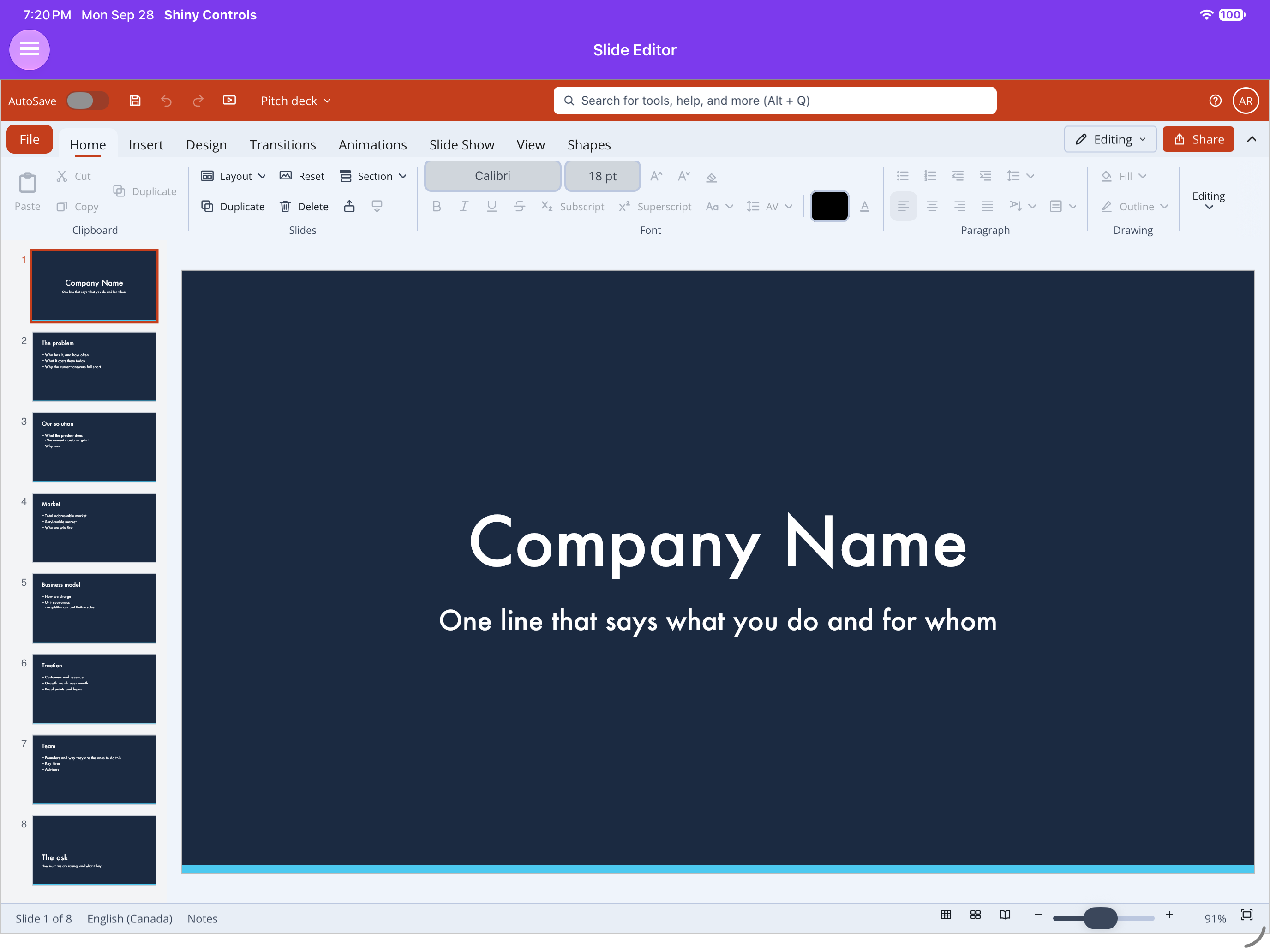
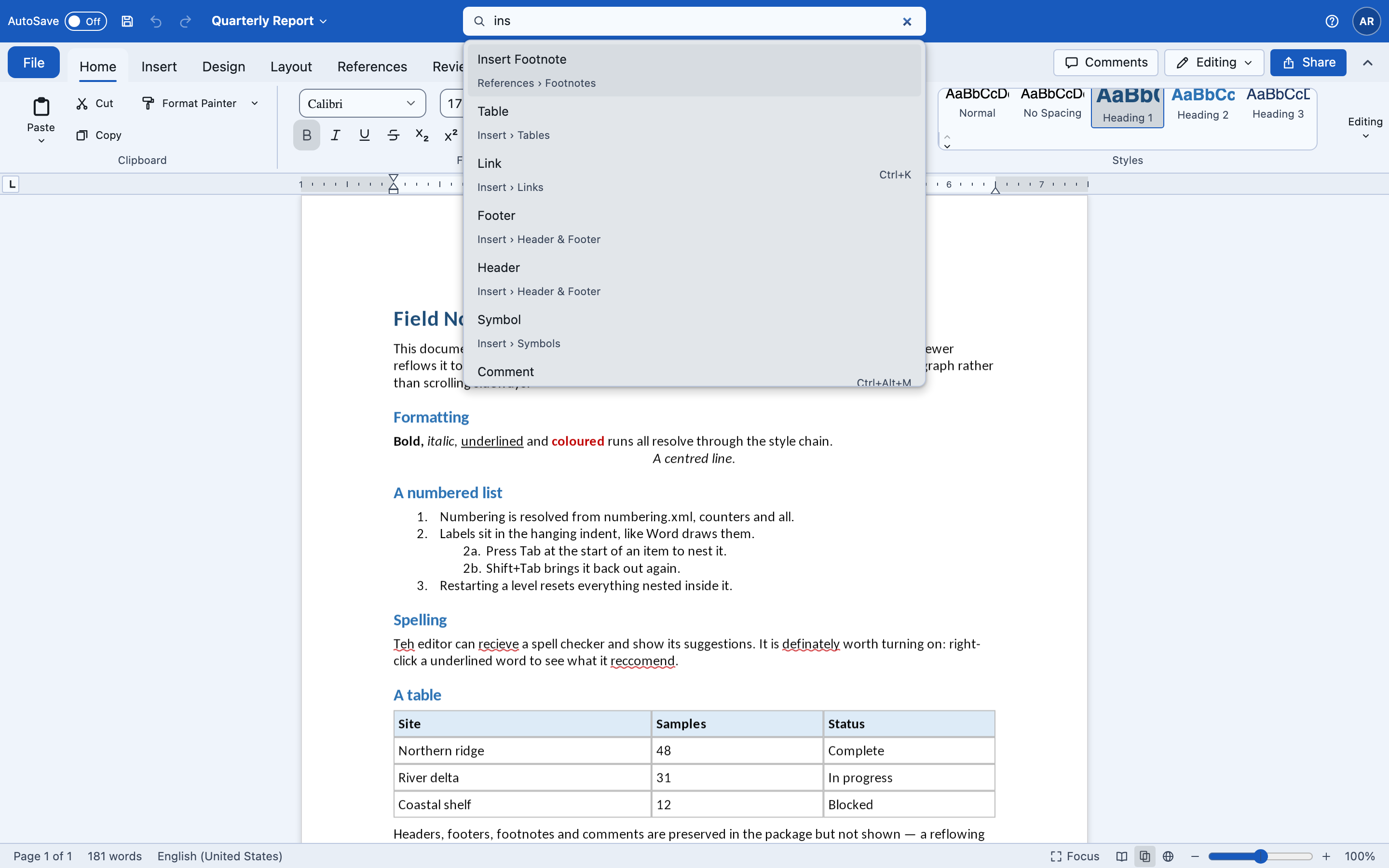
toolbar. It is modelled on the Microsoft 365 web apps: an accent title bar with quick access and a command
search, the Ribbon with Comments / mode / Share at its right end, rulers, a navigation
pane, a comments pane, a status bar with view modes and zoom, and the File backstage.


Every part can be used on its own, and OfficeShell arranges them. The shell reads and writes no
files: every task — open, save, save as PDF, print, pick a template — is an event carrying what was
chosen, so the host decides what it means where it runs.
Namespaces: Shiny.Maui.Controls.Office / Shiny.Blazor.Controls.Office for the parts, and
Shiny.Controls.Office.Shell for the shared models (OfficeApp, OfficeCommandIndex,
OfficeStatusItem, OfficeZoomModel, OfficeRulerModel, OfficeTemplate…). Icons are
OfficeShellIcon in Shiny.Controls.Office.Icons.
The parts
Section titled “The parts”| Part | What it is |
|---|---|
OfficeShell |
The container: slots for title bar, ribbon, ruler, vertical ruler, left pane, content, right pane, status bar and backstage. Owns focus mode, the backstage overlay and the responsive layout |
OfficeTitleBar |
AutoSave switch, Save / Undo / Redo plus extra quick access, the document name with a rename dropdown, the save status (“Saved locally” / “Saving…” / “Unsaved changes”), the “Search for tools, help, and more” command search, Help and the account avatar |
OfficeRibbonActions |
Comments toggle, Editing / Reviewing / Viewing dropdown and Share — for the ribbon’s header-end slot |
OfficeBackstage |
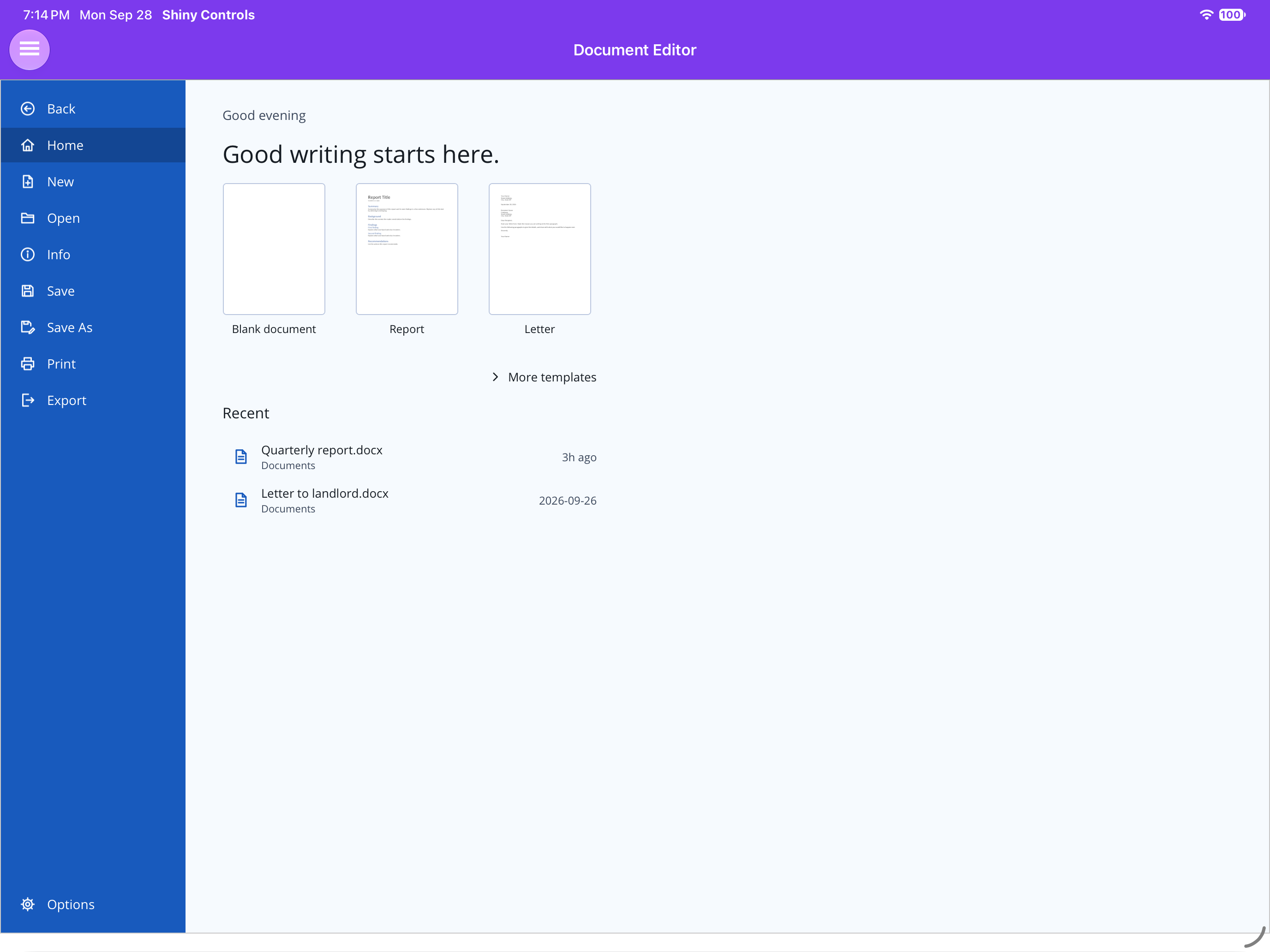
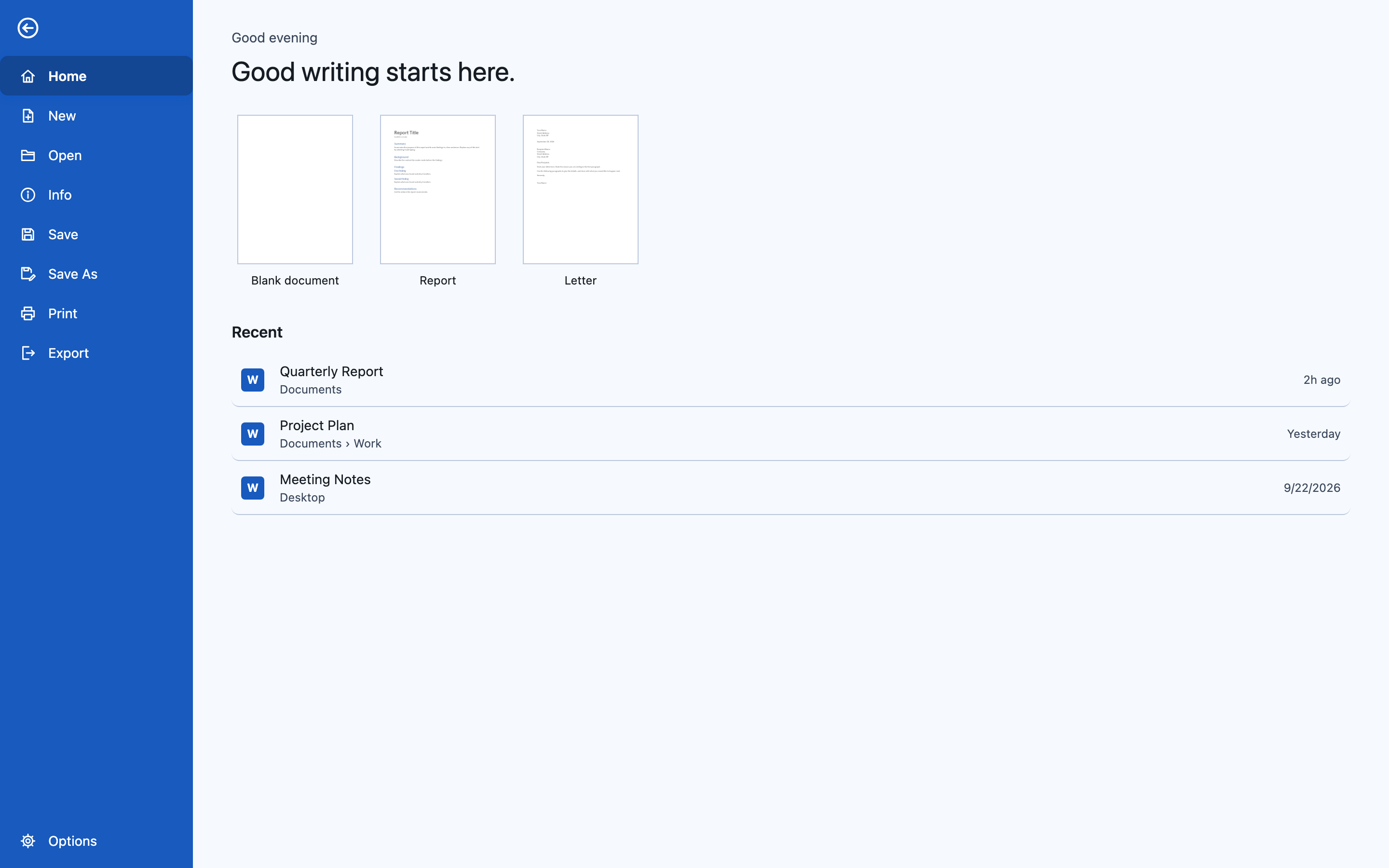
The File page: an accent rail with Back, Home, New, Open, Info, Save, Save As, Print, Export, History (optional) and Options |
OfficeStatusBar |
Editor-fed segments on the left; Focus, three view-mode buttons, and zoom − / slider / + / percentage on the right |
OfficeZoomDialog / OfficeDialog |
Word’s Zoom dialog (200 / 100 / 75 / page width / text width / whole page / custom), and the plain OK/Cancel dialog it is built on. On Blazor OfficeDialog wraps the core ModalView |
OfficeRuler |
Word’s ruler — inches or cm, margin shading, draggable first-line / hanging / left / right indents, tab stops and the tab-kind selector; horizontal or vertical |
OfficeStyleGallery |
The “AaBbCcDd” Styles gallery — a ribbon item |
OfficeNavigationPane |
Search box, Headings tree, optional Pages tab, Results |
OfficeSidePane |
A titled pane with a close button, for Comments or anything else |
OfficeShellIconView (MAUI) / OfficeShellGlyph + OfficeShellIcons.Svg() (Blazor) |
The shell’s icon set |
The app sets the look
Section titled “The app sets the look”OfficeApp.Word / Excel / PowerPoint / OneNote sets:
| Word | Excel | PowerPoint | |
|---|---|---|---|
| Accent | #185ABD |
#107C41 |
#C43E1C |
Letter (not drawn by the shell — for hosts that show their own mark) |
W | X | P |
| Default name | Document1 | Book1 | Presentation1 |
| Status bar view modes | Read / Print / Web | Normal / Page Layout / Page Break Preview | Normal / Slide Sorter / Reading View |
It also picks the Save As / Export formats. Set it on the shell; the parts inside inherit it.
Blazor
Section titled “Blazor”<OfficeShell App="OfficeApp.Word" @bind-IsBackstageOpen="backstage" @bind-IsRightPaneOpen="comments" ShellLayoutChanged="l => simplified = l.SimplifiedRibbon" style="height:100vh"> <TitleBar> <OfficeTitleBar @bind-DocumentName="name" SaveState="saveState" @bind-AutoSave="autoSave" CanUndo="canUndo" CanRedo="canRedo" CommandIndex="commands" SaveRequested="SaveAsync" UndoRequested="Undo" RedoRequested="Redo" UserName="Allan Ritchie" SearchSubmitted="FindInDocument" /> </TitleBar> <Ribbon> <Ribbon @ref="ribbon" ApplicationButtonText="File" ApplicationButtonClicked="() => backstage = true" DisplayMode="@(simplified ? RibbonDisplayMode.Simplified : RibbonDisplayMode.Expanded)"> <HeaderEnd><OfficeRibbonActions @bind-EditMode="mode" ShareClicked="Share" /></HeaderEnd> <ChildContent> <RibbonTab Title="Home"> <RibbonGroup Title="Styles"> <OfficeStyleGallery @bind-SelectedStyleId="styleId" StyleSelected="ApplyStyle" /> </RibbonGroup> </RibbonTab> </ChildContent> </Ribbon> </Ribbon> <Ruler><OfficeRuler PageWidth="612" @bind-Indents="indents" @bind-TabStops="tabs" Zoom="zoom" PageOffset="pageLeft" /></Ruler> <LeftPane><OfficeNavigationPane Headings="headings" HeadingSelected="GoTo" SearchRequested="Search" SearchResults="hits" /></LeftPane> <ChildContent><DocumentEditor @ref="editor" Document="document" Zoom="zoom" /></ChildContent> <RightPane><OfficeSidePane Title="Comments">…</OfficeSidePane></RightPane> <StatusBar><OfficeStatusBar Items="status" @bind-Zoom="zoom" @bind-SelectedViewMode="view" /></StatusBar> <Backstage> <OfficeBackstage Templates="templates" RecentFiles="recent" DocumentInfo="info" Options="options" TemplateSelected="NewFromAsync" RecentFileSelected="OpenAsync" OpenRequested="BrowseAsync" SaveRequested="SaveAsync" SaveAsRequested="SaveAsAsync" ExportRequested="ExportAsync" PrintRequested="PrintAsync"> <PrintPreview><img src="@previewUrl" /></PrintPreview> </OfficeBackstage> </Backstage></OfficeShell>
@code { readonly OfficeCommandIndex commands = new(); Ribbon? ribbon; IDisposable? sync;
protected override void OnAfterRender(bool first) { if (first && ribbon is not null) sync = commands.SyncRibbon(ribbon); // the search finds every rendered ribbon command }}The shell cascades itself, so the parts pick up its app, accent and compact layout. The status bar’s
Focus button, the backstage’s Back and a side pane’s close drive the shell directly, and
OfficeRibbonActions’ Comments button opens and closes the right pane. Escape leaves the backstage and
then focus mode. The width comes from a ResizeObserver in officeShell.js; without the script the
shell stays at the desktop layout.
.NET MAUI
Section titled “.NET MAUI”<office:OfficeShell App="Word" IsBackstageOpen="{Binding Backstage}" IsRightPaneOpen="{Binding Comments}"> <office:OfficeShell.TitleBar> <office:OfficeTitleBar DocumentName="{Binding Name}" SaveState="{Binding SaveState}" CanUndo="{Binding CanUndo}" CommandIndex="{Binding Commands}" SaveCommand="{Binding Save}" UndoCommand="{Binding Undo}" RedoCommand="{Binding Redo}" /> </office:OfficeShell.TitleBar> <office:OfficeShell.Ribbon> <shiny:Ribbon x:Name="Ribbon"> … </shiny:Ribbon> </office:OfficeShell.Ribbon> <office:OfficeShell.StatusBar> <office:OfficeStatusBar x:Name="Status" Zoom="{Binding Zoom}" /> </office:OfficeShell.StatusBar> <office:OfficeShell.Backstage> <office:OfficeBackstage Templates="{Binding Templates}" RecentFiles="{Binding Recent}" SaveAsRequested="OnSaveAs" ExportRequested="OnExport" /> </office:OfficeShell.Backstage> <office:DocumentEditor x:Name="Editor" /> <!-- ShellContent is the content property --></office:OfficeShell>commands.AddRibbon(Ribbon); // MAUI sees every tab, opened or notStatus.Items.Add(pageItem = new OfficeStatusItem("page", "Page 1 of 1") { IsClickable = true });Status.Items.Add(wordsItem = new OfficeStatusItem("words", "0 words"));// later, as the caret moves:pageItem.Text = OfficeStatusText.Page(page, pages);wordsItem.Text = OfficeStatusText.Words(count);What differs on MAUI:
- The layout is
ShellLayout/ShellLayoutChanged, as on Blazor. - A
Ribbonin the Ribbon slot is wired automatically — its File button opens the backstage (and gets “File” as its text if it had none), and below the compact width it is switched toSimplifiedand back. - An
OfficeStatusBar’s Focus button toggles focus mode, and the zoom dialog is hosted by the shell. - Everything is built up front and shown or hidden, so the macOS AppKit head renders it. Lists that change after layout (backstage templates and recents, headings, status segments) may not repaint on AppKit until a resize.
Public seams for tests and keyboard shortcuts: OfficeTitleBar.Search / SubmitSearchAsync / Rename,
OfficeStatusBar.ZoomIn / ZoomOut / SetZoomFromSlider / OpenZoomDialog,
OfficeRuler.BeginDrag / DragTo / EndDrag / TapAt,
OfficeBackstage.SelectPage / ChooseTemplate / ChooseSaveAs / ChooseExport / Save / Close,
and OfficeShell.ToggleFocusMode / OpenBackstage.
Command search
Section titled “Command search”OfficeCommandIndex is the list the title bar searches. Fill it from the ribbon — AddRibbon(ribbon),
or SyncRibbon(ribbon) to keep it current — and add anything the ribbon does not carry:
commands.Add("Go To", () => ShowGoTo(), "Home › Editing", "Ctrl+G", "jump", "page");commands.Add(new OfficeCommand("Word Count", ShowWordCount) { Category = "Review", CanExecute = () => document is not null });Ranking goes: whole label, then label prefix, then a word inside the label (“font” finds “Grow Font”),
then keywords and category, then a subsequence (“fcol” finds “Font Colour”); ties go to the shorter
label. Enter runs the highlighted match. A query that matches nothing raises SearchSubmitted, so the
host can search the document instead.
MAUI’s ribbon list covers every tab. Blazor’s covers the tabs that have rendered, because a tab’s items only exist while it is showing — see the Ribbon’s command list.
Status bar and zoom
Section titled “Status bar and zoom”Segments are OfficeStatusItems, and they are observable: set Text, IsVisible, IsClickable. The
words come from OfficeStatusText:
| Call | Reads |
|---|---|
Page(1, 3) |
Page 1 of 3 |
Words(197) |
197 words |
Slide(3, 12) |
Slide 3 of 12 |
Aggregates(values, count) |
Excel’s “Average: 4 Count: 3 Sum: 12” — null for a single cell |
Zoom is a factor (1 = 100%) — the same unit every editor’s Zoom takes, so bind them together.
OfficeZoomModel holds the range (10–500%), the snap point (100%) and the step (10%). The slider is
piecewise: its left half is 10–100% and its right half 100–500%, so 100% sits in the middle. Give the
status bar PageWidth, PageHeight, TextWidth, ViewportWidth and ViewportHeight (same units,
e.g. pixels at 100%) and the zoom dialog’s Page width / Text width / Whole page presets light up.
The ruler is pure — give it the geometry and it reports what the user dragged:
| Property | |
|---|---|
PageWidth, LeftMargin, RightMargin |
Points |
Indents |
OfficeIndents(Left, FirstLine, Right) — Word’s model: FirstLine is relative to Left, negative for a hanging indent |
TabStops, Unit |
Tab stops, and inches or cm |
Zoom, PixelsPerPoint |
The editor’s zoom, and 96/72 |
PageOffset |
Where the page’s left edge is, in pixels from the ruler’s left edge — the editor’s scroll and centring |
Dragging the top triangle moves the first line; the bottom triangle moves the wrapped lines and keeps the
first line where it was; the box moves both. A click on the text span adds a tab of the selector’s
kind; dragging a tab off the ruler removes it. Everything snaps to 1/16” (or 0.25 cm), and the text
column never drops below half an inch. Blazor reports on release (LiveUpdate="true" for every step);
MAUI reports live. Orientation="Vertical" draws the page’s height with top and bottom margins and no
indents.
Backstage
Section titled “Backstage”| Member | |
|---|---|
Templates |
OfficeTemplate: Id, Name, Description, Thumbnail URL/path, Category, IsBlank, Open stream factory, Tag. The blank one is added when missing |
RecentFiles |
OfficeRecentFile: Name, Location, LastOpened, IsPinned, App, Tag — pinned first, then newest |
DocumentInfo |
OfficeDocumentInfo: title, author, location, created, modified, size and app Statistics like Words / Pages / Slides |
| Save As / Export | Default to the app’s formats (OfficeFileFormats: docx / xlsx / pptx, pdf, txt, html, csv, png, jpg) and raise the chosen OfficeFileFormat (Id, Extension, MimeType, FileNameFor(name)) |
| Options | Edits an OfficeShellOptions (user name, initials, theme System / Light / Dark, AutoSave) in place and raises OptionsChanged — the shell applies none of it; theming and saving are the host’s |
Responsive
Section titled “Responsive”Below 600px (OfficeShellLayout.CompactWidth) the title bar’s search collapses to an icon and the save
status hides, rulers and side panes step away (their open state is kept), the ribbon should go
Simplified, and the status bar drops Focus, the view modes and the slider. Below 900px the zoom slider
goes on its own.
Focus mode
Section titled “Focus mode”IsFocusMode hides the title bar, ribbon, rulers, panes and status bar; a floating Exit Focus
button (and Escape on Blazor) brings them back. Read mode is the same switch — pair it with the editor’s
own read-only or reflow setting.
Screenshots
Section titled “Screenshots”| .NET MAUI (iPad) | Blazor WebAssembly |
|---|---|
 |
 |
 |
 |