
Skip to content
Shiny.NET
Commercial SupportGuaranteed response times on Shiny bug fixes, straight from the maintainers. Plans from US$1,500 a year.See the plans

Blog

Universal Hubs - Write the Hub Once, Connect Over Bluetooth or Wi-Fi

Two weeks ago we shipped Shiny.BluetoothLE.Hubs, which puts the SignalR hub model on Bluetooth LE. Shiny.UniversalHubs is the next step. It serves the same hub over Wi-Fi as well as BLE, and you don’t change your contract, your hub or your app code to get it.


NuGet package Shiny.UniversalHubs NuGet package Shiny.UniversalHubs.Host NuGet package Shiny.UniversalHubs.Client

On a plane, the players connect over BLE. At home, they connect over Wi-Fi, which has more range, more bandwidth and no MTU. A player on Wi-Fi and a spectator on Bluetooth can be in the same game, in the same groups, getting the same pushes.

It targets .NET 10, runs on iOS, Android and macOS, and is AOT- and trim-safe with no reflection.

BLE Hubs is great when there’s no network at all, but Bluetooth has hard limits:

  • Range. A few metres to a room. Walk to the kitchen and you’re gone.
  • Bandwidth. GATT runs at a few KB/s. Fine for moves and state, slow for anything bigger.
  • MTU. Every message is chunked to fit MTU - 3 bytes, and reassembled on the other side.
  • Distance only. Nobody outside the room can join.

When the devices share a network, Wi-Fi fixes all of that. But you don’t want two apps, two contracts or two sets of hub code. You want the hub you already wrote to be reachable both ways, and the client to pick.

BLE Hubs Universal Hubs
Transports Bluetooth LE Bluetooth LE and Wi-Fi (HTTP), at the same time
Discovery BLE scan BLE scan and mDNS, merged into one list
Hub base class BleHub<T> UniversalHub<T>, which knows each connection’s transport
Files L2CAP L2CAP over BLE, plain HTTP over Wi-Fi, same UploadFile / DownloadFile
Dropped links a disconnect a short Wi-Fi drop resumes: same connection id, same groups, missed pushes replayed
Beyond the room no opt-in tunnels to the internet, per hub

Everything else is still blehubs: the [BleHubClient] contract, the generated proxy, Clients.All / Group(...), IHubContext<THub>, streaming, cancellation and typed disconnect reasons. Universal Hubs only carries those calls over a second transport. It doesn’t reimplement the hub.

One call sets up both sides. Each hub gets a characteristic (for BLE) and an mDNS service type (for Wi-Fi):

services.AddUniversalServer(server => server
.ServiceUuid(ServiceUuid) // optional - the one BLE service
.Ble(o => o.EnableFileTransfers(filesDir)) // L2CAP and HTTP files both use it
.Http(o => o.AuthorizeFile = req => req.FileName.StartsWith("avatar-"))
.AddHub<GameHub>(CharacteristicUuid, "_mygame._tcp", o => o.MaxClients = 6) // limits cover both transports
);

The HTTP server binds a free port on every interface and mDNS tells clients where it is, so there’s nothing to configure. IUniversalHubHost starts and stops both transports:

public class Lobby(IUniversalHubHost host)
{
// BLE, Wi-Fi or both - whichever this device can do right now
public Task<HubTransports> Open() => host.Start(HubTransports.All);
public Task Close() => host.Stop("The host ended the game");
}

Your hub can stay a BleHub<T>, but derive it from UniversalHub<T> and its lifecycle hooks get a HubConnection that says which transport each client is on:

public class GameHub : UniversalHub<IGameHub>
{
public override Task OnConnectedAsync(HubConnection connection)
{
// connection.Transport: HubTransports.Ble or HubTransports.Http
// connection.Ble: the BLE central, connection.Http: the Switchboard caller (null when they don't apply)
// connection.Properties: your own per-connection state, the same bag on both transports
return Groups.AddToGroupAsync(connection.Id, "lobby");
}
public override Task OnDisconnectedAsync(HubConnection connection, HubDisconnect disconnect)
=> Clients.Others.Emote(connection.Client.Name ?? "?", disconnect.Reason.ToString());
public async Task<MoveResult> MakeMove(int cell)
{
// ...
await Clients.All.StateChanged(engine.Snapshot()); // BLE and Wi-Fi clients alike, in order
return new MoveResult(true, null);
}
}

Clients.All, groups, IHubContext<THub>, MaxClients, ValidateClient and Context.Abort all cover BLE and Wi-Fi clients together.

services.AddUniversalHubClient<IGameHub>(CharacteristicUuid, "_mygame._tcp",
o => o.ServiceUuid = ServiceUuid);
public class JoinViewModel(IUniversalHubClient<IGameHub> client)
{
// a host seen over BLE and Wi-Fi is one HubHostInfo
IDisposable Scan() => client.DiscoverAll().Subscribe(host => /* host.Name, host.Transports, host.Rssi */);
async Task Join(HubHostInfo host)
{
await client.Connect(host, new HubConnectOptions("Allan") { Prefer = HubTransports.Http });
// client.Transport says which one was used
await client.Hub.MakeMove(4);
}
}
  • One list. BLE scan results and mDNS results are merged, so a host reachable both ways shows up once with both transports.
  • Prefer and fall back. Prefer is tried first, and the other transport is the fallback. Allowed limits which transports may be used at all. A refusal (host full, ValidateClient) isn’t retried on the other transport.
  • Nothing else changes. IUniversalHubClient<T> is an IBleHubClient<T>. The generated proxy, events, Disconnected, streams and file methods work the same over either transport.

Over Wi-Fi, each client holds a Switchboard line from Shiny.Net.HttpServer: server-sent events down, POSTs up, with a resume window. If a phone’s Wi-Fi drops for a moment, the line comes back with the same id, the same groups, and the pushes it missed are replayed. The hub never sees a disconnect. Only a line that’s gone for good runs OnDisconnectedAsync, as ClientTimeout.

Disconnect reasons mean the same thing on both transports and on both sides: ClientDisconnect, ClientTimeout, ServerDisconnect, ServerShutdown or ConnectionFailed.

Start/Stop run every hub. StartHub<THub>()/StopHub<THub>() run one, on both transports, so an always-on hub can sit beside one that only runs on demand:

await host.StartHub<ChatHub>(); // at app start, and left running
await host.StartHub<GameHub>(); // when the player taps Host
await host.StopHub<GameHub>("Game over"); // its clients get ServerShutdown; the chat carries on

The HTTP server starts with the first hub hosted over HTTP and stops with the last, and mDNS only advertises the hubs that are running.

Because the Wi-Fi side is a real HTTP server, it can be put on the internet with any Shiny.Net.HttpServer tunnel. That exposes the whole server, so each hub opts in:

services.AddUniversalServer(server => server
.HttpServer(http => http.AddQuickTunnel()) // Shiny.Net.HttpServer.Ssh
.AddHub<GameHub>(GameCharacteristic, "_mygame._tcp") // 404 through the tunnel
.AddHub<ChatHub>(ChatCharacteristic, "_mychat._tcp", o => o.AllowTunnel = true));

A tunnel URL has no mDNS, so a remote client connects by address. FromUrl works for typed addresses and QR codes too:

await client.Connect(HubHostInfo.FromUrl(new Uri("https://abc.a.pinggy.link")));

Put authentication in front of anything you share on the internet.

UploadFile and DownloadFile don’t change. Over BLE they use an L2CAP channel. Over Wi-Fi they’re plain HTTP PUT / GET requests, tied to the client by a token from the handshake. Both follow the same EnableFileTransfers settings, plus an optional AuthorizeFile rule.

  • Hub logic stays in blehubs. blehubs gained two hidden transport seams: a transport endpoint on the host and an external transport on the client. The generated dispatcher, groups, ordered pushes, timeouts and payload limits all run in blehubs, whatever the transport.
  • The wire. Each hub is a Switchboard at /hubs/{characteristicUuid}, with a few reserved methods: hub.handshake, hub.invoke, hub.stream and hub.push. The wire is versioned, and the handshake refuses mismatches.
  • JSON is re-framed, never re-serialized. The bytes IBleHubSerializer produced for BLE are carried as JSON values over Wi-Fi. Your JsonSerializerContext covers both transports, and nothing uses reflection.
  • Remote errors survive. A hub exception still arrives as BleHubRemoteException, with its type and message.
  • mDNS TXT carries the protocol version, host id, name, base path and the running hubs, so clients filter for the hubs they speak before connecting.
  • One BLE service UUID per host. Every hub is a characteristic in it, because two 128-bit UUIDs don’t fit in a 31-byte advertisement.
  • Plane, hotel and public Wi-Fi usually isolate clients from each other, which blocks mDNS and device-to-device traffic. That’s exactly why BLE is the fallback.
  • Hosting runs while the app is in the foreground, the same as BLE hosting.
  • iOS needs NSLocalNetworkUsageDescription, your service types in NSBonjourServices, and NSAllowsLocalNetworking on clients. Android needs the multicast and network permissions and cleartext traffic. The Getting Started page has the full list.
  • The transport is chosen at connect time. Moving a live session from BLE to Wi-Fi as someone walks in the door is on the list for later.

The repo’s sample is the BLE Hubs tic-tac-toe game, hosting over both transports. The join list shows how each game is reachable, and the game screen says which transport is in use. Next to it runs an always-on chat hub, so anyone nearby, on the network or (through a quick tunnel) on the internet can message the device’s owner. The same app runs on iOS, Android and macOS.

  • Getting Started: packages, setup and platform permissions
  • Hosting: AddUniversalServer, UniversalHub<T>, start/stop, tunnels and disconnect reasons
  • Client: discovery, transport choice, resume, FromUrl and files
  • How It Works: the wire protocol, mDNS TXT and file routes
  • BluetoothLE Hubs: contracts, hubs, groups and everything else your hub does

Shiny.Net.Http - The Mobile Library Workhorse You Didn't Know You Needed

Most libraries in Shiny get noticed because of what they do: BLE, GPS, push, health data. Shiny.Net.Http mostly gets noticed after it is already in the app, quietly doing the job that was never in the spec - moving a file while the user is somewhere else.

NuGet package Shiny.Net.Http

Look at a list of real apps and count the ones that never move a file:

  • a field-inspection app uploading photos and signed PDFs from a job site
  • a dash-cam or body-cam app shipping video clips home overnight
  • a logistics app sending proof-of-delivery images on a patchy cellular link
  • an offline-maps or training app pulling down hundreds of megabytes of content packs
  • an on-device AI app downloading a model file the first time it runs
  • any app uploading diagnostic logs, backups or database snapshots

All of them start with HttpClient, and HttpClient works perfectly - on a desk, with the screen on. Then someone tests on a phone in a pocket. iOS suspends the process seconds after the app leaves the foreground and the socket dies with it. Android reclaims backgrounded processes under memory pressure. The 200 MB upload restarts from zero next time the app opens, on the user’s data plan.

The fix is not a better retry loop inside your process. It is to stop being the process holding the socket: hand the transfer to whatever the platform runs on your behalf. That is what Shiny.Net.Http does.

This is the oldest code in the Shiny family. It started in 2016 as a Xamarin plugin, before Shiny existed, back when “background upload on iOS and Android” meant reading two sets of platform docs and writing everything twice. It became a Shiny module when Shiny launched in 2019, and it has been rewritten and re-platformed many times since: Xamarin to .NET MAUI, iOS background session rewrites, an Android engine that now lives in a foreground service, and a managed engine that brought the same API to Windows, Linux, macOS and Blazor WebAssembly.

The surface you call has barely changed in all that time. What sits under it has absorbed a decade of OS-level changes so your app does not have to.

The “just use HttpClient” version of this feature grows a long tail. Shiny.Net.Http already covers it:

You need Shiny.Net.Http gives you
Transfers that survive suspension Background NSURLSession on iOS/Mac Catalyst (the OS relaunches your app when it finishes), a foreground service on Android, Service Worker Background Sync on Blazor, a connectivity-aware managed loop on desktop/Linux
A queue that survives app restarts Transfers are persisted in a Shiny IRepository
Network awareness PausedByNoNetwork, and UseMeteredConnection = false keeps big transfers off cellular (PausedByCostedNetwork)
Pause / resume / cancel Pause, Resume, Cancel, CancelAll - downloads resume with an HTTP Range request
Retries and expired tokens HttpTransferDelegate with maxErrorRetries, OnBeforeRetry and OnAuthorizationFailed to refresh a bearer token and re-queue
Resumable uploads TransferType.UploadTus via TusUploadRequest for any tus 1.0 server
Cloud storage AzureBlobStorageUploadRequest and AwsS3UploadRequest sign requests without pulling in the vendor SDKs
Progress for your UI Events, an awaitable watch, a bindable monitor and system progress surfaces - see below

Getting started is two calls:

builder.Services.AddHttpTransfers<MyTransferDelegate>();
await transferManager.Queue(new HttpTransferRequest(
"inspection-1234",
"https://api.example.com/inspections/1234/photos",
TransferType.UploadMultipart,
photoPath
));

When it finishes - even if the app was suspended or terminated in between - your delegate hears about it:

public partial class MyTransferDelegate(
ILogger<MyTransferDelegate> logger,
IHttpTransferManager manager
) : HttpTransferDelegate(logger, manager, maxErrorRetries: 3)
{
public override Task OnCompleted(HttpTransferRequest request)
{
// mark the record as synced, clean up the local file, etc.
return Task.CompletedTask;
}
}

A background transfer does not need a screen, and nothing about Shiny.Net.Http requires one. But when a screen does want to show what is moving, there are four levels to pick from, and every one reports the same TransferProgress: bytes transferred, total bytes, bytes per second, PercentComplete and EstimatedTimeRemaining.

Every transfer, every update:

manager.UpdateReceived += (_, result) =>
{
if (result.IsDeterministic)
Console.WriteLine($"{result.Request.Identifier}: {result.Progress.PercentComplete:P0} - {result.Progress.EstimatedTimeRemaining}");
};

Throughput is measured consistently across platforms (and taken straight from NSProgress on Apple), and update frequency is bounded at the source so a fast connection does not flood your UI thread.

When a flow just needs to know when this file is done:

await manager.Queue(request);
var result = await manager.WatchTransfer(request.Identifier);
if (result.Status == HttpTransferState.Completed)
await this.Navigation.GoToAsync("done");

HttpTransferMonitor gives you a collection of HttpTransferObject - each one INotifyPropertyChanged with PercentComplete, BytesPerSecond, EstimatedTimeRemaining and Status - seeded from the persisted queue, so a relaunched app shows bars already in the right place:

public class TransfersViewModel(HttpTransferMonitor monitor)
{
public INotifyReadOnlyCollection<HttpTransferObject> Transfers => monitor.Transfers;
public Task Start() => monitor.Start(
removeFinished: true,
syncContext: SynchronizationContext.Current
);
public Task Pause(HttpTransferObject item) => monitor.Pause(item.Identifier);
public Task Resume(HttpTransferObject item) => monitor.Resume(item.Identifier);
}
<CollectionView ItemsSource="{Binding Transfers}">
<CollectionView.ItemTemplate>
<DataTemplate>
<VerticalStackLayout>
<Label Text="{Binding Identifier}" />
<ProgressBar Progress="{Binding PercentComplete}" />
<Label Text="{Binding EstimatedTimeRemaining, StringFormat='{0:mm\\:ss} left'}" />
</VerticalStackLayout>
</DataTemplate>
</CollectionView.ItemTemplate>
</CollectionView>

The whole premise is that the user is not in your app, so the most useful progress bar is often the one on the Lock Screen. One registration puts transfers on an iOS Live Activity (Lock Screen and Dynamic Island) or the Android foreground-service notification (a live update with a status bar chip on Android 16):

builder.Services.AddTransferProgress(opts =>
{
opts.Scope = TransferProgressScope.Summary; // one surface for the whole batch, or PerTransfer
opts.Fields = TransferProgressFields.Default; // file, direction, %, bytes, speed, ETA
opts.ShortStatus = TransferProgressShortStatus.Percent;
});

The August deep dive covers how that works - including why an iOS Live Activity has to animate a time range rather than a percentage while your app is suspended.

iOS, Mac Catalyst, Android, Windows, Linux, macOS, plain .NET and Blazor WebAssembly - trimmable and Native AOT compatible.

BluetoothLE between apps has never been easier - Enter BLE Hubs

Shiny.BluetoothLE.Hubs is a new library that brings the SignalR hub model to Bluetooth LE. One device hosts a hub. Nearby devices discover it, connect, and call it through a source-generated, strongly typed proxy. The host pushes events back to every client, to one client, to everyone else, or to a group. You don’t need a server, a network or Wi-Fi, only phones in the same room.

NuGet package Shiny.BluetoothLE.Hubs NuGet package Shiny.BluetoothLE.Hubs.Host NuGet package Shiny.BluetoothLE.Hubs.Client

It builds on BluetoothLE on the client side and BluetoothLE Hosting on the host side. It targets .NET 10, runs on iOS, Android and macOS, and is AOT- and trim-safe with no reflection.

Getting two of your own apps to talk over Bluetooth LE looks simple. One phone is a peripheral with a GATT service and the other connects to it. In practice, you end up building a protocol stack inside the app:

  • Tiny packets. A write or notification carries MTU - 3 bytes. That is 20 bytes at the BLE minimum and a few hundred bytes after negotiation. Any real payload has to be chunked on one side and reassembled on the other.
  • No request/response. GATT gives you writes, reads and notifications, not calls. To get an answer you have to invent message ids, match replies to requests, and handle the reply that never arrives.
  • Concurrency. Two calls in flight at once means their frames must never interleave, and every reply must find the right caller.
  • Events. A host that wants to tell clients “the board changed” needs its own message kinds, routing to the right clients, and ordered delivery on the client.
  • Serialization. Every type needs a byte format on both sides, and in an AOT/trimmed app that format can’t use reflection.
  • Lifecycle. iOS peripherals can’t disconnect a central. Android doesn’t always report that a client went away. Somebody has to decide what “disconnected” means and tell both sides why it happened.

That is a lot of work before the app does anything useful.

If you’ve used ASP.NET Core SignalR, you already know this library. Ours is close on purpose:

SignalR BLE Hubs
Hub<TClient> BleHub<TContract>
Clients.All / Others / Caller / Group(...) the same, with typed pushes
Groups.AddToGroupAsync the same
OnConnectedAsync / OnDisconnectedAsync the same, with a typed HubDisconnect reason
IHubContext<THub> the same, plus per-hub Start() / Stop()
Context.ConnectionId, Context.Abort() the same
IAsyncEnumerable<T> streaming the same, and cancellation reaches the hub
A new hub instance in its own DI scope per call the same
HubConnection + On<T>("Name", ...) a generated typed proxy with real C# events

The main difference is the contract. SignalR clients use strings: connection.On<GameState>("StateChanged", ...) and InvokeAsync("MakeMove", 4). BLE Hubs uses one interface that both sides compile against, and a source generator writes the rest.

[BleHubClient]
public interface IGameHub
{
// client -> host: request / response
Task<JoinResult> Join(string playerName, string? avatarFile);
Task<MoveResult> MakeMove(int cell);
Task Rematch();
// client -> host: a stream, cancellable from the client
IAsyncEnumerable<int> Countdown(int from, CancellationToken cancellationToken);
// host -> clients: events
event Action<GameState> StateChanged;
event Action<string, string> Emote;
}
  • Methods are client → host calls. They return Task, Task<T> or IAsyncEnumerable<T>. A trailing CancellationToken is passed through to the host and is never serialized.
  • Events are host → client pushes, declared as Action up to Action<T1..T4>.

From that interface the generator emits:

  • the client proxy (GameHubClient), which implements IGameHub
  • the hub dispatcher, which switches on the method name, reads typed arguments and calls your method
  • typed push methods, so you write Clients.All.StateChanged(state) instead of SendAsync("StateChanged", state)
  • an IHubContext<GameHub>.Clients C# 14 extension property, for pushing from outside a hub

Mistakes are compile errors, not runtime surprises. SBH001 to SBH006 cover a hub that doesn’t match its contract, unsupported return types, overloads, unsupported event delegates and ref/out parameters.

public class GameHub(GameEngine engine) : BleHub<IGameHub>
{
public override Task OnConnectedAsync()
=> Groups.AddToGroupAsync(Context.ConnectionId, "lobby");
public async Task<MoveResult> MakeMove(int cell)
{
var error = engine.TryMove(engine.GetMark(Context.ConnectionId), cell);
if (error != null)
return new MoveResult(false, error); // the reply
await Clients.All.StateChanged(engine.Snapshot()); // the event, typed
await Clients.Group("spectators").Emote("host", "👀");
return new MoveResult(true, null);
}
public async IAsyncEnumerable<int> Countdown(int from, [EnumeratorCancellation] CancellationToken ct)
{
for (var i = from; i > 0; i--)
{
yield return i;
await Task.Delay(1000, ct); // the client's cancel arrives here
}
}
public override Task OnDisconnectedAsync(HubDisconnect disconnect)
=> Clients.Others.Emote(Context.Client.Name ?? "?", disconnect.Reason == HubDisconnectReason.ClientTimeout
? "📡 lost connection"
: "🚪 left");
// Join, Rematch... (SBH001 tells you if one is missing)
}
builder.Services.AddBluetoothLeHosting();
builder.Services.AddBleHub<GameHub>(ServiceUuid, CharacteristicUuid, o => o.MaxClients = 6);
await host.Start(); // IBleHubHost: GATT service, advertising, L2CAP

To push from somewhere that isn’t a hub, such as a timer or a background service, inject IHubContext<GameHub>:

public class Ticker(IHubContext<GameHub> hub)
{
public Task Tick(GameState state) => hub.Clients.All.StateChanged(state);
}
builder.Services.AddBluetoothLE();
builder.Services.AddBleHubClient<IGameHub>(ServiceUuid, CharacteristicUuid);
public class GameViewModel(IBleHubClient<IGameHub> client)
{
async Task Start()
{
// events are plain C# events
client.Hub.StateChanged += state => MainThread.BeginInvokeOnMainThread(() => Apply(state));
client.Disconnected += (_, d) => Show($"{d.Reason}: {d.Description}");
var host = await client.Discover().FirstAsync();
await client.Connect(host, new BleHubConnectOptions("Allan"));
// request / response is just a method call
var result = await client.Hub.MakeMove(4);
// streams are await foreach, and break cancels the host's method
await foreach (var n in client.Hub.Countdown(10, ct))
if (n == 3) break;
}
}

That’s all the code there is. You don’t write chunking, message ids or byte arrays.

You never have to know any of this, but here is what the library does for you.

GATT has no calls, so BLE Hubs uses one characteristic per hub, with Write for client → host and Notify for host → client. Each call gets a message id, and the host’s Completion (or Error) frame carries that id back. Several calls can be in flight at once and each reply finds its caller. Calls time out after RequestTimeout (30 seconds by default). A host exception arrives as BleHubRemoteException, and a dropped link fails pending calls with BleHubDisconnectedException, which says why.

We use notifications for replies rather than reads on purpose. With reads, the client can’t tell when a reply is ready, can’t tell which call a value belongs to, and is still capped by the MTU.

A push is its own frame kind, sent by name with its arguments. Clients.All, Others, Caller, Client(id), Group(name), GroupExcept(...) and the rest are resolved on the host. On the client, pushes go through a channel and are raised one at a time, in the order the host sent them, so a StateChanged never overtakes the previous one.

Messaging and JSON, without touching bytes

Section titled “Messaging and JSON, without touching bytes”

Every argument, result, stream item and event value is serialized on its own, with its static type, through IBleHubSerializer. The default uses Shiny’s AOT-friendly System.Text.Json, so you register a JsonSerializerContext once on both sides:

[JsonSerializable(typeof(JoinResult))]
[JsonSerializable(typeof(MoveResult))]
[JsonSerializable(typeof(GameState))]
[JsonSerializable(typeof(string))]
[JsonSerializable(typeof(int))]
public partial class GameJsonContext : JsonSerializerContext;
Shiny.Json.AddContext(GameJsonContext.Default);

To use MessagePack, protobuf or something else, register your own IBleHubSerializer.

The serialized message is then framed to fit the negotiated MTU. The client requests 512 bytes. Each frame carries a small header with the protocol version, kind, message id, sequence, first/last flags and, on the first frame, the total length. The receiver reassembles by message id, with limits on message size (256 KB by default), reassembly time and partial messages per client, so a broken or hostile peer can’t exhaust memory. The host sends each message to a client as a whole, under a lock, so frames for one client never interleave.

  • When a client connects, a handshake exchanges the protocol version, the client’s name and properties, and the file transfer channel. Mismatched versions are refused.
  • A client is registered, and OnConnectedAsync has run, before the handshake reply goes out, so the first call always finds it.
  • Disconnects are cooperative, because iOS peripherals can’t drop a central. The host sends a Disconnect frame and the client library leaves.
  • Every departure comes with a typed HubDisconnect reason on both sides: ClientDisconnect, ClientTimeout, ServerDisconnect, ServerShutdown or ConnectionFailed. The client says goodbye before it unsubscribes, so the host can tell a player who left from one whose phone walked out of range.
  • A periodic sweep catches Android clients that disappear without an unsubscribe.

GATT gives you a few KB/s, which is plenty for moves, commands and state but not for photos. File transfers use a separate L2CAP channel, a direct stream between the devices. The host advertises it in the handshake, so the client just calls:

await client.UploadFile(path, "avatar.jpg");
await client.DownloadFile("avatar.jpg", localPath);
builder.Services.ConfigureBleHubHost(o => o.EnableFileTransfers(Path.Combine(FileSystem.AppDataDirectory, "files")));

A device can host several hubs. Each hub is its own characteristic, and hubs that share a service UUID share one GATT service, so the 31-byte advertisement stays small. Several hub clients connected to the same host share one BLE connection. You can start and stop each hub on its own with IHubContext<THub>.Start() / Stop(reason). A stopped hub disconnects its clients and refuses new ones, while the other hubs keep running.

The repo’s samples/TicTacToe is a .NET MAUI app for iOS and Android. One phone taps Host a game and plays X. The next phone to join plays O, and any phones after that join the spectators group. Moves are hub calls, board updates and emotes are pushes, and avatars travel over L2CAP. You need two physical devices, because simulators and emulators don’t have usable Bluetooth.

  • Getting Started: packages, setup and platform permissions
  • Contracts: [BleHubClient], serialization, generated code and diagnostics
  • Hosting: BleHub<T>, IHubContext, groups, start/stop
  • Client: discovery, calls, events and failures
  • Files: L2CAP transfers
  • How It Works: GATT layout, framing, limits and best practices

Introducing Shiny.AppFunctions — One C# Declaration for Siri and Gemini

Shiny.AppFunctions is a new package that lets the platform assistants call into your .NET app. You declare a function once, in C#, and it becomes:

  • an App Intent on iOS 16+, available to Siri, Spotlight, the Shortcuts app and Apple Intelligence;
  • an Android AppFunction on Android 16+, available to Gemini and other agents the system allows.

It’s coming in Shiny 5.8.

NuGet package Shiny.AppFunctions NuGet package Shiny.AppFunctions.Extensions.AI

Apple and Google both want assistants to act inside apps, and both have shipped a way for apps to say what they can do. The two share nothing:

iOS Android
Framework App Intents AppFunctions (Android 16 / API 36)
Language Swift, with compile-time metadata extraction Kotlin, with an XML schema and a bound service
Picking an app object as a parameter AppEntity + EntityQuery not supported — agents send ids
Voice phrases AppShortcutsProvider —
Callers Siri, Spotlight, Shortcuts, Apple Intelligence Gemini and allowlisted agents

For a .NET developer, that’s two native languages, two build pipelines and two ways to describe the same “create an order” operation. They drift apart the moment one of them changes.

With Shiny.AppFunctions, the operation is a C# record and the handler is a C# class. The id, the parameters, their descriptions and the business logic are shared, and each platform gets its own native form generated from them.

MauiProgram.cs
builder
.UseMauiApp<App>()
.UseShiny();
builder.Services.AddAppFunctions(); // source-generated

That’s all the registration there is. AddAppFunctions() is written by the package’s source generator, and it registers every handler, entity query and delegate in your app.

A function is a record marked [AppFunction] that implements IAppFunction<TResult>. Its properties are the parameters, and one handler runs it:

using Shiny.AppFunctions;
public enum Priority { Low, Normal, Urgent }
public record OrderResult(string Number, int Quantity, double Total);
[AppFunction("create_order", Description = "Creates an order for a customer")]
[AppShortcut("Create an order in ${applicationName}", ShortTitle = "New Order", SystemImage = "cart.badge.plus")]
public record CreateOrder(
[property: AppParameter(Title = "Customer", Description = "Who the order is for")] Customer Customer,
int Quantity,
Priority Priority,
string? Note
) : IAppFunction<OrderResult>;
public class CreateOrderHandler(OrderStore store) : IAppFunctionHandler<CreateOrder, OrderResult>
{
public Task<OrderResult> Handle(CreateOrder request, AppFunctionContext context, CancellationToken cancellationToken)
{
if (request.Quantity is < 1 or > 1000)
throw new AppFunctionException(AppFunctionErrorCode.InvalidArgument, "Quantity must be between 1 and 1000");
var order = store.Create(request.Customer, request.Quantity, request.Priority, request.Note);
context.Say($"Order {order.Number} is in.");
return Task.FromResult(new OrderResult(order.Number, order.Quantity, order.Total));
}
}

That one declaration is everything both assistants need:

  • The id (create_order) is the same on both platforms. It’s the name a saved Shortcut and an agent refer to.
  • The description is what Siri, Apple Intelligence and Gemini use to decide when to call the function.
  • The parameters come from the record. Constructor parameters are required unless nullable, so Note is optional everywhere. Priority becomes an AppEnum on iOS and an enumerated value in the Android schema.
  • context.Say(...) is what Siri shows or speaks. On Android it comes back with the result, in a response extra.
  • AppFunctionException fails the call with a code that maps to each platform’s own error. The message is shown or spoken to the user, so it’s written for them.

The handler is resolved from a new DI scope for every call, so it takes your services like anything else in the app.

Entities — letting the assistant pick a customer

Section titled “Entities — letting the assistant pick a customer”

An entity is an app object that can be a parameter: a customer, a playlist, a project. Mark a record with [AppEntity] and give it a query:

[AppEntity("customer", Title = "Customer")]
public record Customer(string Id, string Name, string City);
public class CustomerQuery(ICustomers customers) : IAppEntityQuery<Customer>
{
public Task<IReadOnlyList<Customer>> GetByIds(IReadOnlyList<string> ids, CancellationToken ct) => customers.ByIds(ids, ct);
public Task<IReadOnlyList<Customer>> Search(string text, CancellationToken ct) => customers.Search(text, ct);
public Task<IReadOnlyList<Customer>> Suggested(CancellationToken ct) => customers.Recent(ct);
}

This is where the two platforms differ most, and where one declaration pays off:

  • On iOS it’s a real App Entity. Siri and Shortcuts show a picker: Suggested before the user types, Search while they type, and GetByIds to load the one they chose.
  • On Android there are no entity queries, so agents send an id. Shiny generates a companion search_customer function from the same query, returning [{ id, title }], so Gemini can find the customer first and then call create_order with its id.

Either way, the id is resolved back to a Customer through your query before the handler runs. An id the query doesn’t know fails the call with NotFound.

[AppShortcut] turns a function into an App Shortcut. It’s available to Siri and Spotlight as soon as the app is installed, and the user doesn’t have to set anything up:

[AppFunction("count_open_orders", Title = "Open Orders", Description = "Counts the orders that have not shipped")]
[AppShortcut("How many orders are open in ${applicationName}", SystemImage = "shippingbox")]
[AppShortcut("Open orders in ${applicationName}")]
public record CountOpenOrders : IAppFunction<int>;

Every phrase must include ${applicationName}, and iOS allows up to 10 App Shortcuts per app. Both are checked at compile time. The attribute is ignored on Android, where Gemini works from the function’s description instead.

An assistant can call your app when the user isn’t signed in, or when a feature is switched off. An IAppFunctionDelegate sees every call before and after the handler:

public class SignInDelegate(IAuth auth) : IAppFunctionDelegate
{
public Task<AppFunctionGate> OnInvoking(AppFunctionContext context, CancellationToken ct)
=> Task.FromResult(context.FunctionId == "cancel_order" && !auth.IsSignedIn
? AppFunctionGate.OpenApp("Sign in to cancel orders.")
: AppFunctionGate.Allow);
}

AppFunctionGate.Deny(message) refuses the call. AppFunctionGate.OpenApp(message) asks the user to continue in the app on iOS, and then runs the call again in the foreground; on Android it refuses with the message. OnInvoked receives the result or the exception, which makes it the place for logging and telemetry. context.Platform tells you whether Siri or Gemini made the call. Delegates are found and registered by the generator.

The source generator and the build step ship inside the package:

Piece What’s handled
Generated C# AddAppFunctions(), the function descriptors, and reflection-free argument binding, dispatch and result writing. It’s trim- and AOT-safe.
iOS the Swift App Intents, App Entities, entity queries and AppShortcutsProvider, compiled with swiftc into the app. Apple’s App Intents metadata and Siri phrase processors run before signing.
Android the AppFunctions schema, added to the app as assets. The AppFunctionService arrives through the manifest merger.

There’s no Swift, no Kotlin, no Info.plist entry, no entitlement and no AndroidManifest entry to write. The iOS build needs Xcode, since it runs swiftc and Apple’s processors.

The generator also checks your declarations: a missing handler, an unsupported parameter type, a duplicate id or a Siri phrase without ${applicationName} is a build error (SHAF001–SHAF013), not a failure at runtime.

AppFunctionDispatcher runs the same pipeline Siri and Gemini use — new scope, binding, delegates, handler, JSON result — from inside the app:

var outcome = await dispatcher.Execute(
new AppFunctionInvocation("create_order"),
"""{"customer":"acme","quantity":2,"priority":"Normal"}""",
CancellationToken.None
);

For an in-app AI chat, Shiny.AppFunctions.Extensions.AI turns the same functions into Microsoft.Extensions.AI tools for any IChatClient:

builder.Services.AddAppFunctionAITools(b => b.AddAllFunctions());
var tools = sp.GetRequiredService<AppFunctionAITools>().Tools;
var response = await chatClient.GetResponseAsync(messages, new ChatOptions { Tools = [.. tools] });

The calls go through the dispatcher, so your delegates gate the in-app assistant exactly as they gate Siri and Gemini. The tools sit alongside the Calendar, Contacts, Notifications and Locations AI tools, so one assistant can check your calendar and create an order in the same conversation. Every function also exposes GetParametersJsonSchema() for an MCP server. See AI Tools.

On an Android 16+ emulator, the shell can list and call your functions, the same way an agent does:

Terminal window
adb shell cmd app_function list-app-functions --package com.mycompany.myapp
adb shell "cmd app_function execute-app-function --package com.mycompany.myapp \
--function create_order --parameters '{\"customer\":\"acme\",\"quantity\":2,\"priority\":\"Normal\"}'"

On iOS, install the app and search for a shortcut’s title in Spotlight (“New Order”), or find the app’s actions in the Shortcuts app.

  • Platforms: iOS 16+ and Android 16 (API 36)+. Below Android 16 the package does nothing. There’s no Mac Catalyst, macOS or Windows bridge; net10.0 has the contracts and the dispatcher.
  • Declare functions in the app project. The generator scans only the app, not class libraries. The services, enums and result types they use can live anywhere.
  • Calls can be cold starts with no UI. Persist what a handler changes, and don’t touch pages from it.
  • Parameters are string, int, long, double, bool, DateTimeOffset, enums and entities. Results can also be records and lists.
  • Titles and descriptions are not localized yet.

Introducing Shiny.AppDeviceBridge — Ship Your App on Your Schedule, Test Device Features Without the Device

Shiny.AppDeviceBridge is a new set of libraries that put a web app, such as Blazor WebAssembly, React, Vue or anything else that builds to static files, inside a .NET MAUI app. The app serves the web app from the device and updates it from your own server. The web app gets the device through typed bridges: GPS, Bluetooth LE, Wi-Fi, notifications, health, the camera, contacts and more. It is available today in beta.

NuGet package Shiny.AppDeviceBridge.Maui

It is built around four problems:

  1. Store release cycles. Every fix waits for App Store and Google Play review, and then for users to update.
  2. Slow inner loops. Rebuilding and redeploying a native app to see a CSS change.
  3. Device features you can’t reproduce at your desk. A Wi-Fi network dropping, a permission the user denied, a GPS walk around the block, a Bluetooth device that shows up three seconds late.
  4. Web apps stop when the app does. A job, a geofence or a push arrives while no page is running.

Putting a web app in a native shell has been done for years: Cordova, Capacitor and, in .NET, a few takes of its own. The idea isn’t the interesting part. Two things underneath it are.

A real HTTP server, not a message channel. The page is served by Shiny.Net.HttpServer — HTTP/1.1, HTTP/2 and HTTP/3, running anywhere .NET runs, including inside .NET MAUI where ASP.NET Core cannot. That brings routing, middleware, DI scopes, authentication, authorization policies, sessions, WebSockets, Server-Sent Events, range requests, CORS, rate limiting and TLS with it. So the web app gets a genuine origin instead of file:// quirks, and a bridge is an ordinary HTTP endpoint: readable in the network tab, callable from curl, guarded by a real policy.

More of the device than we’ve seen anywhere else. Twenty-six bridges ship in the beta — GPS, geofences, motion, Bluetooth LE, Wi-Fi, notifications, push, health, camera, photos, contacts, calendar, speech, jobs, HTTP transfers, network discovery, OBD-II, wearables, app links, desktop tray and more — each one typed end to end in both C# and TypeScript, and each one simulated without a device.

The native app becomes a thin, stable shell: the WebView, the bridges and a public key. Your UI and most of your logic live in the web app, and the web app updates from your server.

builder
.UseMauiApp<App>()
.UseAppDeviceBridge(
bridge => bridge
.Configure(o => o.AppId = "field-app")
.AddAppSupportBridge()
.AddLocationBridges()
.AddBluetoothLEBridge()
.AddWifiBridge(),
webApp =>
{
webApp.UseBaseline(typeof(App).Assembly, "webapp.zip", "1.0.0"); // runs offline on first launch
webApp.UpdateServer = new Uri("https://api.example.com/webapps");
webApp.PublicKey = """
-----BEGIN PUBLIC KEY-----
...
-----END PUBLIC KEY-----
""";
}
);
public class App : Application
{
protected override Window CreateWindow(IActivationState? state) => new(new WebAppHostPage());
}

The server is a few lines of ASP.NET Core, and publishing a release is copying a zip into a folder:

builder.Services.AddWebAppReleases(o =>
{
o.SigningKey = builder.Configuration["WebApps:SigningKey"]; // PEM, from your secret store
o.ReleasesDirectory = "/srv/webapps";
});
app.MapWebAppReleases("/webapps");
/srv/webapps/field-app/
app.json { "minimumVersion": "1.2.0" }
1.2.0.zip
1.3.0-beta.1.zip
1.3.0-beta.1.json { "channel": "beta", "minimumHostVersion": "2.1", "platforms": ["ios", "android"] }

At launch the app asks the server whether the installed version is still acceptable:

Situation Result
Below minimumVersion the update is required and installs before the app shows. Use it for a broken release.
A newer release it downloads in the background and applies on the next launch, or when the page calls POST /_bridge/host/apply-update.
A release that needs a newer native app skipped. minimumHostVersion stops a web build that depends on a new bridge from reaching an app that doesn’t have that bridge.
Offline, or the server is down the app serves the newer of the bundled and installed builds. It always starts.

Every release is signed with ECDSA P-256. Before it can be served, the app checks it against the public key compiled into the app, then checks its SHA-256 and size. Old releases are never reinstalled. The app serves the release straight out of its zip from a loopback Shiny.Net.HttpServer, without extracting it.

Updates are optional. Without an UpdateServer, the app serves the zip compiled into it. That’s a complete setup on its own, and gives you the rest of this post: hot reload, typed bridges and the simulator.

Yes, within the rules both stores already publish. The downloaded content is HTML and JavaScript running in the platform’s WebView. Apple’s guideline 2.5.2 and section 3.3.1(B) of the Developer Program License Agreement allow that as long as updates don’t change the app’s primary purpose. Google Play’s policy against downloading executable code excludes JavaScript running in a WebView. The native capabilities (the bridges) ship in the binary and go through review like any other code. Ship a complete baseline, and use minimumHostVersion rather than sending web features to an app that can’t support them. See App Store review.

Every native capability is a bridge: a package on the app side, and HTTP endpoints under /_bridge on the same origin as the page, plus one Server-Sent Events stream for events. Each bridge’s .Client package declares a [BridgeClient] interface, and a source generator implements it. The native bridge serializes the same contracts, so the page and the device always agree on the shape of the data.

builder.Services
.AddWebAppHostClient()
.AddWifiBridgeClient()
.AddGpsBridgeClient();
@inject IWifiBridge Wifi
@inject IGpsBridge Gps
var network = await Wifi.GetCurrentNetworkAsync(); // null when not on Wi-Fi
await using var readings = await Gps.OnReadingAsync(r =>
{
position = r;
return Task.CompletedTask;
});

Not using Blazor? The TypeScript clients in @shinyorg/appdevicebridge are generated from the same declarations:

import { WifiBridge } from "@shinyorg/appdevicebridge";
const network = await new WifiBridge().getCurrentNetwork();

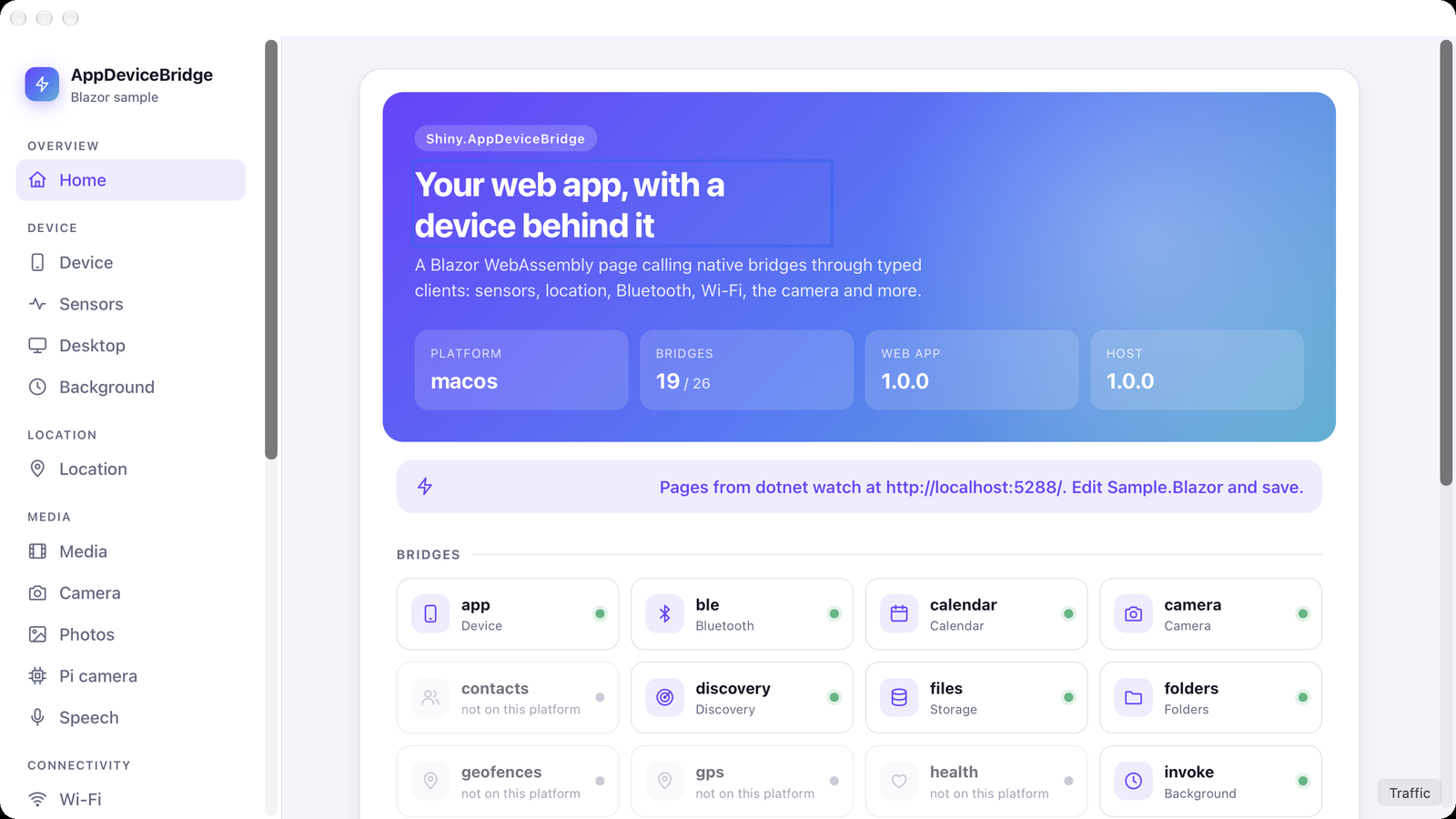
Where a platform has no implementation, the bridge answers 501 and GET /_bridge/host reports it as unsupported, so the page can adapt instead of crashing. Here is the Blazor sample running in the macOS (AppKit) head. Contacts, GPS, geofences and health are greyed out because macOS doesn’t have them:

The Blazor sample inside the macOS app: platform macos, 19 of 26 bridges available, with contacts, geofences, gps and health marked not on this platform

The bridges are guarded. Every route requires AppDeviceBridgePolicies.Bridges, which by default admits only callers on the device itself, plus the WebView’s launch session. Opening a bridge to a remote caller is a policy you write on purpose. See Security.

A page in a WebView only runs while the app is in front. Mobile apps do real work in the background, though: a scheduled sync, a geofence the user just crossed, a push, a notification tap, a download that finished overnight. AppDeviceBridge hands each of those to the web app, whether or not a page is open.

Situation What happens
A page is open and listening the call goes to the page, which has 2 seconds to accept it and then posts its result.
No page, or it doesn’t accept in time the call runs in background.js from the web app’s zip, inside an embedded JavaScript engine (Jint).
Never both once the page accepts a call, it owns it.

Register the sources on the bridge builder:

bridge => bridge
.AddWebAppJob("sync", job => job.WithInternet(InternetAccess.Any))
.AddGeofenceBridge()
.AddPushBridge(o => o.DispatchToWebApp = true)
.AddNotificationsBridge()

Handle them in the page, in C# from Blazor or in JavaScript from anything else:

await nativeCalls.HandleAsync("job:sync", AppDeviceBridgeJsonContext.Default.JobRun, MyJson.Default.SyncResult, async job =>
{
await SyncAsync();
return new SyncResult(RanIn: "page");
});

And in background.js at the root of the zip, for when there is no page:

appdevicebridge.on("job:sync", async ({ name }) => {
const token = await (await fetch("/_bridge/settings/secure/token")).json();
const data = await fetch("https://api.example.com/sync", { headers: { Authorization: `Bearer ${token}` } });
await fetch("/_bridge/files/data/content?path=sync.json", { method: "PUT", body: await data.text() });
});
Source Handler
Background job job:{name}
GPS reading delivered in the background gps
Geofence transition geofence
Motion activity delivered in the background motion
Push push.received, push.entry
Notification tapped notification.entry
HTTP transfer finished transfer.completed, transfer.failed

background.js gets appdevicebridge.on, console and fetch. Relative URLs go to the host’s own /_bridge, so a background handler reads and writes the same settings and files the page uses, and can send a notification. It has no DOM and no timers, keeps no state between calls, and gets 25 seconds and 64 MB per call. It ships in the web app’s zip, so your background logic updates over the air with everything else.

A Blazor app writes its background handler in JavaScript: Jint doesn’t run WebAssembly, and a hidden WebView is exactly what iOS suspends. The handler stores its results through the bridge, and the Blazor app reads them when it next opens. The OS still decides when jobs run: at best every 15 minutes on Android, and less predictably on iOS. See Native calls & background.

In a Debug build, set DevServer and the app loads its pages from dotnet watch on your machine. The bridges, settings, files and session stay on the device.

#if DEBUG
webApp.DevServer = new Uri("http://localhost:5288");
#endif
Terminal window
cd MyApp.Web
dotnet watch run --launch-profile device

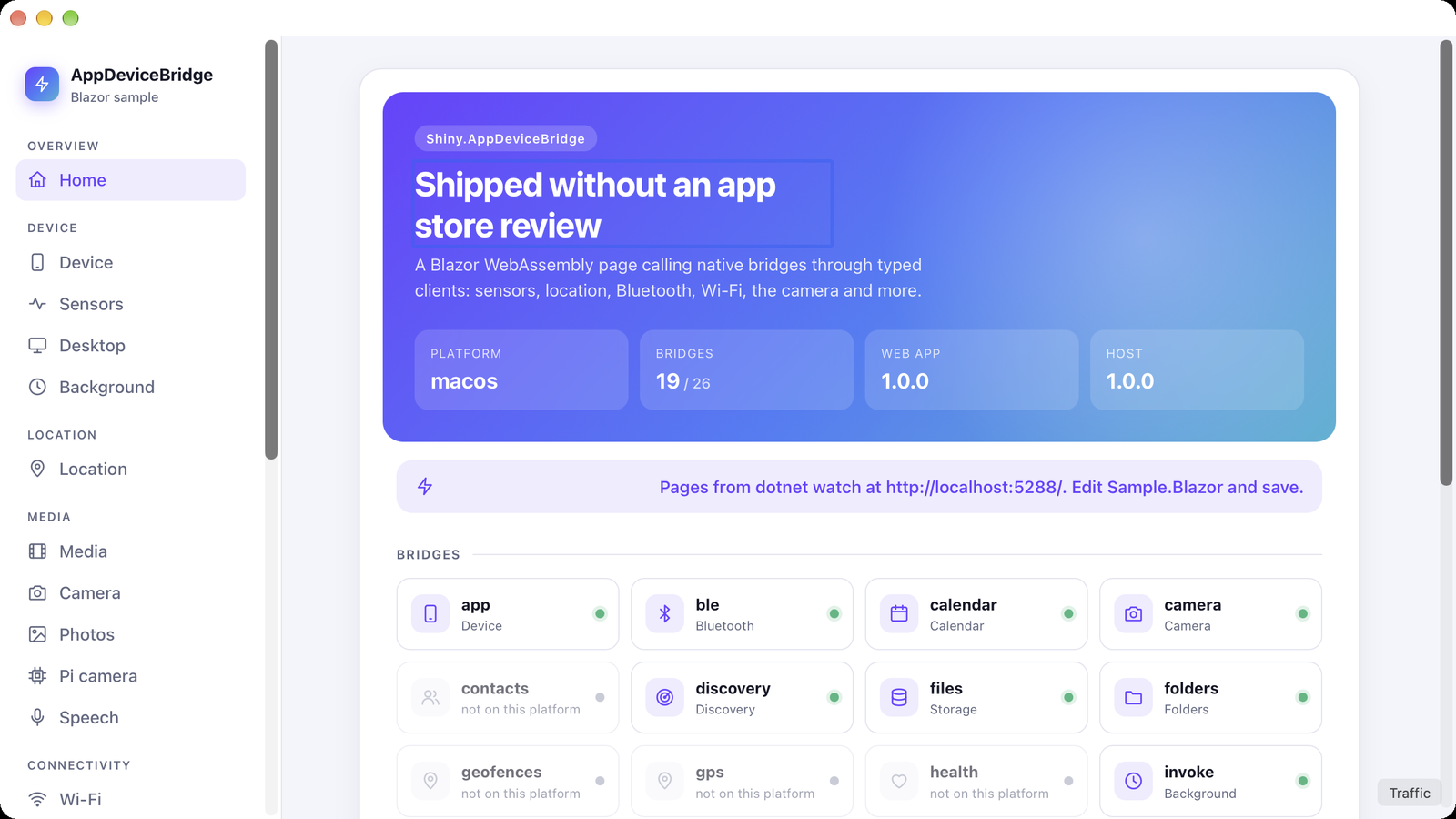
Start the app from your IDE as usual. Edit a .razor file, save, and the change appears in the running app. The native app isn’t rebuilt, and the page keeps its http://127.0.0.1:5780 origin, so its bridge calls still reach the real hardware.

Before After a save
The sample's heading reads 'Your web app, with a device behind it' The same app, same session, with the heading changed to 'Shipped without an app store review'
Target Dev server Hot reload
Android emulator http://10.0.2.2:5288 (default) yes
iOS simulator, Mac Catalyst, macOS, Windows, Linux http://localhost:5288 (default) yes
Android over USB adb reverse tcp:5288 tcp:5288 yes, with the socket ports reversed too
Any device over Wi-Fi your machine’s LAN address pages only; reload to see changes

If dotnet watch isn’t running when the app starts, the app serves its embedded or installed build as usual. See Hosting.

Hot reload shortens the loop, but you still need a phone that is on the right Wi-Fi, has granted the right permission, and is walking the right route. shiny-bridge-sim removes that dependency.

NuGet package Shiny.AppDeviceBridge.Simulator
Terminal window
dotnet tool install -g Shiny.AppDeviceBridge.Simulator
shiny-bridge-sim --dev-server http://localhost:5288 # or --app ./publish/wwwroot

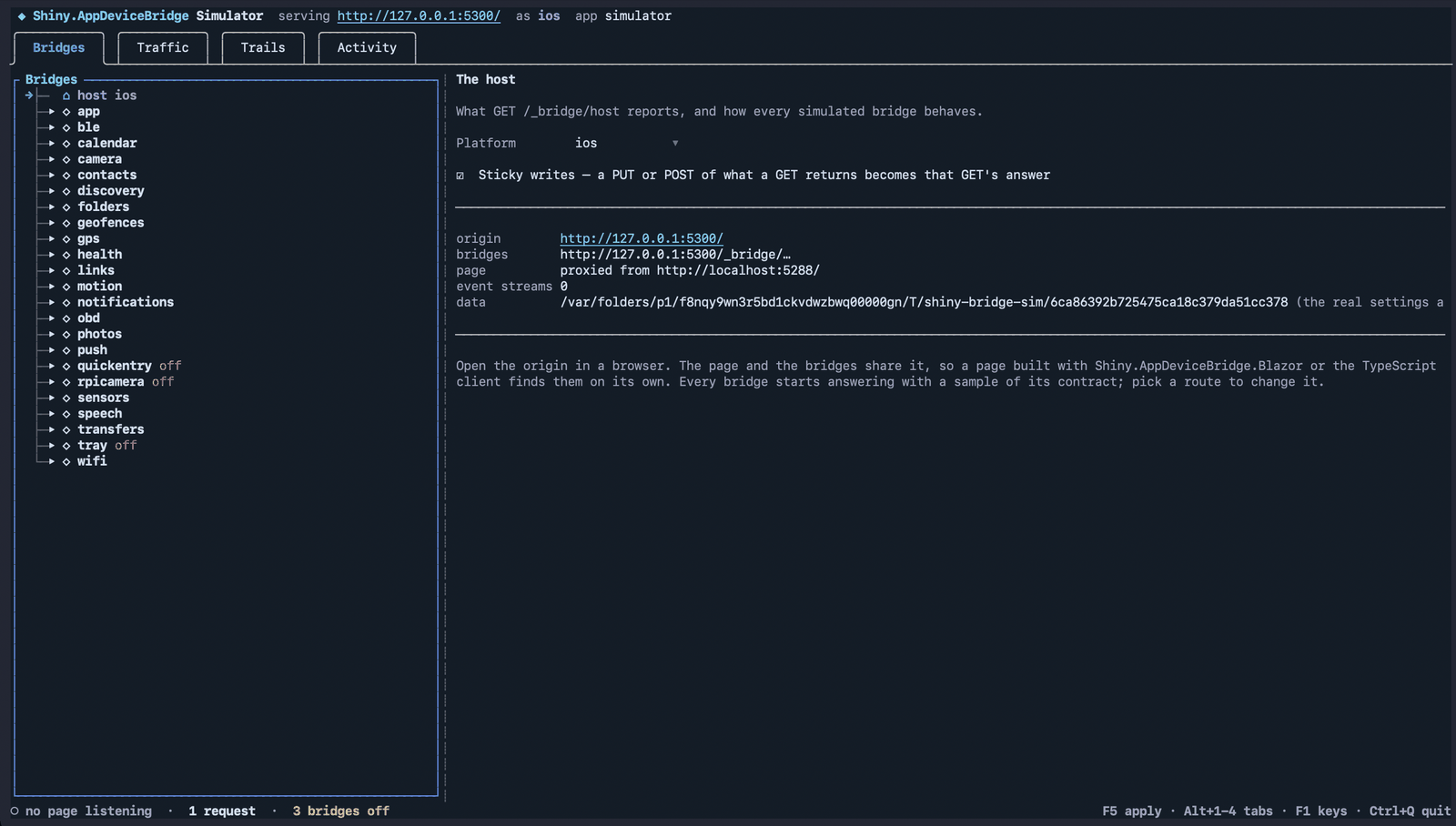
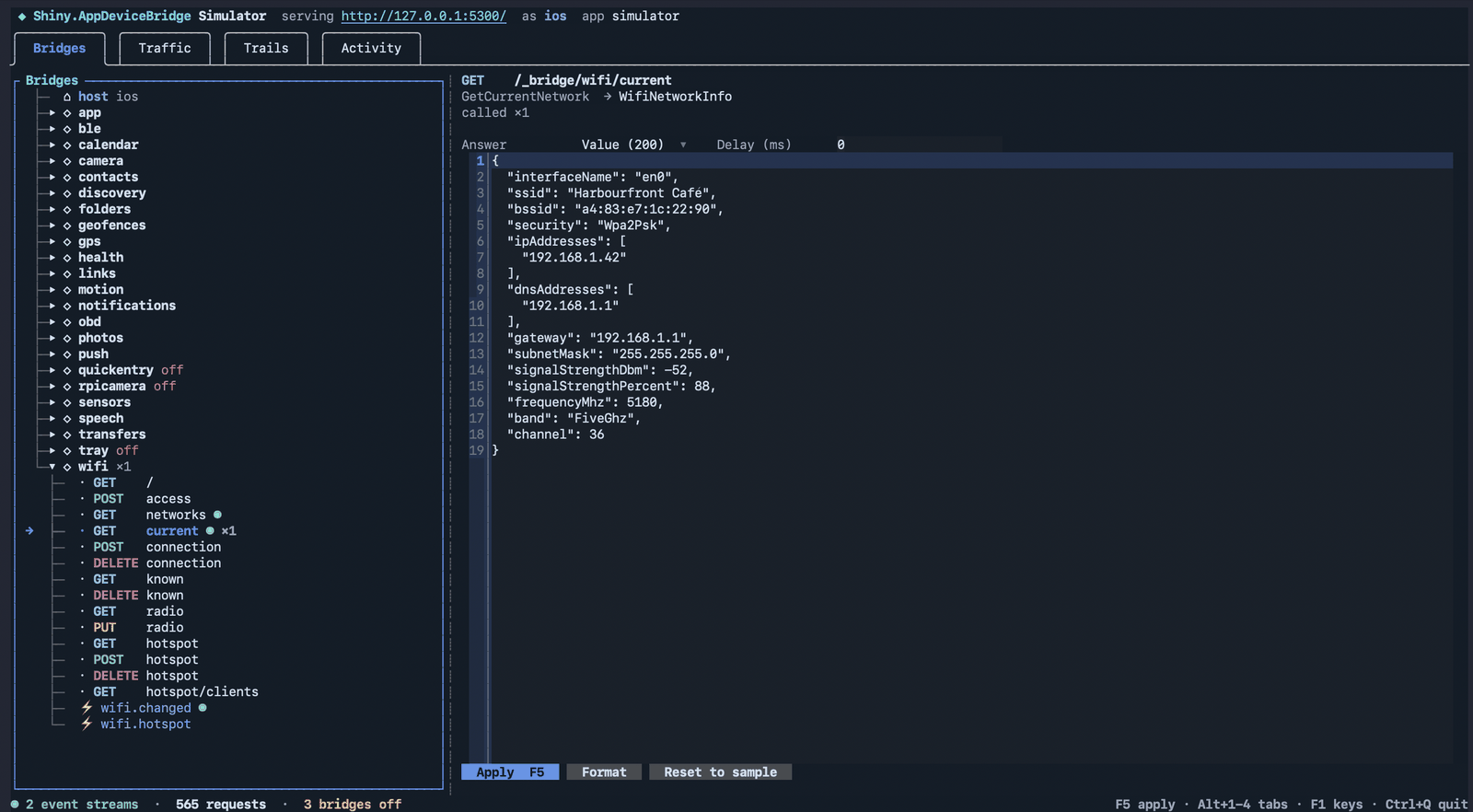
It’s a terminal app that stands in for the native app. It runs the real bridge server, with the same guard, the same bridge policy and the same event stream. Every device bridge is replaced by a simulated one built from its [BridgeClient] interface, so it answers exactly the routes the typed clients call. You choose the answers.

The simulator's Bridges tab: a tree of every bridge, with the host reporting ios, and quickentry, rpicamera and tray switched off

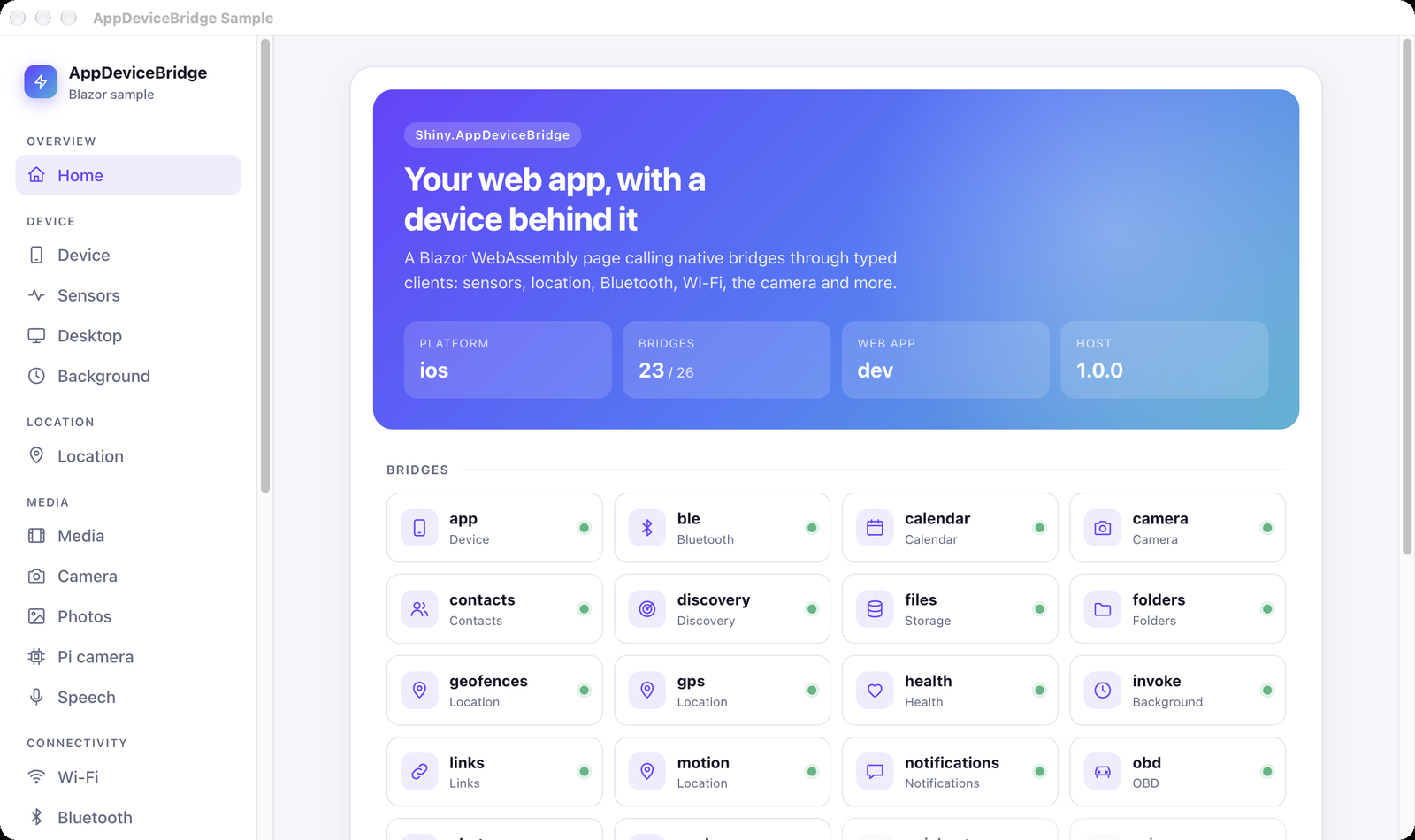
Open http://127.0.0.1:5299/ in any browser. The page and the bridges share that origin, so the page needs no changes. Here is the same Blazor sample in Chrome on a Mac. It now reports iOS, and has 23 of 26 bridges, because the simulator says so:

The Blazor sample in Chrome, served by the simulator: platform ios, 23 of 26 bridges, contacts, geofences, gps and health all available

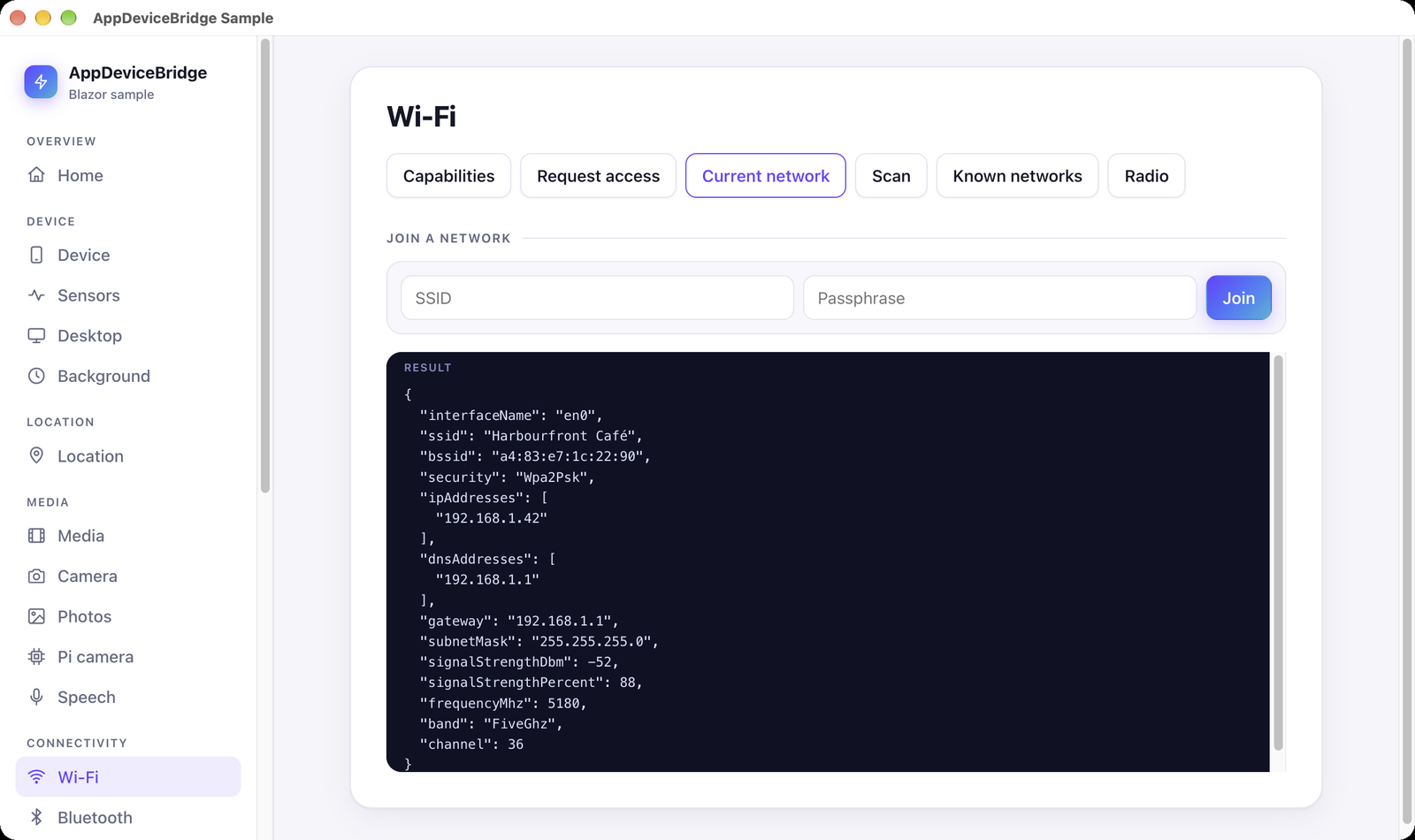
Pick a route and set what it returns: a value checked against its contract, a 204 null, or any error the bridges use, such as 501 not_supported or 403 access_denied, with an optional delay. The page’s client gets a BridgeException with that status and code, just as it would from a real device. Test the permission-denied screen, the loading spinner and the “not on Wi-Fi” state without touching a phone.

The route in the simulator What the page gets
The wifi GET current route editor in the simulator, answering a Harbourfront Café network The sample's Wi-Fi page in the browser showing the Harbourfront Café network the simulator returned

You can also fire any event at the page, switch a whole bridge off to see its 501 path, and change the platform the host reports.

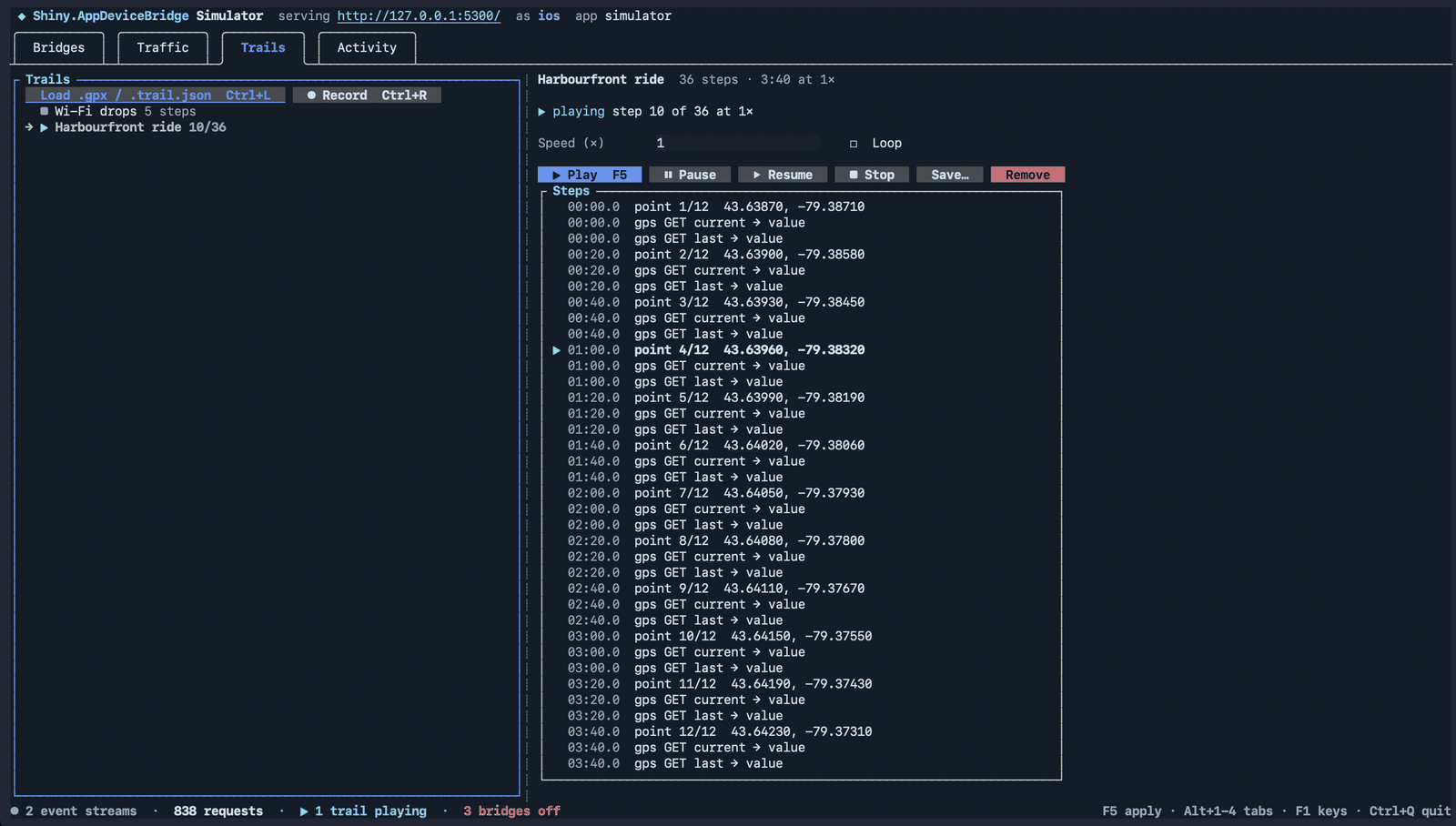
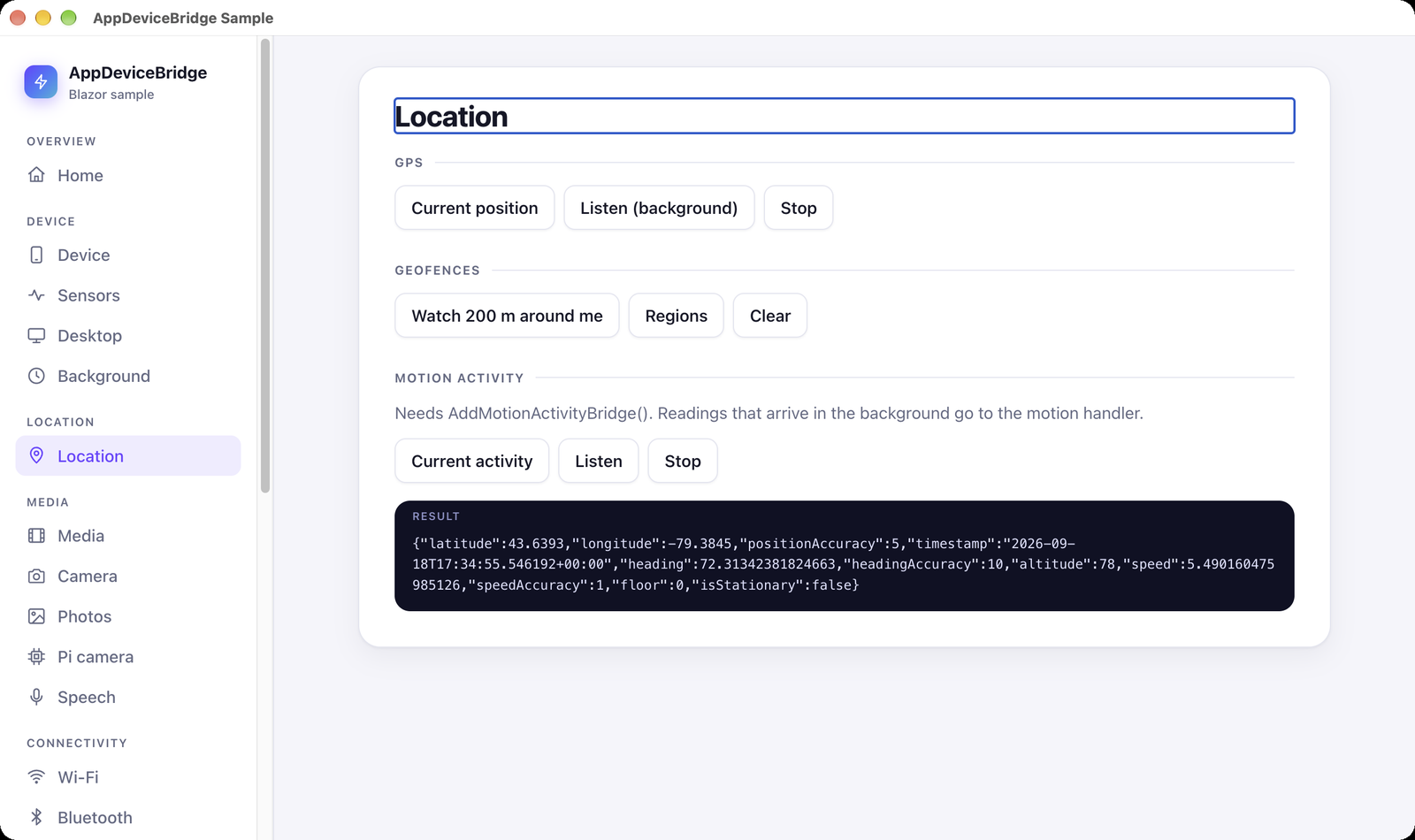
A trail is a timed script of those steps. A .gpx file plays as a GPS walk at its recorded pace. Each point is fired as a gps.reading event and becomes what GET gps/current answers, so pages that poll and pages that listen see the same walk. Ctrl+R records what you do in the Bridges tab as a trail you can replay.

Playing a GPX ride The page receiving it
The Trails tab playing the Harbourfront ride, step 10 of 36 The sample's Location page showing a live GPS reading with heading and speed from the trail
{
"name": "Lose Wi-Fi",
"steps": [
{ "delayMs": 0, "event": "wifi.changed", "payload": { "current": null } },
{ "delayMs": 0, "bridge": "wifi", "route": "GET current", "mode": "null" },
{ "delayMs": 5000, "bridge": "wifi", "route": "POST connection", "mode": "error", "status": 409, "code": "conflict" },
{ "delayMs": 2000, "bridge": "ble", "supported": false }
]
}

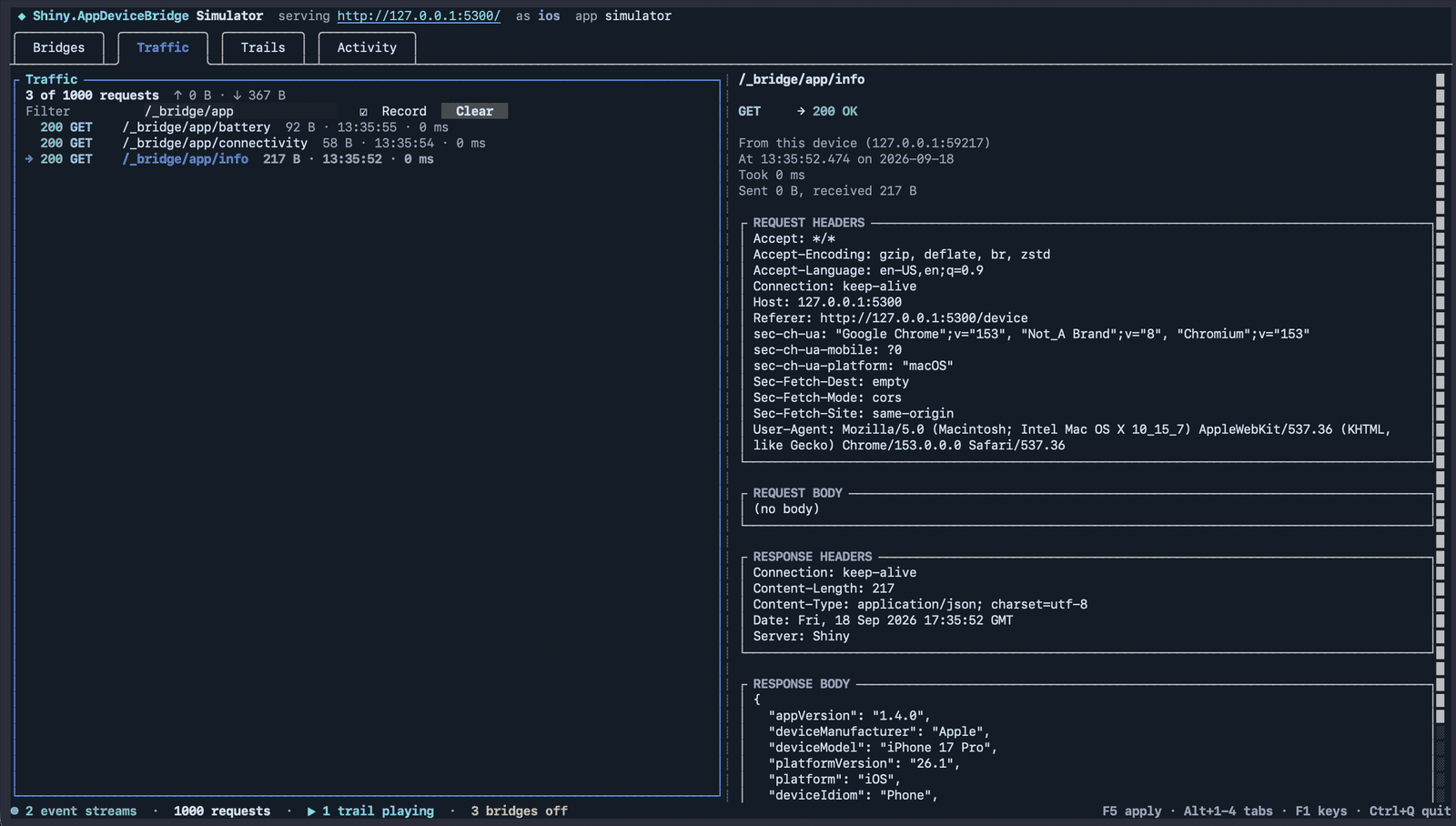
The Traffic tab shows every request the page made and the response it got, with full headers and bodies. It uses the same recorder as the in-app traffic monitor, which you can open over the web app in a Debug build.

The Traffic tab filtered to /_bridge/app, showing GET info returning an iPhone 17 Pro to a request from Chrome on macOS

Ctrl+S saves a scenario: the platform, the bridges switched off, every route and event you changed, and every trail. Run it without the TUI in a pipeline and point your browser tests at it:

Terminal window
shiny-bridge-sim --scenario offline.scenario.json --trail walk.gpx --play walk --speed 4 --headless

In a Debug build, the default bridge policy admits any caller that isn’t coming through a tunnel. You can point a browser, curl or a script on your laptop at the phone’s LAN address and drive the real GPS, camera or Bluetooth radio. The camera bridge goes further: a page anywhere can open the device’s camera, watch a live MJPEG viewfinder and take photos. The desktop heads (Windows, macOS through AppKit, Linux through GTK4) run the same web app with the bridges those platforms support, on the machine you’re already using.

Android, iOS, Mac Catalyst and Windows, plus the maui-labs macOS (AppKit) and Linux (GTK4) heads. A bridge either works on a platform or answers 501 there. The simulator runs anywhere .NET 10 does.

Package What it does
NuGet package Shiny.AppDeviceBridge.Maui UseAppDeviceBridge(bridge => …): the bridge server, started with the app, and the bridge builder, with UseShiny() and the UI thread done for you
NuGet package Shiny.AppDeviceBridge.WebView UseAppDeviceBridge(bridge => …, webApp => …), WebAppHostPage: the web app in a WebView, over-the-air updates, the dev server proxy
NuGet package Shiny.AppDeviceBridge.Blazor AddWebAppHostClient(): the page-side client for Blazor WebAssembly
NuGet package Shiny.AppDeviceBridge.AspNetCore AddWebAppReleases, MapWebAppReleases: the signed release server
NuGet package Shiny.AppDeviceBridge.Simulator shiny-bridge-sim: the terminal simulator
Shiny.AppDeviceBridge.{Bridge} one package per bridge: AppSupport, Locations, BluetoothLE, Wifi, Notifications, Push, Health, Camera, Photos, Contacts, Calendar, Speech, Discovery, OBD, Desktop and more
@shinyorg/appdevicebridge the TypeScript clients

The full list is on the Getting Started page.

The repository’s samples/ folder has the Blazor sample shown here, running in every MAUI head, plus a release server and a simulator scenario with a GPX ride along Toronto’s harbourfront.