


Slide Editor


Two controls, on both hosts:
| Control | What it is |
|---|---|
SlideEditor |
the lone editing surface — canvas, selection, caret, typing. No chrome. |
SlideEditorView |
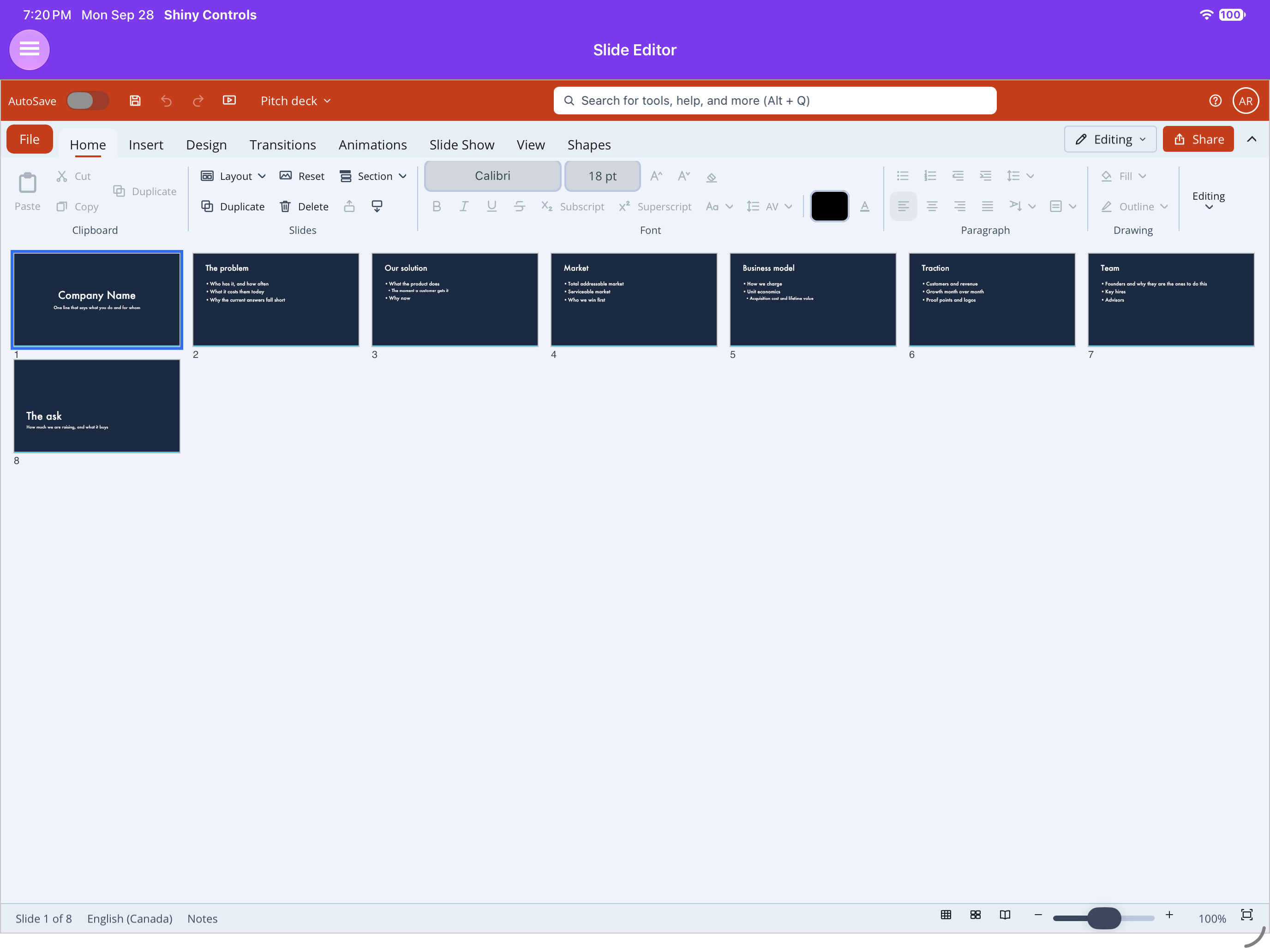
SlideEditor dressed as PowerPoint — the Office shell’s title bar, ribbon, slide rail, status bar and File backstage, all wired to the editor |
Same packages as the viewers (Shiny.Maui.Controls.Office / Shiny.Blazor.Controls.Office), same
constraints: MAUI needs UseShinyOffice() (it registers SkiaSharp, plus the Skia canvas SkiaSharp does not ship for the macOS AppKit head), Blazor is WASM-only, and on Blazor the container
needs an explicit height.
Open a deck for editing
Section titled “Open a deck for editing”using var deck = await SlideDeck.OpenAsync("deck.pptx", editable: true);Without editable: true the deck opens read-only and Execute throws — the same shape as the
document editor.
Blazor
Section titled “Blazor”<div style="height:560px"> <SlideEditorView Deck="deck" @bind-SlideIndex="index" DeckChanged="OnChanged" /></div><office:SlideEditorView Deck="{Binding Deck}" SlideIndex="{Binding Index}" />The PowerPoint window
Section titled “The PowerPoint window”SlideEditorView wears the Office shell dressed as PowerPoint (accent
#C43E1C): the title bar with AutoSave, Save / Undo / Redo, the presentation name (“Presentation1”) and
the command search; the ribbon, whose File button opens the backstage (New, Open, Info, Save, Save
As, Print, Export); the slide rail; and a status bar reading “Slide 3 of 12” with the notes toggle,
the Normal / Slide Sorter / Reading View buttons, and zoom with fit.
The ribbon
Section titled “The ribbon”| Tab | What is on it | Details |
|---|---|---|
| Home | Clipboard, Slides (New, Duplicate, Delete, Earlier, Later, Layout), Font, Paragraph, Drawing, Editing (Find, Replace) | Slides, Layouts & Notes |
| Insert | Slides, Tables, Images, Illustrations (shapes, icons, charts), Links, Text (text box, header & footer, date & time, slide number), Media | Charts, Icons & Media |
| Design | Themes, variants, slide size, format background | Design |
| Transitions | Nine transitions, duration, direction, Apply to all, advance timing, Preview | Transitions & Animations |
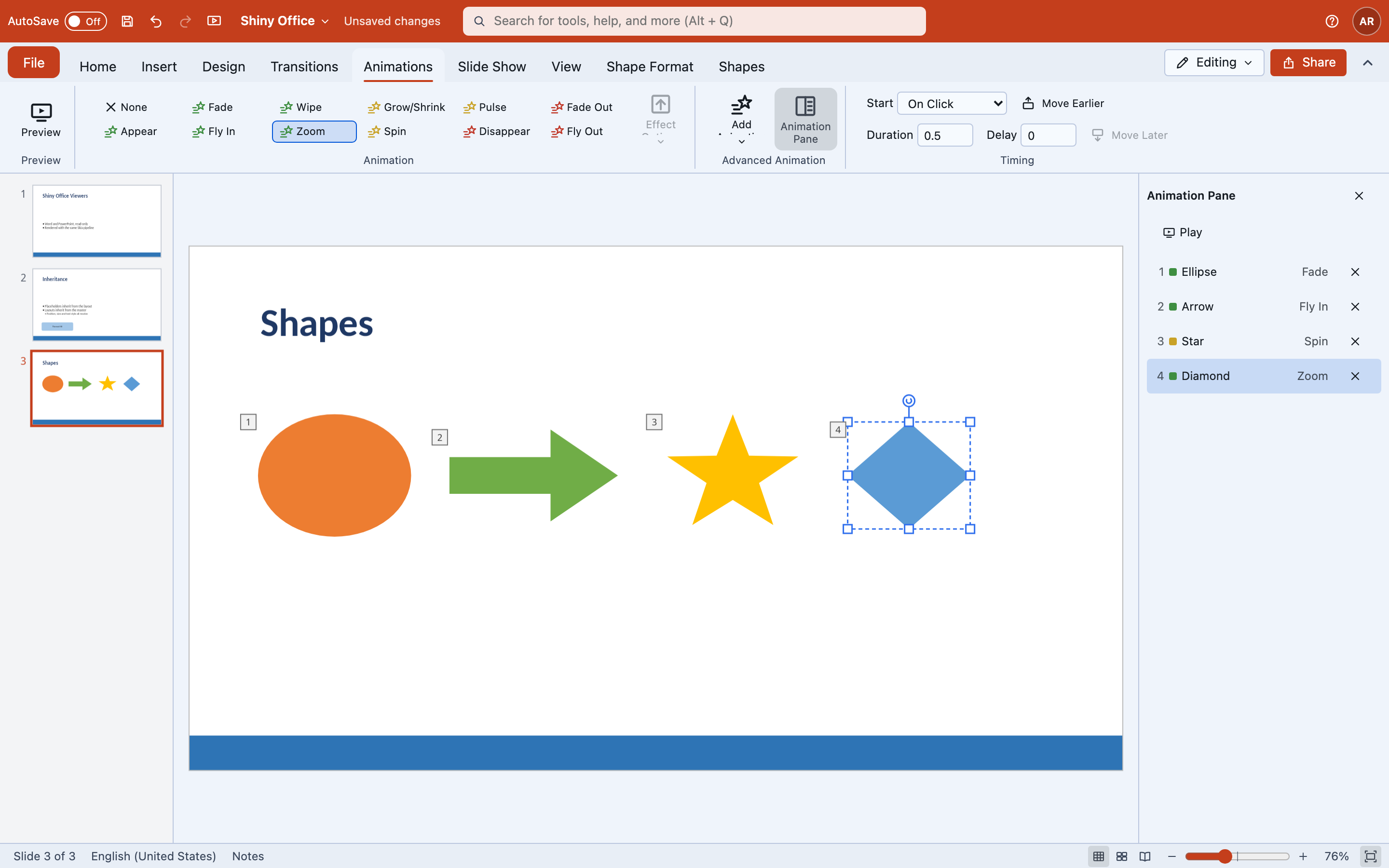
| Animations | Entrance, emphasis and exit effects, triggers, the animation pane | Transitions & Animations |
| Slide Show | From beginning, from current, presenter view, Hide slide | Presenting |
| View | Normal, Outline, Slide Sorter, Notes Page, Slide Master; zoom; ruler, gridlines, guides | Views & sections |
| Shape Format (contextual) | Fill, outline, effects, quick styles, size, arrange, align, rotate | Shape Format |
| Table Design / Table Layout, Chart Design, Slide Master (contextual) | Appear with the selection or the view | Objects |
Speaker notes and the view/zoom controls sit in the status bar, where PowerPoint keeps them. Icons
without a glyph in the shared set come from OfficeIcons.PowerPoint.cs (SlideIcon). Below 600px the
bar runs in Simplified mode.
Everything is on the shared SlideEditorController, so both hosts’ ribbons are thin, and every command
is one undo step — a drag, a rotation or a nudge run included. A deck opened and saved without an edit
is byte-identical, and everything written follows the schema’s element order.
Status for a host’s status bar
Section titled “Status for a host’s status bar”| Member | Blazor | MAUI |
|---|---|---|
| Current slide (0-based) | CurrentSlideIndex |
CurrentSlideIndex (read-only bindable) |
| Slide count | SlideCount |
SlideCount (read-only bindable) |
Zoom requested, null = fit |
@bind-Zoom (Zoom / ZoomChanged) |
Zoom (two-way) |
| Zoom in effect | EffectiveZoom |
EffectiveZoom (read-only bindable) |
| Notes pane | @bind-ShowNotes |
ShowNotes |
| View | @bind-ViewMode (SlideEditorViewMode) |
ViewMode (two-way) |
| Any of the above changed | StatusChanged callback, StatusUpdated event |
StatusChanged event |
| Presenting | IsPresenting |
IsPresenting |
Views and sections
Section titled “Views and sections”View tab. Normal, Outline (edit titles and bullets as text), Slide Sorter (drag to reorder), Notes Page, and Slide Master (edit the master’s and layouts’ text styles and backgrounds; saved back to those parts). Zoom runs from 25% to 400% or fit, with Ctrl+wheel or pinch; ruler, gridlines and guides are toggles.
c.ViewMode = SlideEditorViewMode.Outline; // Normal, Outline, SlideSorter, NotesPage, SlideMasterc.Zoom = null; // fit; 0.25 to 4 otherwiseSections in the rail: add, rename, remove (with or without their slides), move and collapse — written
to p14:sectionLst.
On the controller: AddSection, RenameSection, RemoveSection(index, withSlides) and MoveSection.
Export
Section titled “Export”ExportSlidePng(slide, width), ExportSlidesPng(width) and ExportPdf() (SKDocument.CreatePdf, one
page per visible slide) on the view. The painter is SlideExporter in Shiny.Controls.Office.Skia, for a
deck with no view.
Two gestures, and the distinction is the whole design
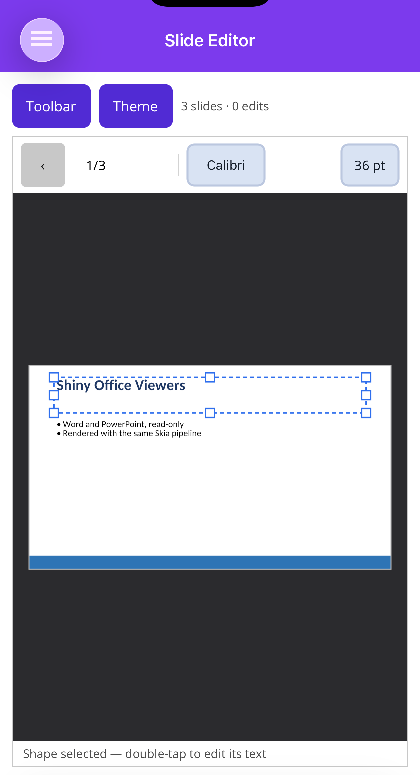
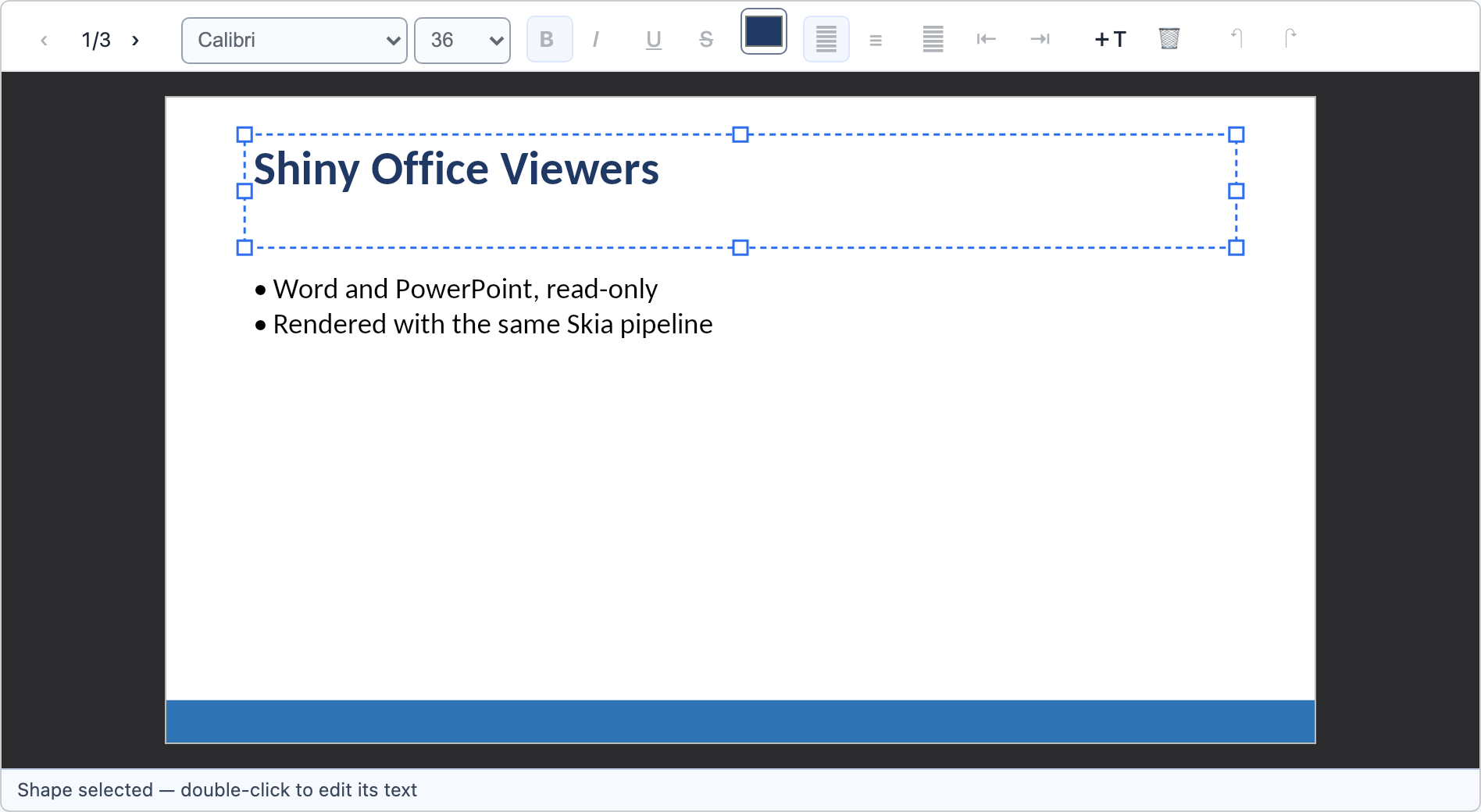
Section titled “Two gestures, and the distinction is the whole design”Shape mode — a single click (tap) selects a shape and draws a dashed frame with eight resize handles. Drag the body to move it, a handle to resize it.
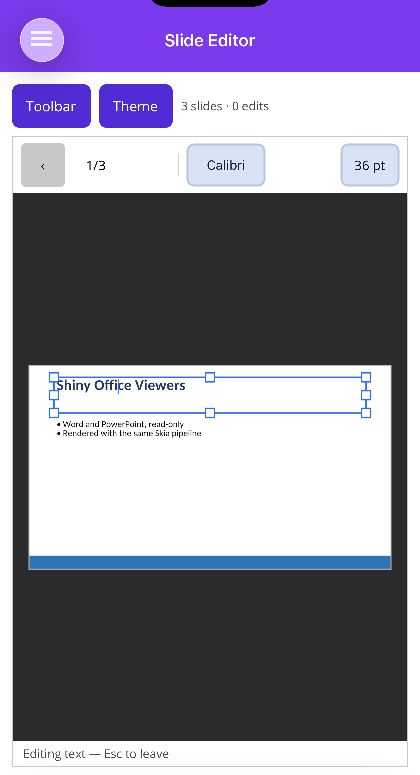
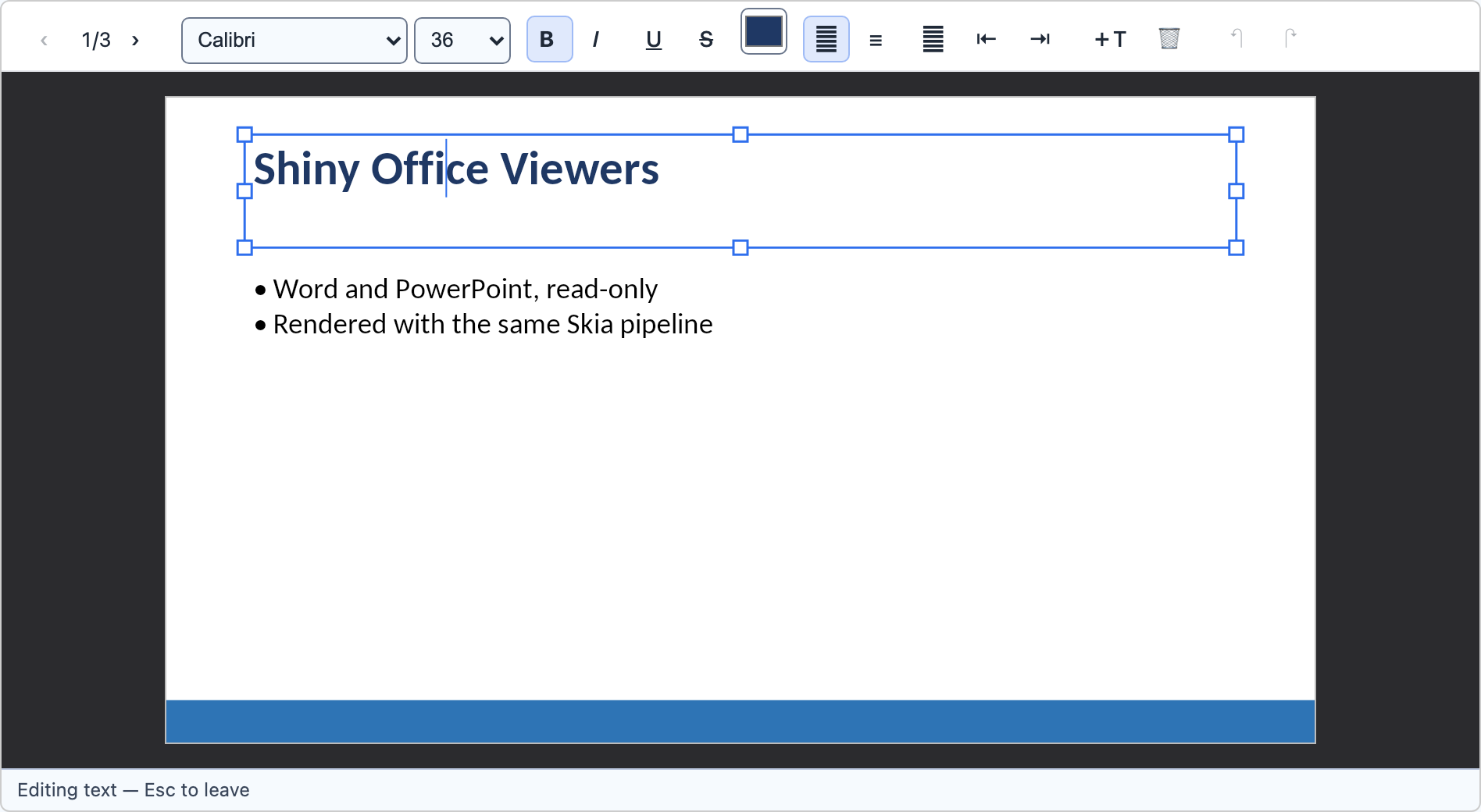
Text mode — a double-click (double-tap) puts a caret inside that shape’s text and the frame turns solid. That is the same split PowerPoint uses, and the frame is the only cue telling a user where their next keystroke will go.
A single click while in text mode moves the caret; a click outside the shape leaves text mode.
What can be selected
Section titled “What can be selected”Only shapes the slide itself owns. Shapes painted from the layout or master are skipped by hit testing, because they belong to every slide using that layout — letting a click grab one would let a user drag the company logo off the whole deck at once. A group is selected whole; a double-click goes into it — see Objects, Groups & Tables. Several shapes can be selected at once; see Shape Format.
Editing
Section titled “Editing”| What it does | |
|---|---|
| Type | inserts at the caret, replacing the text selection |
| Enter | splits the paragraph, keeping its level and bullet |
| Backspace at offset 0 | joins the paragraph onto the one above |
| Tab / Shift+Tab | indents / outdents the bullet’s outline level |
| Ctrl/Cmd+B, I, U | bold, italic, underline over the selection |
| Delete (shape mode) | removes the selected shape |
| Ctrl/Cmd+Z | undo — a whole drag is one step, not one per pointer sample |
Font family, size, colour and alignment are on the controller and wired into both toolbars.
AddTextBox drops an empty text box onto the slide and selects it.
Bullets and numbering — including what Tab is really moving, and why turning a bullet off has to
write one — have a page of their own:
Bullets & Numbering.
Edits are surgical on the runs
Section titled “Edits are surgical on the runs”A run is split only where an edit genuinely needs a boundary and is never re-created, because an
a:rPr carries language, hyperlinks, effects and theme-derived fills the model does not represent.
Formatting is expressed as a mutation of the run’s properties rather than a finished style, so
turning on bold leaves the font, size, colour and italics exactly as they were.
⚠️ DrawingML is fussier than WordprocessingML about child order: a:rPr’s children are a sequence,
not a set, and PowerPoint refuses to open a file whose run properties are out of order rather than
repairing it. The editor inserts them at their schema position.
What a save rewrites
Section titled “What a save rewrites”Opening a deck and saving it without editing produces a byte-identical file. That is the promise, and it is asserted by hashing every ZIP entry before and after.
Once an edit happens, the picture is more honest: the SDK’s only public flush re-serialises every part whose DOM has been materialised, and reading a deck materialises every slide, layout, master, theme and notes part it had to walk. Those round-trip through the same object model, so nothing is lost — a reopened deck reads back identically, including the slides you never touched — but their bytes move. Nothing is ever added to or removed from the package.
Toolbar icons and tooltips
Section titled “Toolbar icons and tooltips”The slide toolbar draws from the same monochrome icon set as the document toolbar — one 24x24 grid, one weight, no colour of its own, shared between MAUI and Blazor. The slide-only marks are previous, next, new slide, duplicate, move earlier, move later, indent, outdent, text box and delete.
ShowToolbarTooltips controls the hover tooltips on those icon-only buttons: on for Blazor and for
MAUI desktop, off on iOS and Android. The full rules, and why they are rules, are on the
Document Editor page — one icon strategy, one place.
Keyboard input
Section titled “Keyboard input”Blazor: complete. Typing goes through beforeinput, so IME composition, autocorrect, dictation and
paste all work. Arrows, Home/End, Tab, Escape, Delete and the shortcuts above are wired.
MAUI: typing works — a hidden Entry gives the platform keyboard and IME somewhere to send text.
Physical keys do not, because MAUI exposes no portable key-down event. Route them yourself:
Editor.HandleKey(EditorKey.Left, shift: true);Editor.HandleKey(EditorKey.Undo, control: true);Tapping, dragging, typing and every toolbar command work without it. Ribbon shortcuts arrive as
SlideShortcut values through SlideEditor.HandleShortcut.
Shortcuts on Blazor: Ctrl+B/I/U, Ctrl+E/L/R/J, Ctrl+Shift+>/<, Ctrl+D, Ctrl+M, Ctrl+G / Ctrl+Shift+G (group / ungroup), Shift+Enter (soft break), F5 and Shift+F5.
Home ▸ Find carries a box, a 3/12 readout and a pair of arrows. A deck search spans every
slide: stepping onto a match opens its slide, selects the shape, puts the caret in its text and
selects the matched word. Only shapes the slide itself owns are searched, for the same reason only
those can be selected. See Find in Office Documents.
Not implemented
Section titled “Not implemented”- Character spacing is saved but not yet drawn.
- Multi-select on MAUI touch. Touch carries no modifier state, so multi-select there goes through
SlideEditor.ShiftHeld/ControlHeld(set by a host’s keyboard hook) or the marquee. - Audio and video play through the host (a browser element, or the platform launcher) rather than inline on the slide.
- Charts carry no embedded workbook.
- The Blazor show has no separate audience window — presenter view is a side panel.
- Everything the viewer does not render is still not rendered — see Slide Viewer.
Screenshots
Section titled “Screenshots”Shape mode draws a dashed frame with eight handles; text mode turns it solid and shows a caret. That contrast is the only cue telling a user where their next keystroke will go.
| .NET MAUI (iPad) | Blazor WebAssembly |
|---|---|
 |
 |
 |
 |
 |
 |