


Mermaid Diagrams | Getting Started
A .NET MAUI control that parses and renders Mermaid flowchart syntax natively using MAUI Graphics. No WebView, no SkiaSharp — pure IDrawable rendering with a hand-written recursive-descent parser and Sugiyama layered layout algorithm.
| GitHub |  |
| MAUI |  |
| Blazor |  |
Screenshots
Section titled “Screenshots”MAUI
| Flowchart | Editor | Themes | Subgraphs |
|---|---|---|---|
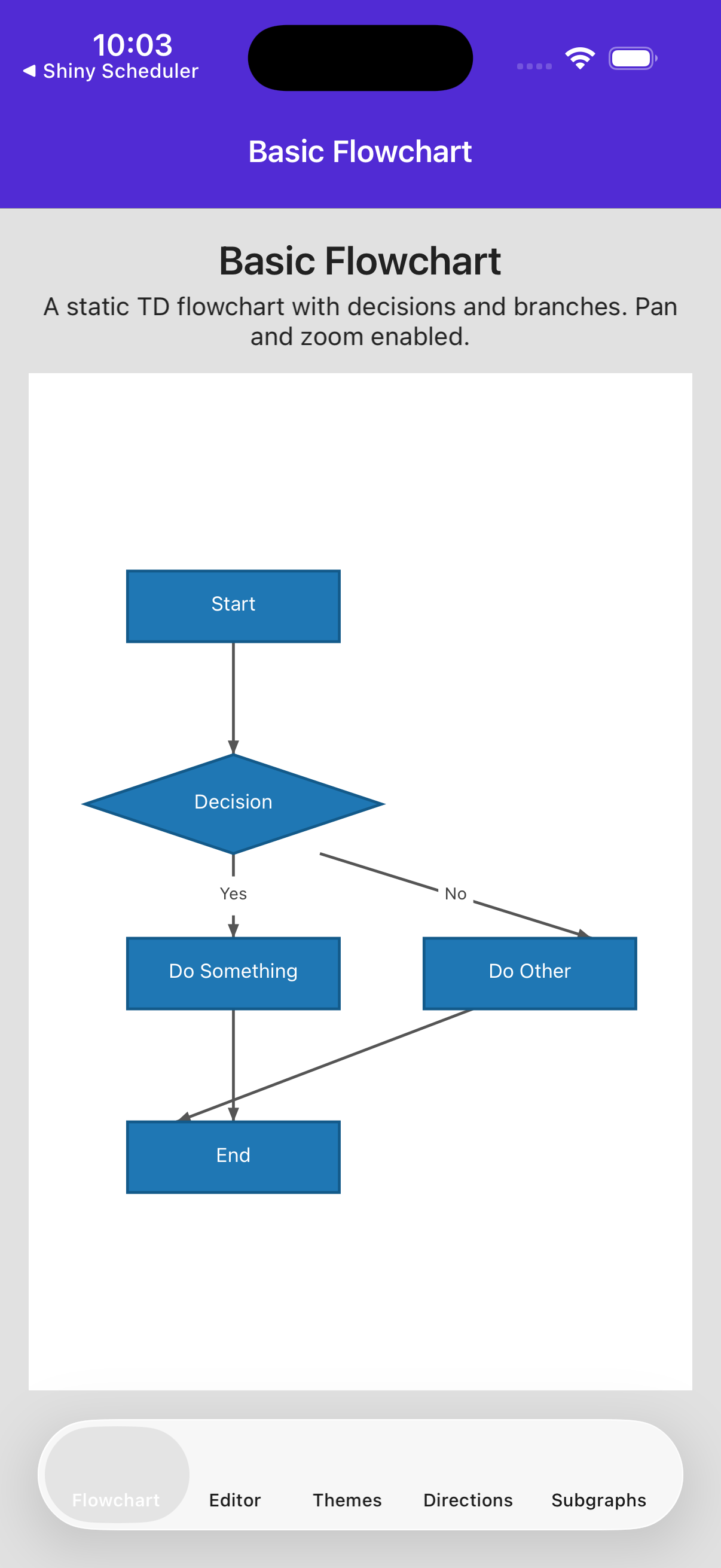 |
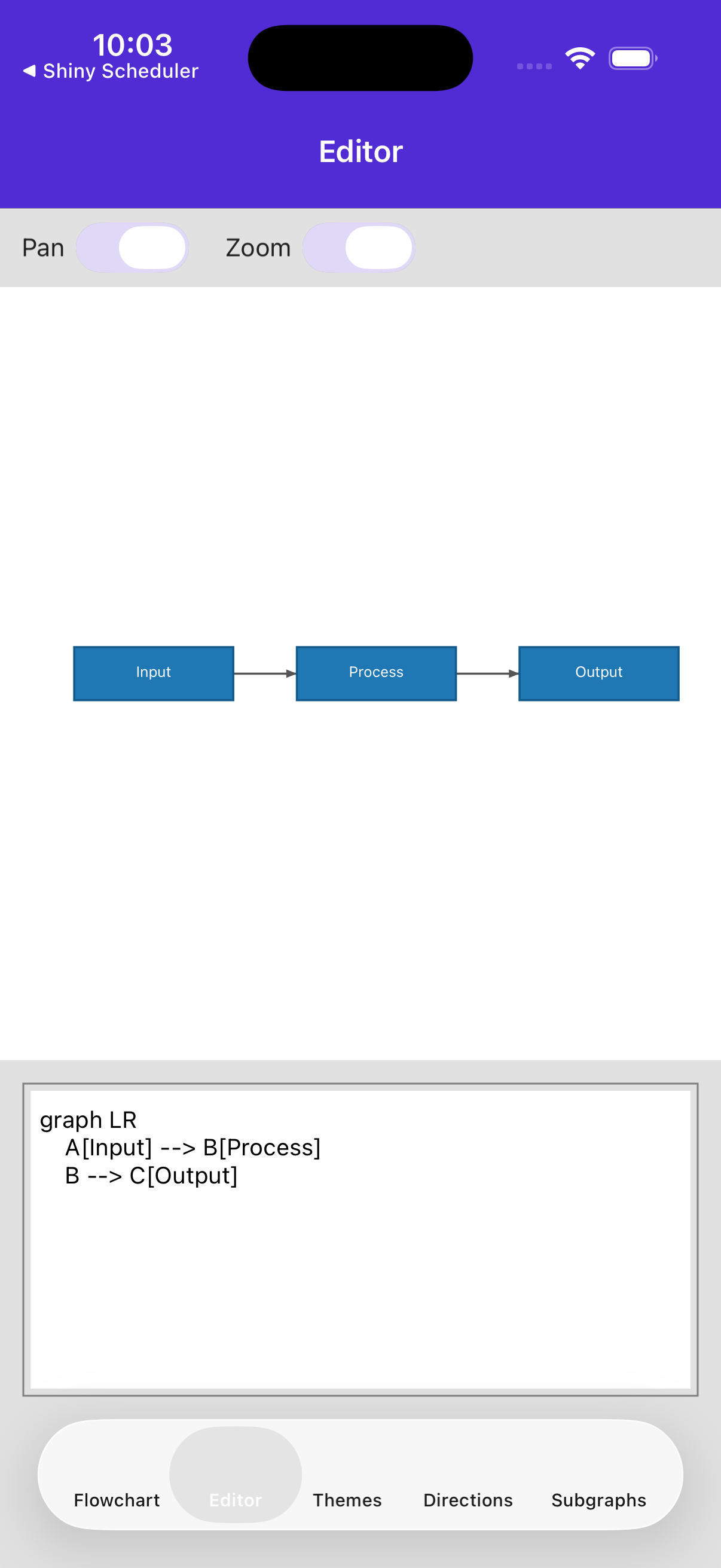 |
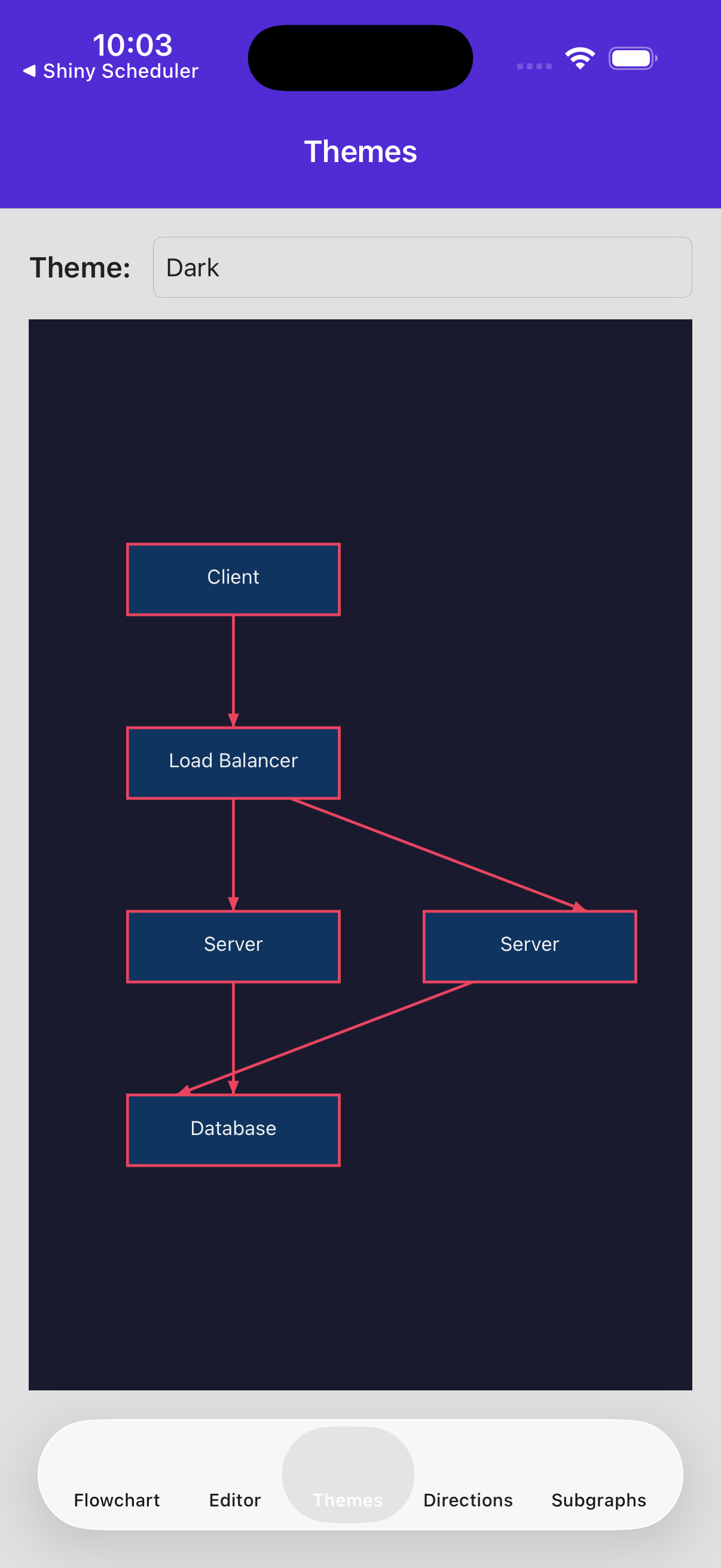 |
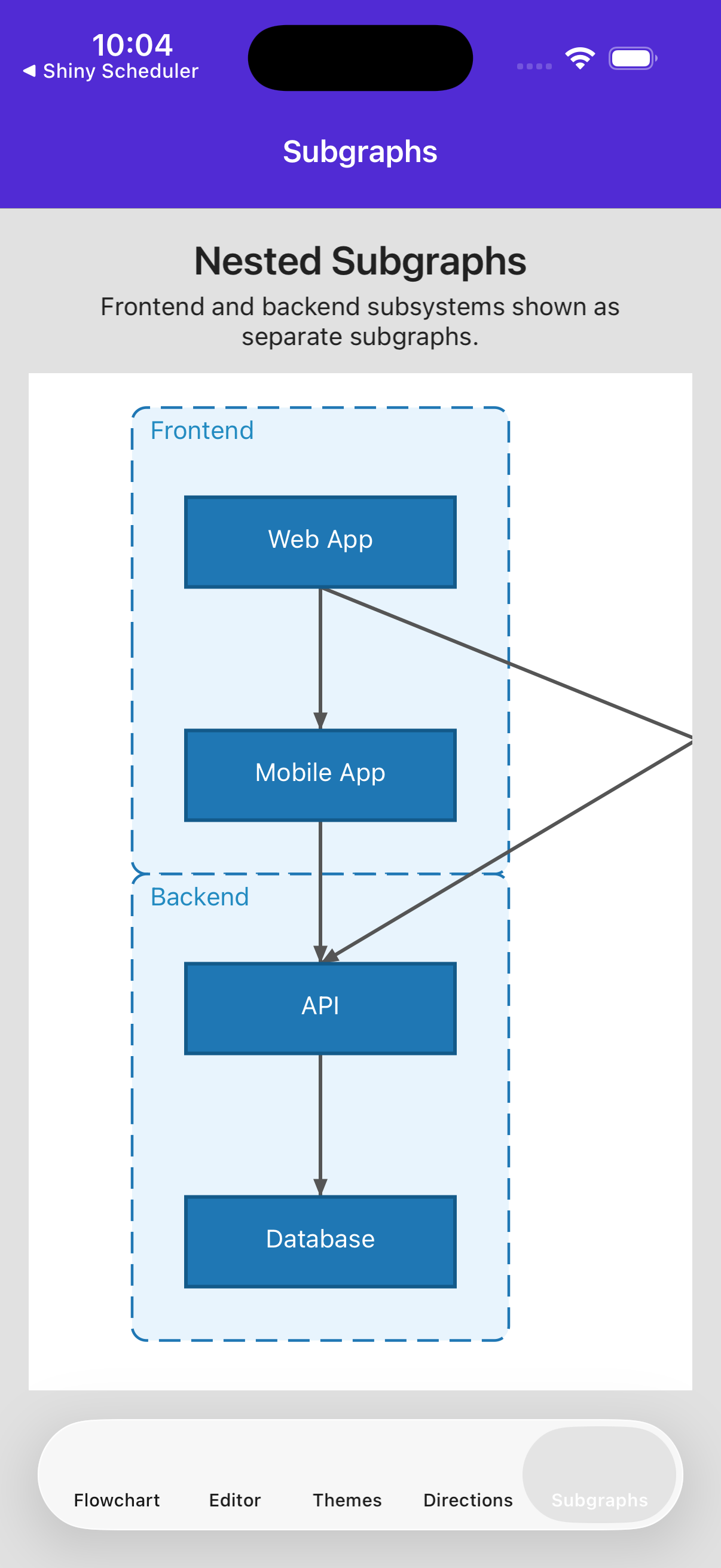 |
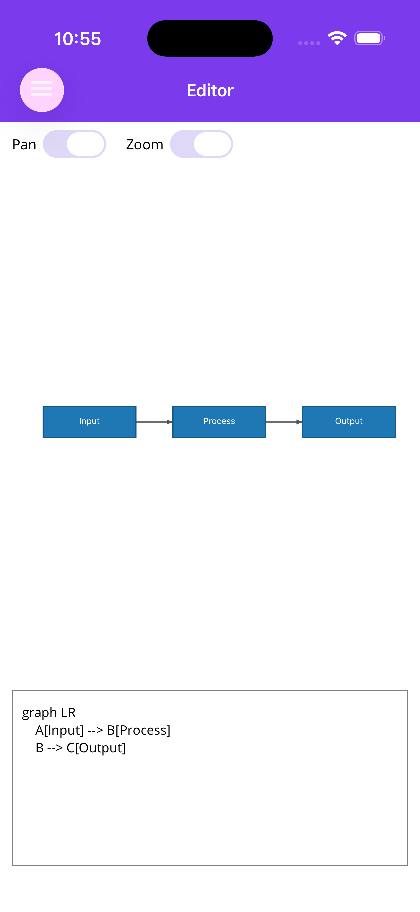 |
Blazor
| Editor and rendered diagram | Alternate theme |
|---|---|
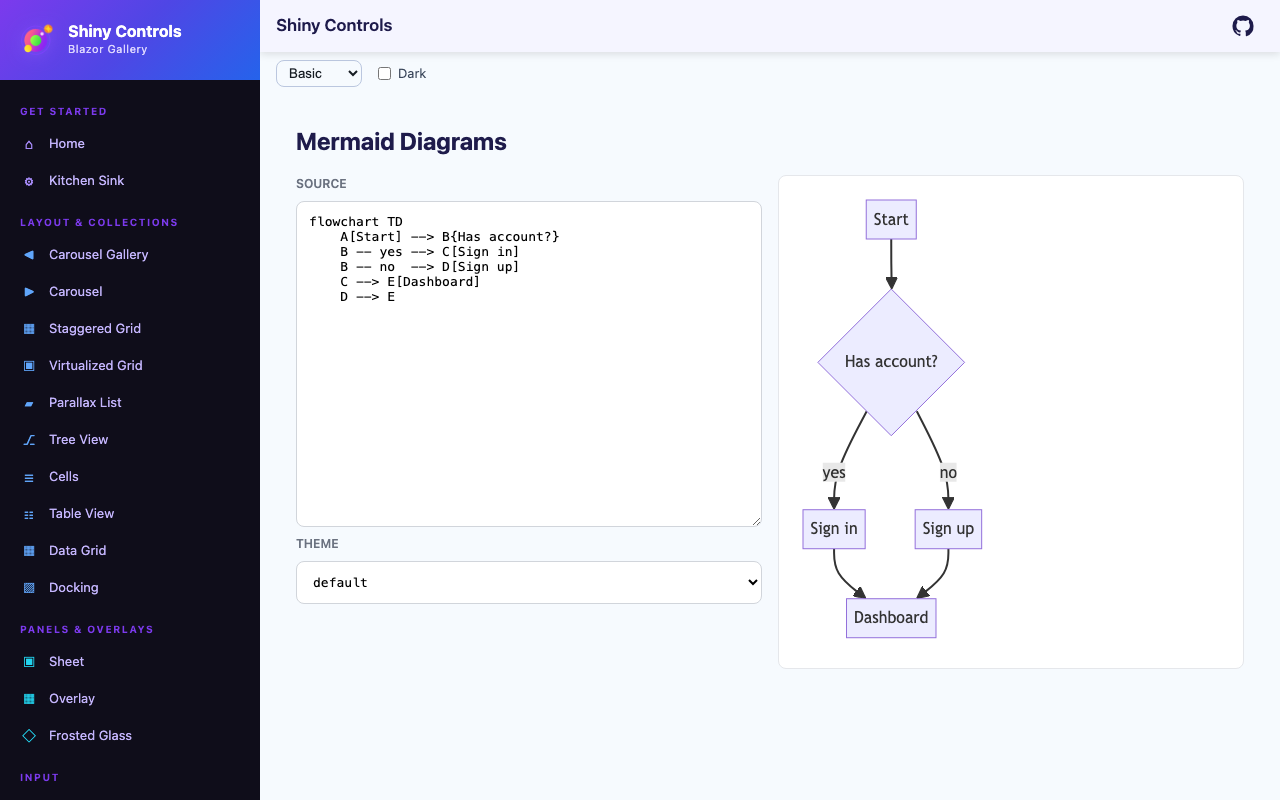 |
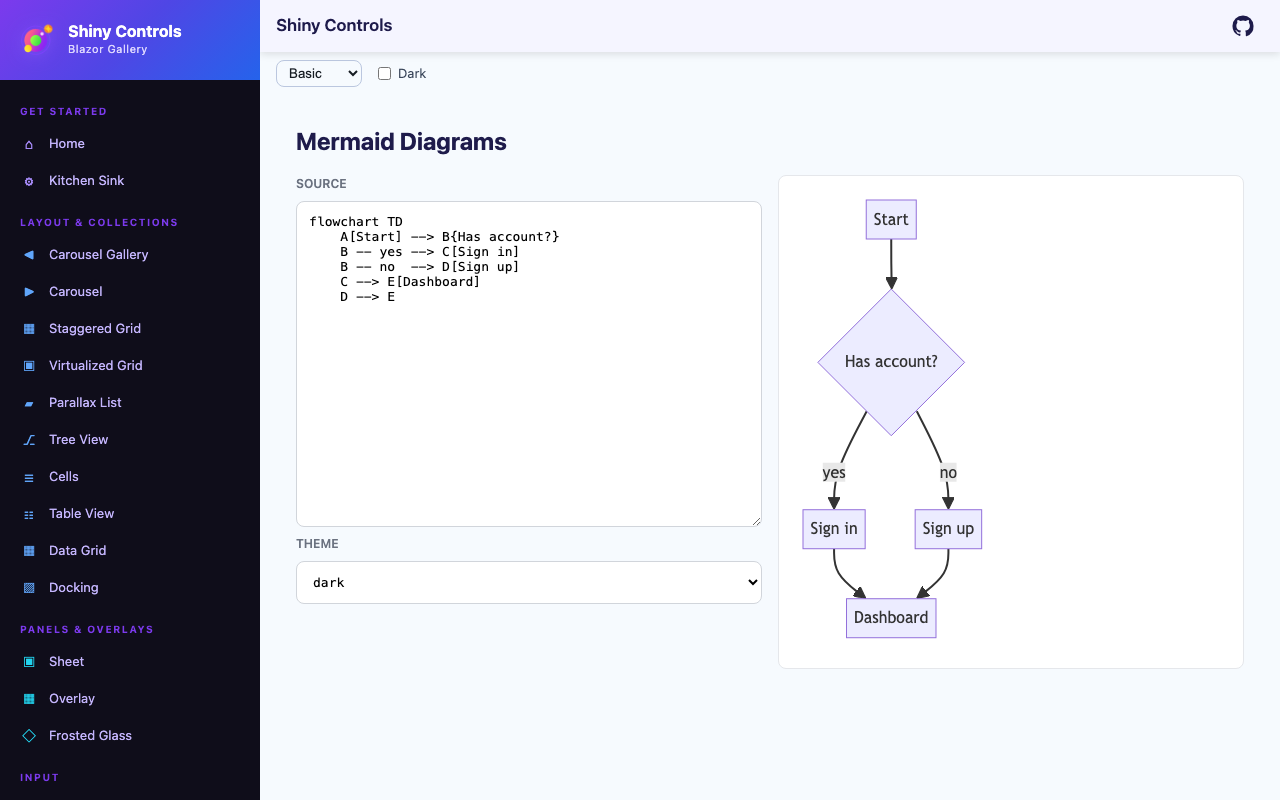 |
Features
Section titled “Features”| Feature | Description |
|---|---|
| Native MAUI Graphics rendering | Pure IDrawable implementation, no WebView or JavaScript |
| Mermaid flowchart parsing | Recursive-descent parser for graph/flowchart syntax with TD, LR, BT, RL directions |
| Node shapes | Rectangle, rounded rectangle, stadium, circle, diamond, and hexagon |
| Edge styles | Solid, dotted, and thick lines with arrow or open endings and optional labels |
| Subgraph support | Nested subgraph containers with titles and automatic layout |
| Sugiyama layout algorithm | Automatic layered graph layout with cycle removal, crossing minimization, and edge routing |
| 4 built-in themes | Default, Dark, Forest, and Neutral with full customization via DiagramTheme |
| Gesture support | Pan and pinch-to-zoom with configurable enable/disable |
| AOT-safe | Fully compatible with .NET trimming and NativeAOT |
| Error handling | Parse errors exposed via ParseError bindable property for live editor scenarios |
- MyApp/
1<Project Sdk="Microsoft.NET.Sdk">2 <PropertyGroup>3 <BaseTargetFramework>net10.0</BaseTargetFramework>4 <TargetFrameworks>$(TargetFrameworks);$(BaseTargetFramework)-ios</TargetFrameworks>5 <TargetFrameworks>$(TargetFrameworks);$(BaseTargetFramework)-android</TargetFrameworks>6 <!--useful for unit testing - not enabled by default since it can cause issues and callout projects that don't support target-->7 <!--<TargetFrameworks Condition="'$(CI)' != 'true'">$(TargetFrameworks);$(BaseTargetFramework)</TargetFrameworks>-->8 9 <RootNamespace>MyApp</RootNamespace>10 <SingleProject>true</SingleProject>11 <ImplicitUsings>enable</ImplicitUsings>12 <Nullable>enable</Nullable>13 <ApplicationTitle>MyApp</ApplicationTitle>14 <ApplicationId>com.companyname.app</ApplicationId>15 <ApplicationDisplayVersion>1.0</ApplicationDisplayVersion>16 <ApplicationVersion>1</ApplicationVersion>17 18 <MauiXamlInflator>SourceGen</MauiXamlInflator>19 <!--uncomment below for XAML expressions in net10-->20 <!--<EnablePreviewFeatures>true</EnablePreviewFeatures>-->2122 <MauiVersion>10.0.110</MauiVersion>23 <ShinyVersion>6.3.0</ShinyVersion>24 <ShinyControlsVersion>1.8.0-beta-0004</ShinyControlsVersion>25 <ShinyShellVersion>7.0.3</ShinyShellVersion>26 <ShinyDocumentDbVersion>14.1.0</ShinyDocumentDbVersion>27 <ShinyExtensionsVersion>6.0.1</ShinyExtensionsVersion>28 <ShinyHttpServerVersion>2.2.0</ShinyHttpServerVersion>29 <ShinySpeechVersion>3.0.0-beta-0030</ShinySpeechVersion>30 <ShinyHealthVersion>2.0.1</ShinyHealthVersion>31 <ShinyMusicVersion>4.1.0</ShinyMusicVersion>32 <ShinyObdVersion>1.4.0</ShinyObdVersion>33 <ShinyRecognitionVersion>1.0.0-beta-0006</ShinyRecognitionVersion>3435 <EnableAotAnalyzer>true</EnableAotAnalyzer>36 <EnableTrimAnalyzer>true</EnableTrimAnalyzer>37 <EnableSingleFileAnalyzer>true</EnableSingleFileAnalyzer>3839 </PropertyGroup>4041 <!-- If you want to enable AOT for iOS, uncomment the below. Note that this will cause a significant increase in build time, but will result in faster runtime performance and smaller app size. You can also enable it for just Release builds if you prefer.42 <PropertyGroup Condition="$([MSBuild]::GetTargetPlatformIdentifier('$(TargetFramework)')) == 'ios' and '$(Configuration)' == 'Release'">43 <PublishAot>true</PublishAot>44 </PropertyGroup>45 -->4647 <PropertyGroup Condition="'$(TargetFramework)' != '$(BaseTargetFramework)'">48 <OutputType>Exe</OutputType>49 <UseMaui>true</UseMaui>50 <DefineConstants>$(DefineConstants);PLATFORM</DefineConstants>51 </PropertyGroup>5253 <PropertyGroup Condition="'$(TargetFramework)' == '$(BaseTargetFramework)'">54 <OutputType>Library</OutputType>55 <UseMaui>false</UseMaui>56 </PropertyGroup>5758 <PropertyGroup Condition="$([MSBuild]::GetTargetPlatformIdentifier('$(TargetFramework)')) == 'android'">59 <SupportedOSPlatformVersion>26.0</SupportedOSPlatformVersion>60 <TargetPlatformVersion>36</TargetPlatformVersion>61 <!--62 <EmbedAssembliesIntoApk Condition="'$(Configuration)' == 'Debug'">true</EmbedAssembliesIntoApk>63 <AndroidPackageFormats Condition="'$(Configuration)' == 'Release'">aab</AndroidPackageFormats>64 <AndroidLinkTool>r8</AndroidLinkTool>65 <AndroidLinkTool>proguard</AndroidLinkTool>66 -->67 </PropertyGroup>6869 <PropertyGroup Condition="$([MSBuild]::GetTargetPlatformIdentifier('$(TargetFramework)')) == 'ios' AND '$(Configuration)' == 'Debug'">70 <!--forces the simulator to pickup entitlements-->71 <EnableCodeSigning>true</EnableCodeSigning>72 <CodesignRequireProvisioningProfile>true</CodesignRequireProvisioningProfile>73 <DisableCodesignVerification>true</DisableCodesignVerification>74 </PropertyGroup>7576 <PropertyGroup Condition="$([MSBuild]::GetTargetPlatformIdentifier('$(TargetFramework)')) == 'ios' OR $([MSBuild]::GetTargetPlatformIdentifier('$(TargetFramework)')) == 'maccatalyst'">77 <SupportedOSPlatformVersion>15.0</SupportedOSPlatformVersion>78 <DefineConstants>$(DefineConstants);APPLE</DefineConstants> 79 </PropertyGroup>8081 <ItemGroup Condition="$([MSBuild]::GetTargetPlatformIdentifier('$(TargetFramework)')) == 'ios' OR $([MSBuild]::GetTargetPlatformIdentifier('$(TargetFramework)')) == 'maccatalyst'">82 <BundleResource Include="Platforms\iOS\PrivacyInfo.xcprivacy" LogicalName="PrivacyInfo.xcprivacy" />83 84 <CustomEntitlements Include="keychain-access-groups" Type="StringArray" Value="%24(AppIdentifierPrefix)$(ApplicationId)" Visible="false" />85 </ItemGroup>8687 <ItemGroup>88 <TrimmerRootDescriptor Include="Linker.xml" Condition="'$(Configuration)' == 'Release'" />8990 <MauiIcon Include="Resources\AppIcon\appicon.svg" ForegroundFile="Resources\AppIcon\appiconfg.svg" Color="#512BD4" />91 <MauiSplashScreen Include="Resources\Splash\splash.svg" Color="#512BD4" BaseSize="128,128" />9293 <MauiImage Include="Resources\Images\*" />94 <MauiFont Include="Resources\Fonts\*" />95 <MauiAsset Include="Resources\Raw\**" LogicalName="%(RecursiveDir)%(Filename)%(Extension)" />96 </ItemGroup>9798 <ItemGroup>99 <PackageReference Include="Shiny.Maui.Controls.MermaidDiagrams" Version="$(ShinyControlsVersion)" />100 <!-- always referenced directly: BaseServices & friends are registered by its [Singleton]/[Scoped] source generator -->101 <PackageReference Include="Shiny.Extensions.DependencyInjection" Version="$(ShinyExtensionsVersion)" />102 <PackageReference Include="Microsoft.Maui.Controls" Version="$(MauiVersion)" />103 <PackageReference Include="Microsoft.Extensions.Logging.Debug" Version="10.0.13" Condition="'$(Configuration)' == 'Debug'" />104 </ItemGroup>105106 <ItemGroup Condition="'$(TargetFramework)' != '$(BaseTargetFramework)'">107 <PackageReference Include="Shiny.Hosting.Maui" Version="$(ShinyVersion)" />108 </ItemGroup>109110</Project>-
Install the NuGet package
Terminal window dotnet add package Shiny.Maui.Controls.MermaidDiagrams -
Add the control to your page
<ContentPage xmlns:diagram="http://shiny.net/maui/diagrams"><diagram:MermaidDiagramControlDiagramText="{Binding MermaidText}"Theme="{Binding SelectedTheme}" /></ContentPage>
Quick Example
Section titled “Quick Example”var control = new MermaidDiagramControl{ DiagramText = """ graph TD A[Start] --> B{Decision} B -->|Yes| C[Action] B -->|No| D[End] C --> D """, Theme = new DefaultTheme()};The control automatically parses the Mermaid text, computes the layout, and renders the diagram. When DiagramText changes, the diagram updates immediately.
Supported Mermaid Syntax
Section titled “Supported Mermaid Syntax”graph TD %% or: flowchart LR, BT, RL A[Rectangle] B(Rounded) C([Stadium]) D((Circle)) E{Diamond} F{{Hexagon}}
A --> B %% solid arrow B --- C %% solid line (no arrow) C -.-> D %% dotted arrow D -.- E %% dotted line E ==> F %% thick arrow F === A %% thick line
A -->|label| B %% edge with label
subgraph Group [My Group] G --> H endAI Coding Assistant
Section titled “AI Coding Assistant”Step 1 — Add the marketplace:
claude plugin marketplace add shinyorg/skillsStep 2 — Install the plugin:
claude plugin install shiny@shinyOne plugin installs all 48 Shiny skills. Your agent loads only the skill relevant to what you're building, so there's no cost to having them all available.
Step 1 — Add the marketplace:
copilot plugin marketplace add https://github.com/shinyorg/skillsStep 2 — Install the plugin:
copilot plugin install shiny@shinyOne plugin installs all 48 Shiny skills. Your agent loads only the skill relevant to what you're building, so there's no cost to having them all available.
Next Steps
Section titled “Next Steps”- Control Properties — All bindable properties and layout options
- Theming — Built-in themes and custom theme creation
- Release Notes