


Overlay & LoadingOverlay
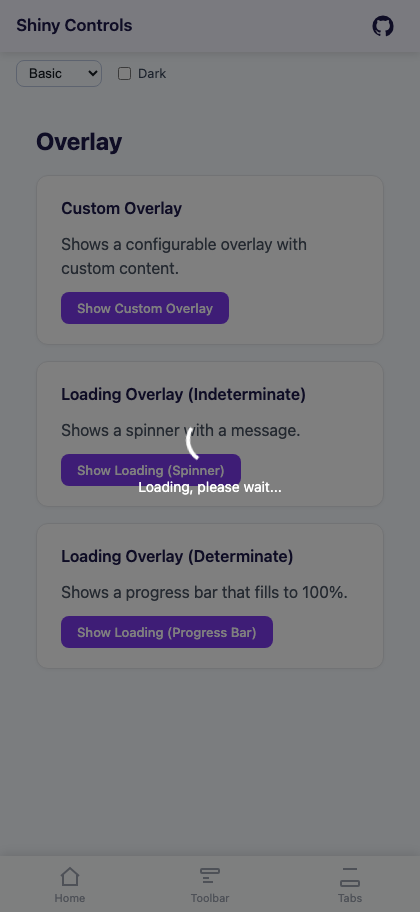
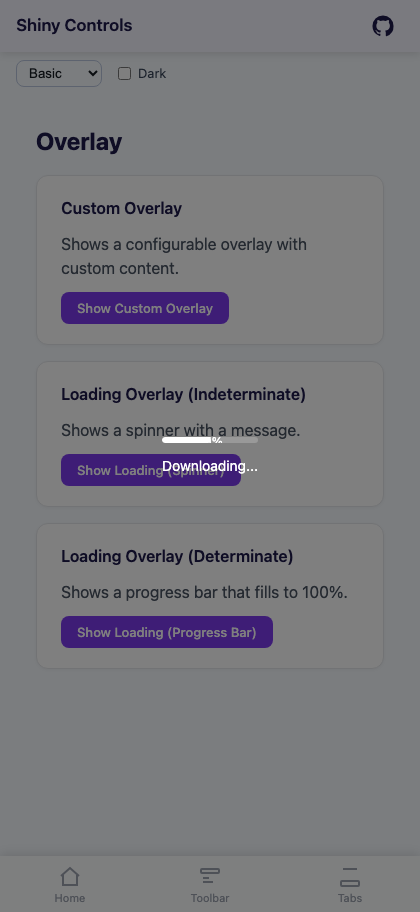
A full-screen overlay control with backdrop dimming, optional frosted glass blur, and fade animation. On MAUI, integrates with OverlayHost/ShinyContentPage (the same backdrop system used by FloatingPanel). The base Overlay supports any custom content via DataTemplate (MAUI) or RenderFragment (Blazor). The LoadingOverlay subclass provides a built-in loading template with either an indeterminate spinner or a determinate progress bar.


MAUI
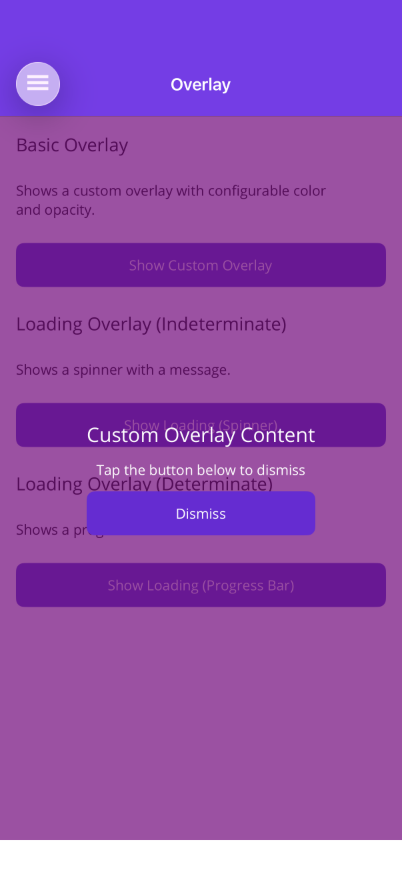 |
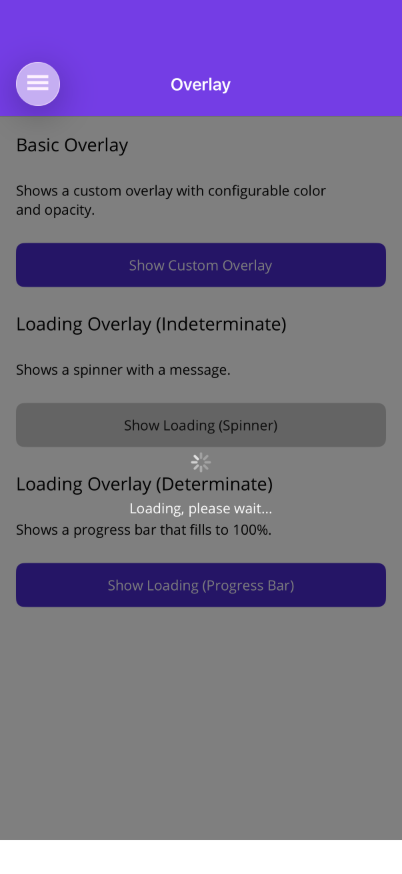 |
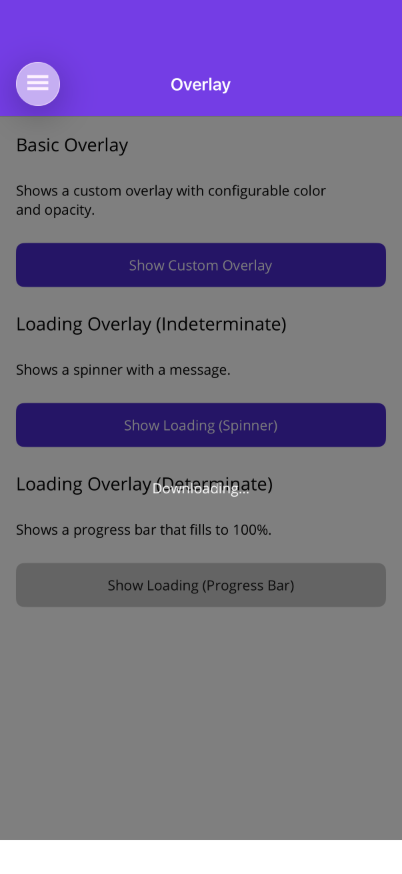 |
Blazor
| Custom overlay | Loading spinner | Determinate progress |
|---|---|---|
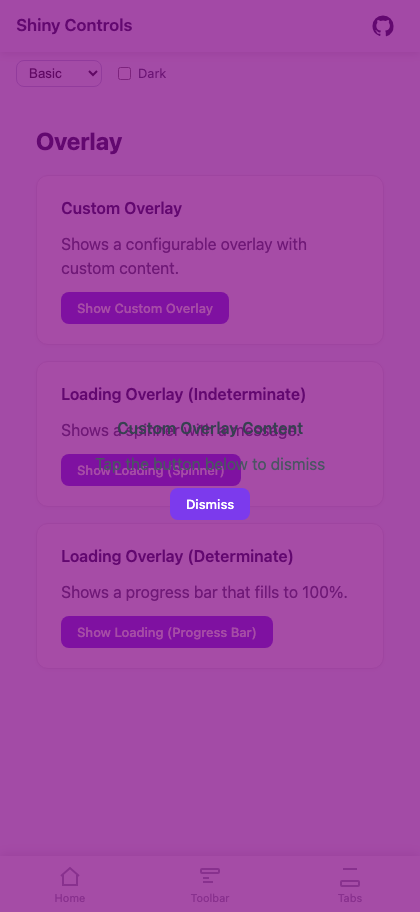 |
 |
 |
Features
Section titled “Features”- Integrates with
OverlayHost/ShinyContentPageon MAUI (shared backdrop with FloatingPanel) - Optional frosted glass blur effect behind the backdrop
- Smooth fade in/out animation
- Custom content support via DataTemplate (MAUI) or RenderFragment (Blazor)
- Built-in
LoadingOverlaywith spinner or progress bar - Two-way bindable
IsShownproperty - Backdrop tap to dismiss
- Optional message text
Quick Start
Section titled “Quick Start”MAUI — Custom Overlay
Section titled “MAUI — Custom Overlay”Overlays must be placed inside ShinyContentPage.Panels (or an OverlayHost). The page must use ShinyContentPage as its base class.
<shiny:ShinyContentPage xmlns:shiny="http://shiny.net/maui/controls" ...>
    <!-- Page content (set via ContentProperty) -->    <ScrollView>        <VerticalStackLayout Padding="16">            <Button Text="Show Overlay" Command="{Binding ShowOverlayCommand}" />        </VerticalStackLayout>    </ScrollView>
    <!-- Overlays in the Panels collection -->    <shiny:ShinyContentPage.Panels>        <shiny:Overlay IsShown="{Binding IsOverlayVisible}"                       BlurRadius="10">            <shiny:Overlay.OverlayContentTemplate>                <DataTemplate>                    <VerticalStackLayout HorizontalOptions="Center" VerticalOptions="Center" Spacing="12">                        <Label Text="Hello from the overlay!" TextColor="White" FontSize="20" />                        <Button Text="Dismiss" Command="{Binding DismissCommand}" />                    </VerticalStackLayout>                </DataTemplate>            </shiny:Overlay.OverlayContentTemplate>        </shiny:Overlay>    </shiny:ShinyContentPage.Panels>
</shiny:ShinyContentPage>
MAUI — Loading Overlay (Spinner)
Section titled “MAUI — Loading Overlay (Spinner)”<shiny:ShinyContentPage.Panels> <shiny:LoadingOverlay IsShown="{Binding IsBusy}" Message="Loading, please wait..." /></shiny:ShinyContentPage.Panels>MAUI — Loading Overlay (Progress Bar)
Section titled “MAUI — Loading Overlay (Progress Bar)”<shiny:ShinyContentPage.Panels> <shiny:LoadingOverlay IsShown="{Binding IsBusy}" IsIndeterminate="False" Progress="{Binding DownloadProgress}" Message="Downloading..." /></shiny:ShinyContentPage.Panels>MAUI — Built-in page loading overlay
Section titled “MAUI — Built-in page loading overlay”Every ShinyContentPage has a LoadingOverlay built in — no need to add one to Panels. Bind IsLoading and it shows on top of everything (it never dismisses on a backdrop tap). Customize with the Loading* passthrough properties, including a LoadingContentTemplate that replaces the spinner content entirely.
<shiny:ShinyContentPage IsLoading="{Binding IsBusy}"                        LoadingMessage="Working on it…"                        LoadingBlurRadius="8"                        ...>    <ScrollView>...</ScrollView>
    <!-- optional: fully custom loading content -->    <shiny:ShinyContentPage.LoadingContentTemplate>        <DataTemplate>            <Label Text="Please wait…" TextColor="White"                   HorizontalOptions="Center" VerticalOptions="Center" />        </DataTemplate>    </shiny:ShinyContentPage.LoadingContentTemplate></shiny:ShinyContentPage>
Passthroughs: IsLoading, LoadingMessage, LoadingIsIndeterminate, LoadingProgress, LoadingSpinnerColor, LoadingBlurRadius, LoadingContentTemplate, and the underlying LoadingOverlay instance. The base Overlay also has CloseOnBackdropTap (default true) to opt out of tap-to-dismiss.
Blazor — Custom Overlay
Section titled “Blazor — Custom Overlay”<Overlay IsShown="@isShown" OverlayColor="rgba(0, 0, 0, 0.6)" BlurRadius="10"> <ChildContent> <button @onclick="() => isShown = true">Show Overlay</button> </ChildContent> <OverlayContent> <div style="color: white; text-align: center;"> <h2>Hello from the overlay!</h2> <button @onclick="() => isShown = false">Dismiss</button> </div> </OverlayContent></Overlay>Blazor — Loading Overlay
Section titled “Blazor — Loading Overlay”<LoadingOverlay IsShown="@isBusy" IsIndeterminate="false" Progress="@progress" BlurRadius="8" Message="Downloading..."> <p>Page content that gets overlaid when loading</p></LoadingOverlay>Overlay Properties
Section titled “Overlay Properties”| Property | Type | Default | Description |
|---|---|---|---|
| IsShown | bool | false | Show/hide the overlay (TwoWay) |
| AnimationDuration | uint | 250 | Fade animation duration in ms |
| BlurRadius | double | 0 | When > 0, applies a frosted glass blur effect behind the backdrop using FrostedGlassView. Uses native platform blur (UIVisualEffectView on iOS, RenderEffect on Android 12+). |
| OverlayContentTemplate | DataTemplate | null | Custom overlay content |
Backdrop color and opacity are controlled at the ShinyContentPage / OverlayHost level:
| Property | Type | Default | Description |
|---|---|---|---|
| BackdropColor | Color | Black | Shared backdrop color |
| BackdropMaxOpacity | double | 0.5 | Maximum backdrop opacity when shown |
Blazor
Section titled “Blazor”| Parameter | Type | Default | Description |
|---|---|---|---|
| IsShown | bool | false | Show/hide overlay |
| IsShownChanged | EventCallback<bool> | — | Two-way binding callback |
| OverlayColor | string | “rgba(0,0,0,0.5)” | CSS color for backdrop |
| OverlayOpacity | double | 1.0 | Additional opacity multiplier |
| BlurRadius | double | 0 | When > 0, applies CSS backdrop-filter: blur(Xpx) to the backdrop |
| ChildContent | RenderFragment | — | Normal page content |
| OverlayContent | RenderFragment | — | Content rendered in the overlay |
| CssClass | string? | null | Additional CSS class |
LoadingOverlay Properties
Section titled “LoadingOverlay Properties”Inherits all Overlay properties, plus:
| Property | Type | Default | Description |
|---|---|---|---|
| IsIndeterminate | bool | true | true = spinner, false = progress bar |
| Progress | double | 0 | Progress 0–100 (TwoWay) |
| Message | string? | null | Text below the loading indicator |
| SpinnerColor | Color | White | ActivityIndicator color |
Blazor
Section titled “Blazor”| Parameter | Type | Default | Description |
|---|---|---|---|
| IsIndeterminate | bool | true | Spinner (true) or progress bar (false) |
| Progress | double | 0 | Progress 0–100 |
| Message | string? | null | Text below the loading indicator |
| SpinnerColor | string | “#FFFFFF” | CSS spinner border color |
| SpinnerSize | double | 48 | Spinner diameter in px |
| ProgressBarColor | string | “#FFFFFF” | Progress bar fill color |
| ProgressTrackColor | string | “rgba(255,255,255,0.2)” | Progress bar track color |
| BlurRadius | double | 0 | When > 0, applies CSS backdrop-filter: blur(Xpx) to the backdrop |
Placement Notes
Section titled “Placement Notes”MAUI: Place Overlay or LoadingOverlay inside ShinyContentPage.Panels or an OverlayHost. They share the backdrop with FloatingPanel — only one backdrop is shown at a time, and it auto-hides when all clients dismiss. Tapping the backdrop dismisses the overlay.
Blazor: The Overlay component uses ChildContent for your normal page content and OverlayContent for what appears in the overlay. Uses fixed CSS positioning when shown. No ShinyContentPage equivalent needed.
Code-Behind Setup (MAUI)
Section titled “Code-Behind Setup (MAUI)”Your page must inherit from ShinyContentPage:
using Shiny.Maui.Controls;
public partial class MyPage : ShinyContentPage{    public MyPage()    {        InitializeComponent();    }}
Placement and the edge glow
Section titled “Placement and the edge glow”Overlay centres its content, which is right for a dialog and wrong for a prompt bar. ContentAlignment (Start / Center / End) and ContentMargin move it — that is how the Quick Entry popup sits in the upper third of the page while sharing this control’s backdrop, blur and show/hide worker rather than reimplementing them.
ShowEdgeGlow rims the page with an animated Siri-style colour wash for as long as the overlay is up, sequenced with its own show and hide. It sits behind the content and in front of the backdrop, and is click-through, so it is purely a signal that something is happening. GlowOptions (a ScreenGlowOptions) tunes thickness, palette, speed, pulse and intensity; leave it null for the defaults.
<shiny:Overlay IsShown="{Binding IsAsking}" ContentAlignment="Start" ContentMargin="0,120,0,0" ShowEdgeGlow="True" BlurRadius="18" />A DataTemplate that returns the same view instance each time is supported, which is how you host one long-lived view rather than rebuilding it on every show.