


Simulator

shiny-bridge-sim is a terminal app that stands in for the native app. It serves every bridge the library ships, but each
one answers with values you choose: a Wi-Fi network that drops mid-sync, a permission the user denied, a BLE device
that appears three seconds late, a GPS walk around the block. Nothing has to be deployed to a phone, and the setup can be
saved as a file and replayed in CI.
dotnet tool install -g Shiny.AppDeviceBridge.Simulator
# your page's dev server — dotnet watch, Vite — served on the simulator's originshiny-bridge-sim --dev-server http://localhost:5288
# or a built appshiny-bridge-sim --app ./bin/Release/net10.0/publish/wwwroot
Open the printed address (http://127.0.0.1:5299/ by default) in a browser. The page and the bridges share that origin,
so a page built with Shiny.AppDeviceBridge.Blazor or the TypeScript client finds the bridges on its own. The page needs
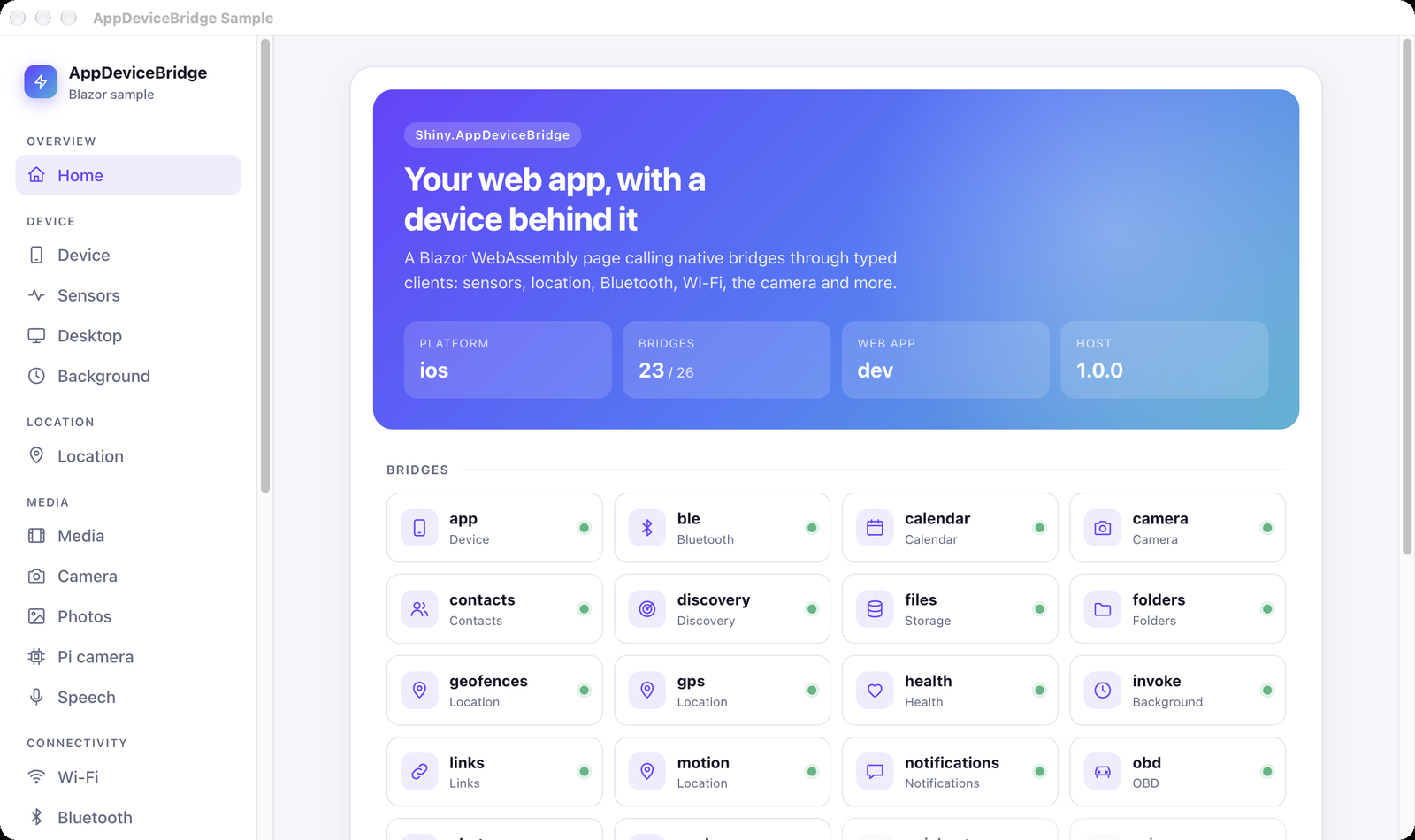
no changes. Here the repository’s Blazor sample runs in Chrome on a Mac, and reports iOS with 23 of 26 bridges because
the simulator says so:
How it works
Section titled “How it works”The simulator runs the real bridge server on Shiny.Net.HttpServer: the same guard, the same AppDeviceBridgePolicies.Bridges
policy, the same event stream, and the real host, settings and files bridges. Every device bridge is replaced by a
simulated one, built from its [BridgeClient] interface, which is the same declaration the C# and TypeScript clients are
generated from. So the simulator answers exactly the routes, query parameters and bodies those clients send, and a new
bridge appears in it as soon as its interface is added to the catalog.
Every route starts out answering with a sample of its contract, generated from the bridge’s source-generated JSON metadata. Property names, casing and enum spelling are exactly what the page’s client reads. A value you set is checked against the contract before it’s used, so the simulator never sends something the real bridge couldn’t.
Security is unchanged from an app’s release build. The server listens on loopback only and admits callers on this machine.
The terminal UI
Section titled “The terminal UI”| Tab | What it’s for |
|---|---|
| Bridges | A tree of the host, every bridge, its routes and its events. Pick a route to set its answer, an event to fire it, a bridge to switch it off. |
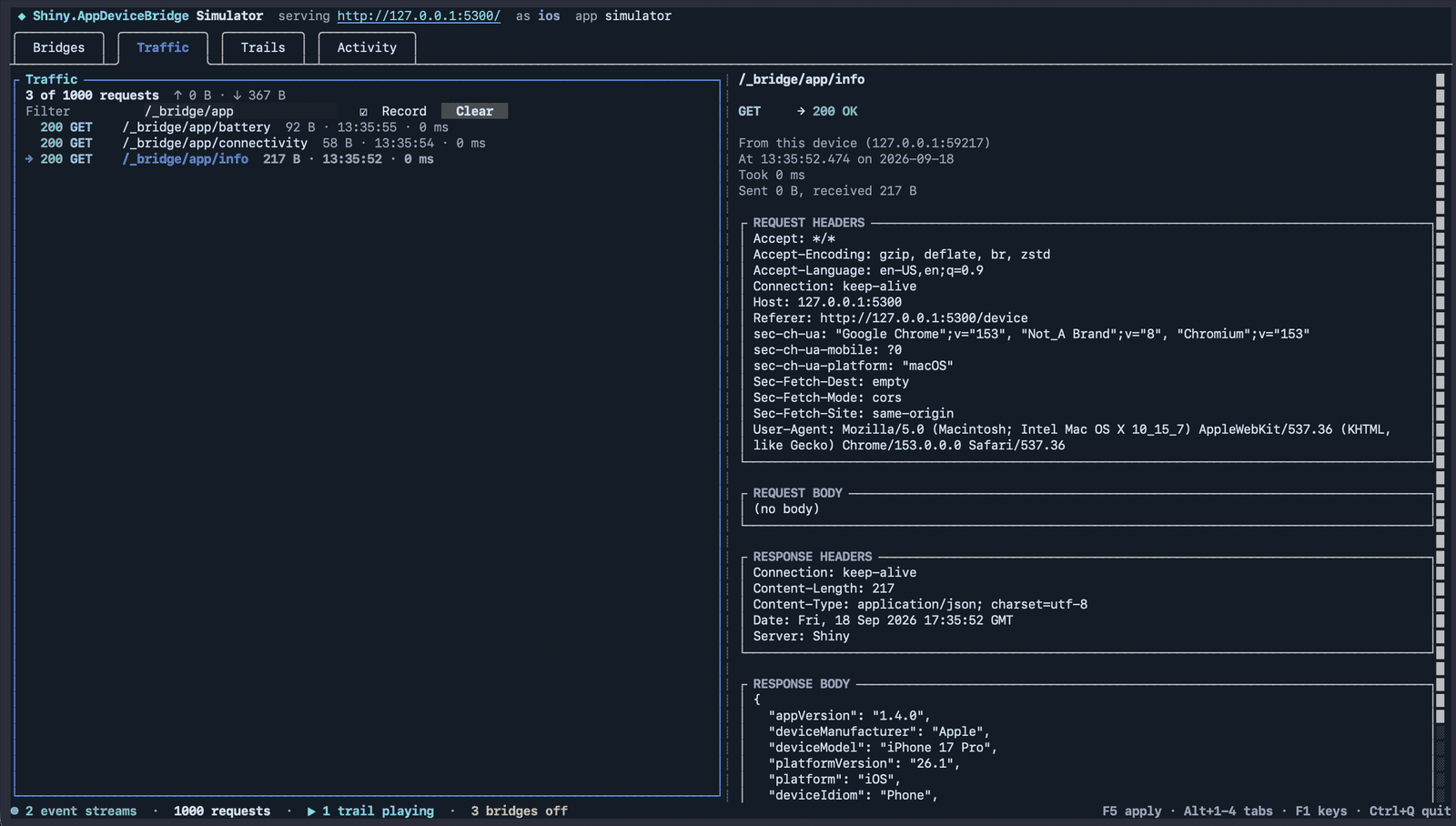
| Traffic | Every request the page made and what it got back, with a filter, a record switch and the full headers and bodies. The same recorder as the MAUI traffic monitor. |
| Trails | Timed scripts: load a .gpx walk or a .trail.json, record one, play several at once, change the speed, loop. |
| Activity | What happened: values changed, events fired, trail steps played. |
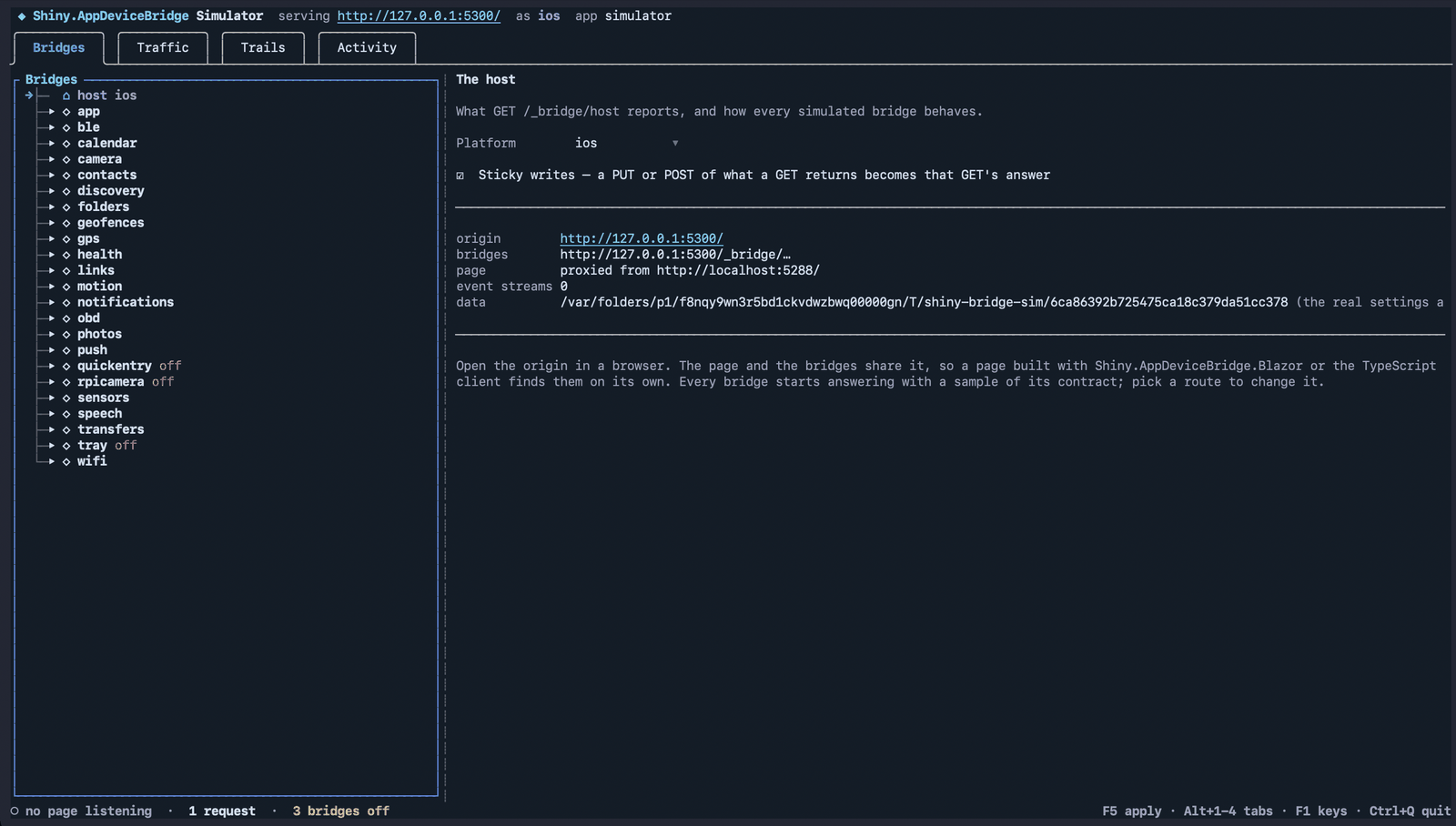
A route can answer with:
| Response | Behavior |
|---|---|
| Value (200) | the JSON you give, or a file for a route that returns bytes (a photo, a camera snapshot). With no file, a small placeholder image is sent. |
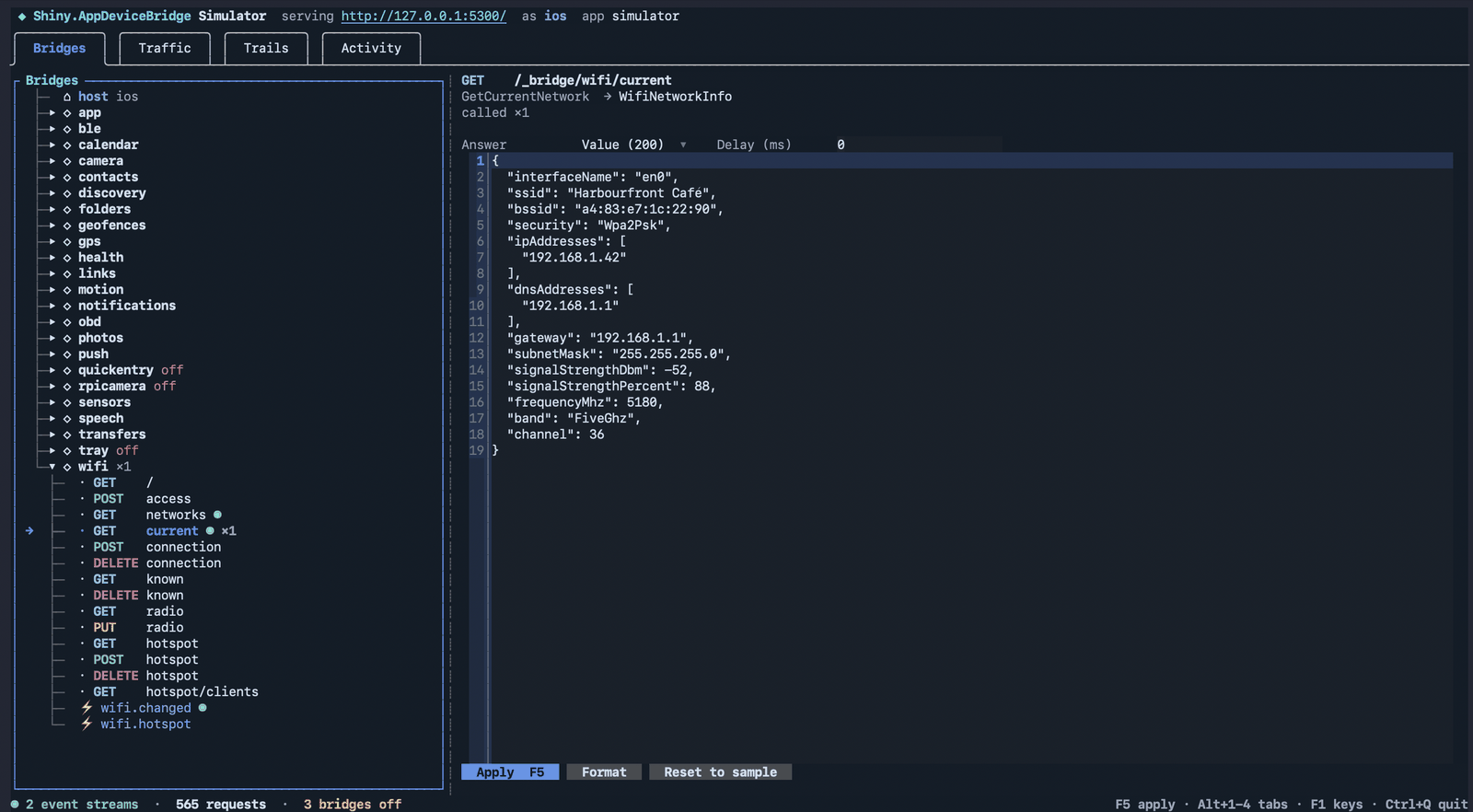
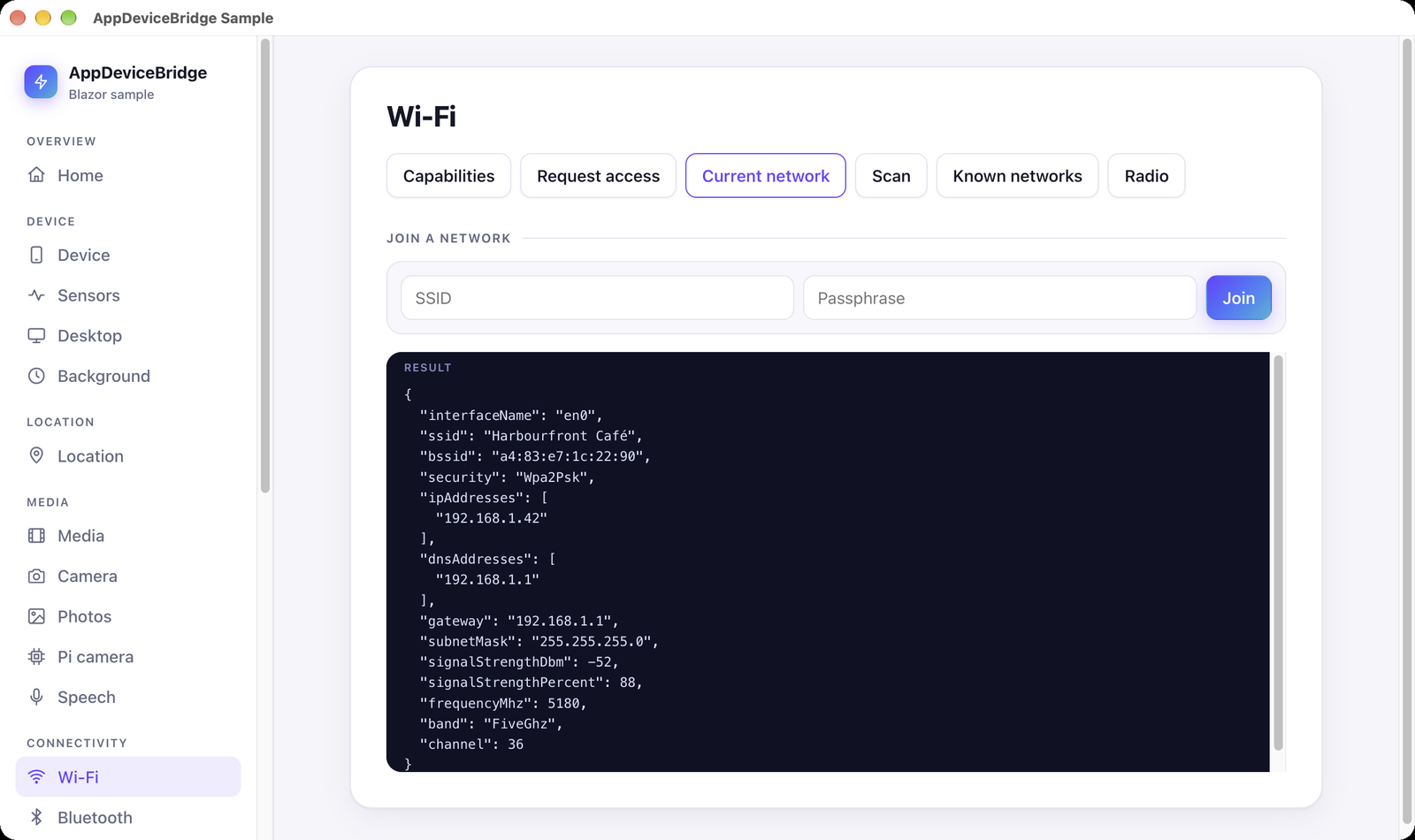
| Null (204) | what the page’s client reads as null, such as no current Wi-Fi network. |
| Error | any 4xx or 5xx with the bridge’s error body. The presets are 501 not_supported, 403 access_denied, 400 bad_request, 404 not_found, 409 conflict and 500 bridge_failed. The page sees a BridgeException with that status and Code. |
| A sequence of values | one per call, the last repeating once they run out — a route that changes as the page polls it. A trail step and a scenario write it as values instead of value. |
| The route in the simulator | What the page gets |
|---|---|
 |
 |
Each route can also wait before it answers, to show the page’s loading state or trip its timeout. Switching a whole bridge
off makes every route answer 501 and GET /_bridge/host report it as unsupported, which is the bridge on a platform
without it. The host node sets the platform the page is told it’s on.
Sticky writes (on by default): a PUT or POST whose body is the contract its GET returns, such as PUT wifi/radio or
POST gps/listener, becomes that GET’s answer, so the page reads back what it wrote.
The Traffic tab, filtered to one bridge, with a request picked:
| Key | |
|---|---|
| Enter / Esc | into the selected editor / back to the tree |
| F5 | apply a route, fire an event, play or stop a trail |
| Alt+1 … Alt+4 | switch tabs |
| Ctrl+L | load a trail |
| Ctrl+R | start or stop recording a trail |
| Ctrl+S / Ctrl+O | save / apply a scenario |
| F1 / Ctrl+Q | help / quit |
Placeholders
Section titled “Placeholders”A value or payload may hold placeholders, filled in each time it is sent, so saved values stay current:
| Placeholder | Sent as |
|---|---|
"$now" |
the current time, ISO 8601 |
"$now-5m", "$now+30s", "$now+2h", "$now-1d" |
the current time, offset |
"$uuid" |
a new GUID |
Only a whole string value is a placeholder; "at $now" is sent as written.
Trails
Section titled “Trails”A trail is a list of steps, each after a delay from the one before: fire an event, set what a route answers, or switch a bridge on or off.
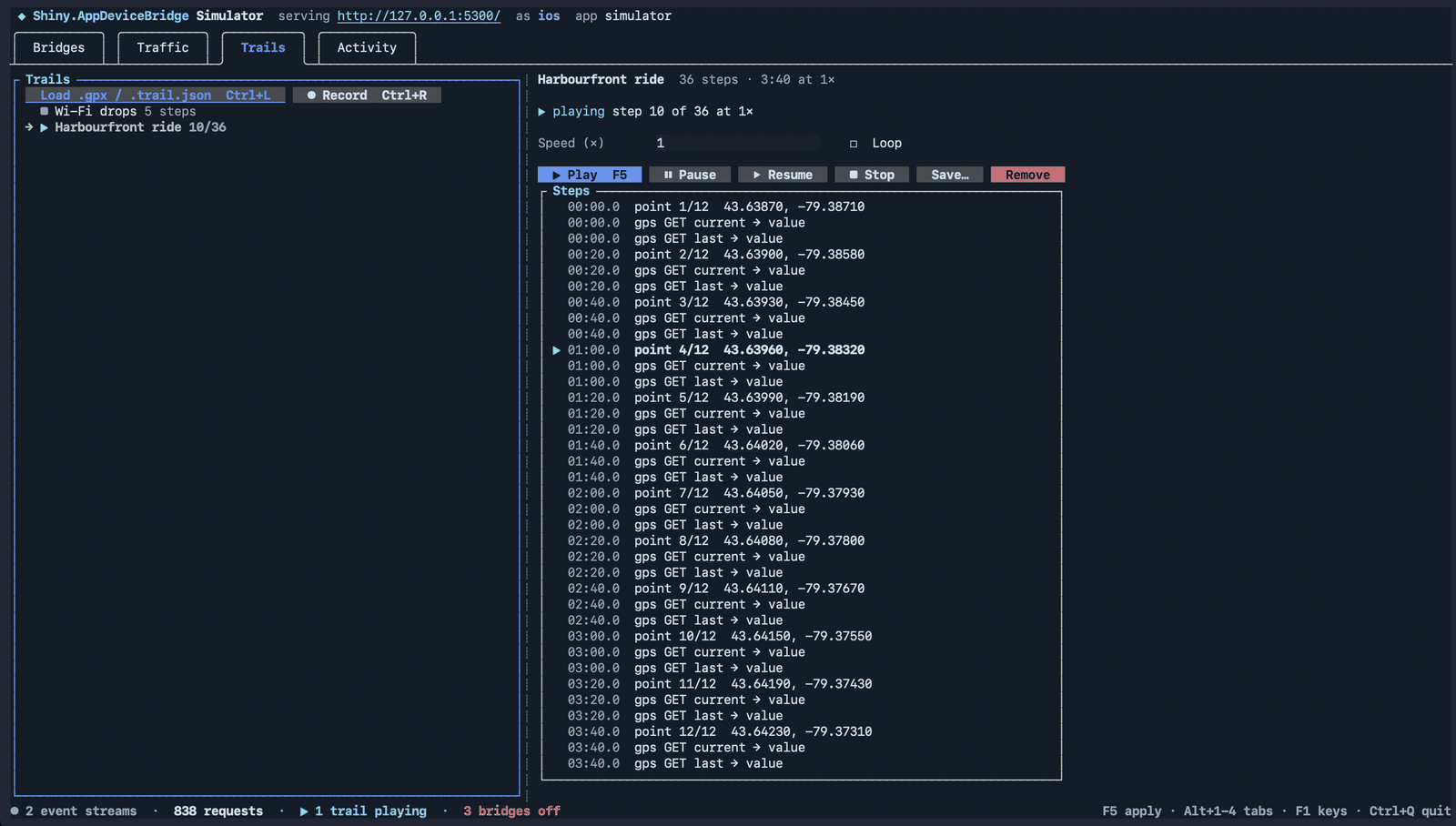
{ "name": "Lose Wi-Fi", "steps": [ { "delayMs": 0, "event": "wifi.changed", "payload": { "current": null } }, { "delayMs": 0, "bridge": "wifi", "route": "GET current", "mode": "null" }, { "delayMs": 5000, "bridge": "wifi", "route": "POST connection", "mode": "error", "status": 409, "code": "conflict" }, { "delayMs": 2000, "bridge": "ble", "supported": false } ]}A .gpx file (a track, a route or waypoints) loads as a GPS walk at its recorded pace, or one point a second when it has
no times. Each point is fired as gps.reading, with heading and speed worked out from the points around it, and also
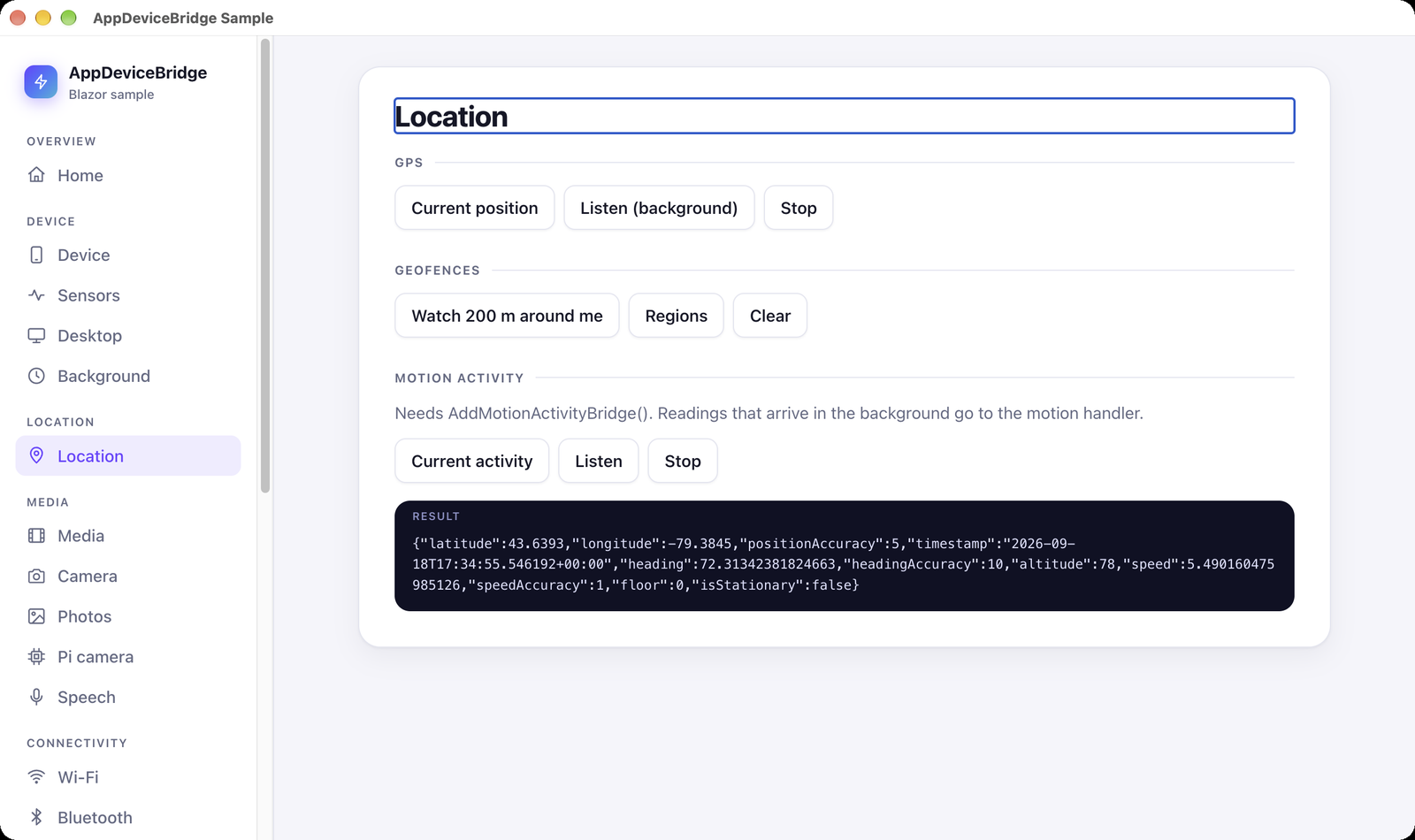
becomes what GET gps/current and GET gps/last answer, so a page that polls sees the same walk as one that listens.
| Playing a GPX ride | The page receiving it |
|---|---|
 |
 |
Recording (Ctrl+R) turns what you do in the Bridges tab into a trail with the time between each step. Save it with Save… and it replays the same way every time.
Scenarios and CI
Section titled “Scenarios and CI”Ctrl+S saves a scenario: the platform, every bridge switched off, every route and event payload that differs from its sample, and every trail. Start with it again, or run without the TUI in a test pipeline:
shiny-bridge-sim --scenario offline.scenario.json --trail walk.gpx --play walk --speed 4 --headless--headless serves, applies, plays and writes the activity and every request to the console until Ctrl+C.
| Option | |
|---|---|
--app <dir> |
serve a built web app: a published Blazor wwwroot, or any folder with index.html |
--dev-server <url> |
serve a dev server’s pages on the bridges’ origin |
--port <n> |
loopback port, 5299 by default, 0 for any free one |
--platform <name> |
android, ios, maccatalyst, macos, windows or linux |
--app-id <id> |
the app id GET /_bridge/host reports |
--scenario <file> |
apply a scenario on start |
--trail <file> |
load a .gpx or .trail.json; repeatable |
--play <name> |
play a loaded trail on start; repeatable |
--speed <n> |
playback speed for --play |
--data <dir> |
where the real settings and files bridges keep data; a temporary folder by default |
--headless |
no TUI |
--web |
no TUI: control the simulator from a browser panel at /_sim/ instead; see The web panel |
--web-token <t> |
the token the panel’s API requires; generated by default, and part of the printed link |
--mcp |
serve the MCP control endpoint so an agent can drive the simulator |
--mcp-token <t> |
the token that endpoint requires; generated and printed by default |
--mcp-stdio |
speak MCP on stdin/stdout for an agent that starts the simulator itself; implies --headless |
The web panel
Section titled “The web panel”--web swaps the terminal UI for a control panel in the browser, served by the simulator itself at /_sim/ — beside the
page, on the same origin:
shiny-bridge-sim --dev-server http://localhost:5288 --webIt prints a link to open, with the panel’s token in the fragment (http://127.0.0.1:5299/_sim/#token=…). The panel does
what the TUI does: pick a bridge to set what each route answers (a value, a sequence, a 204 null or an error, after a
delay) and to fire its events or change their payloads; switch a bridge off; pick the platform; watch Traffic and
Activity; play, pause and loop Trails; and capture or apply a Scenario. Changes made elsewhere — by a trail,
an agent over --mcp, or curl — show up as they happen. The console gets the activity log, as with --headless.
The panel is a client of a small API that can be scripted directly: POST /_sim/api/{operation}, where the operations
are the MCP tool names below and the arguments are one JSON object.
curl -X POST http://127.0.0.1:5299/_sim/api/set_route \ -H "Authorization: Bearer <token>" \ -d '{"bridge":"wifi","key":"GET current","mode":"error","status":403,"code":"access_denied"}'A value is checked against the contract exactly as one typed in the TUI is; a refusal comes back as 400 with the reason.
The panel’s own requests are left out of Traffic, so its polling never crowds out what the page did.
The API is guarded like the MCP endpoint: callers on this device only, the token on every call, and a browser’s Origin
must be the simulator’s own. The link hands the panel its token in the fragment, which no request carries, and the panel
keeps it in its own tab’s session storage — so the page under test, on the same origin but another tab, never sees it. The
panel refuses to be framed. --web goes with --mcp but not --mcp-stdio, whose stdout is the protocol.
Driving it from an AI agent
Section titled “Driving it from an AI agent”--mcp puts a Model Context Protocol server on the simulator’s own origin, so a coding
agent can set what each bridge answers, fire events, play trails and read what the page actually requested — while you
watch it happen in the terminal. Every change an agent makes is written to the Activity tab beside your own, and the
header shows mcp while the endpoint is open.
shiny-bridge-sim --dev-server http://localhost:5288 --mcpIt prints a configuration to paste into an MCP client:
{ "mcpServers": { "shiny-bridge-sim": { "type": "http", "url": "http://127.0.0.1:5299/_sim/mcp", "headers": { "Authorization": "Bearer <the printed token>" } } }}The same configuration is written to mcp.json in the simulator’s data directory. For an agent that would rather start
the simulator itself, --mcp-stdio speaks the protocol on stdin and stdout — the page is still served over HTTP, and
everything the simulator would have printed goes to stderr.
What an agent can do
Section titled “What an agent can do”| Look | get_status, list_bridges, describe_bridge, get_route — every route with a generated sample of its contract, which is the shape a value has to have |
| Set | set_route, set_route_sequence, reset_route, set_bridge_supported, set_platform, set_sticky_writes |
| Raise | fire_event, set_event_payload — fire_event returns how many page streams it reached, so an event that went nowhere says so |
| Script | list_trails, load_trail, load_trail_file, play_trail, pause_trail, stop_trail, remove_trail |
| Save | apply_scenario, apply_scenario_file, capture_scenario — capture hands back the whole setup to check in as a reproduction |
| Watch | get_traffic, get_activity, clear_traffic, set_recording, wait_for_request, wait_for_quiet |
wait_for_request is what makes an agent’s loop deterministic rather than a guess: set what a route answers, then wait
for the page to ask for it, instead of sleeping and hoping. Only requests made after the call count.
A value an agent sets is checked against the bridge’s contract exactly as one you type is, so an agent cannot make the simulator send the page something a real device could not — and the refusal names the contract it should have matched.
Security
Section titled “Security”The control endpoint rewrites what the device answers, so it is off unless you ask for it, and three things stand between it and anything that should not reach it:
- The connection must be local, untunneled and name loopback — the same check the bridges themselves use.
- The request must carry the token printed at startup.
- Any request carrying an
Originheader at all is refused. This is what keeps the page out. The endpoint is on the origin the page is served from, so a page could otherwise fetch it and quietly rewrite the very device answers it is being tested against. Browsers sendOriginon thePOSTthat MCP needs; native MCP clients send none.
--mcp-stdio mounts no HTTP endpoint and needs no token: an agent speaking over stdio already has the process.
The sample
Section titled “The sample”The repository’s Blazor sample runs against the simulator unchanged:
dotnet run --project samples/Sample.Blazor --launch-profile browser # http://localhost:5288shiny-bridge-sim --dev-server http://localhost:5288 \ --scenario samples/simulator/sample.scenario.json --trail samples/simulator/harbourfront.gpx